
Last updated: November 14, 2026
Last checked against Microsoft’s Troubleshooting blank screens in Windows support article, the KB5127648 release notes and Microsoft Learn’s black screen after sign-in guide on November 14, 2026.
Summary
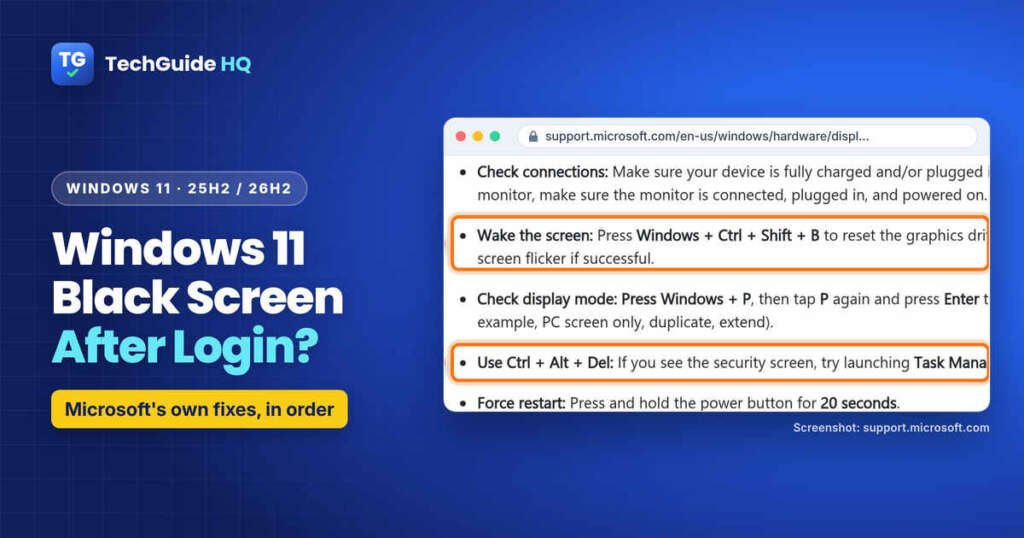
- It usually means the graphics driver or Windows Explorer didn’t start; press Windows + Ctrl + Shift + B to reset the graphics driver.
- If you only see a cursor, press Ctrl + Shift + Esc, choose Run new task and run explorer.exe.
- Install the newest update: Microsoft fixed a 25H2/26H2 sign-in black screen in KB5127648 (October 13, 2026).
- If it keeps returning, use Safe Mode to roll back the display driver, try System Restore and test a new user account.
You type your PIN, the Welcome circle spins, and then… nothing. No taskbar, no icons, just black, maybe with a mouse pointer you can move around. A Windows 11 black screen after login looks alarming, but there’s a clear order of things to try. Usually one of two things is wrong: the graphics driver isn’t drawing anything, or Windows Explorer (the part that gives you the desktop and taskbar) didn’t start. This guide shows you how to tell which one you have and fix it in a safe order. It also covers the black screen bug Microsoft confirmed in Windows 11 25H2 and 26H2 updates this year.
Why Does Windows 11 Show a Black Screen After Login?
Microsoft’s own support article on blank screens sorts the problem by what you see, and that’s the most useful way to start:
- Black screen with a cursor: Microsoft says this is often a stalled Windows process or a driver problem. Often that means Explorer didn’t load, so nothing draws the desktop.
- Black screen at login: this can come from a display output mix-up (Windows is sending the picture to a screen you aren’t looking at) or from a corrupted user profile.
- Black screen after an update: Microsoft links this to incompatible drivers or updates that didn’t finish installing.
- Black screen with a blinking cursor before Windows loads: that’s a different problem. The firmware (UEFI or BIOS) can’t find a boot device, so it happens before you ever reach the sign-in screen.
If you see an error such as “Your device ran into a problem and needs to restart”, that’s a stop error, not a blank screen, and it needs different steps.
Is the Windows 11 25H2 and 26H2 Black Screen a Known Issue?
If your black screen started after an update installed between late August and mid-October 2026, this part matters. On the release notes for the August 27, 2026 preview update KB5120998 (OS Build 26200.9278), Microsoft added a known issue on September 24 called “Devices might experience a black screen or desktop loading issues after sign-in.” Microsoft says that after KB5120998 and the updates that followed, some devices:
- showed a black screen after sign-in, with the desktop session not loading on its own;
- couldn’t reach the desktop until the session was started manually;
- logged Windows Explorer crashes in the Application event log.
Microsoft says it was seen mainly on Azure Virtual Desktop hosts using FSLogix (shared virtual work PCs), and more often with some existing user profiles. On a home laptop it’s a less likely cause, but the fix is the same either way: update.
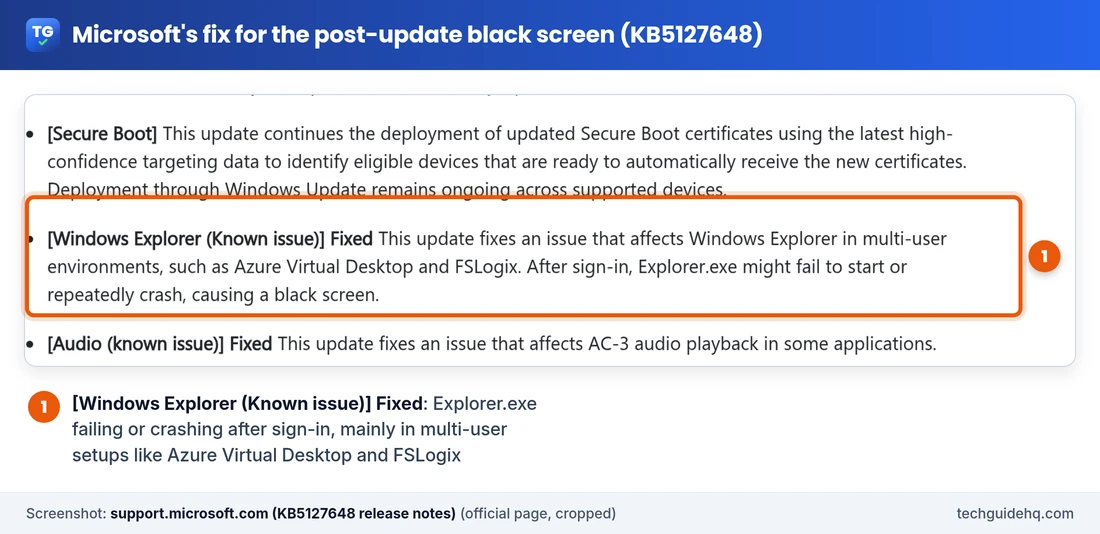
The October 13, 2026 security update KB5127648 lists the fix: “[Windows Explorer (Known issue)] Fixed. This update fixes an issue that affects Windows Explorer in multi-user environments, such as Azure Virtual Desktop and FSLogix. After sign-in, Explorer.exe might fail to start or repeatedly crash, causing a black screen.” That update applies to Windows 11 26H2, 25H2 and 24H2 (OS Builds 26300.9711, 26200.9711 and 26100.9711). Microsoft’s KB5120998 page says the problem is resolved in updates released on and after October 13, 2026.
How do I check if I already have the fix?
Updates are cumulative, so any update from October 13, 2026 onward carries this fix. At the time of writing, the newest one listed for 25H2 and 26H2 in Microsoft’s update history is the November 10, 2026 update KB5132061 (OS Builds 26300.9974 and 26200.9974). To see your build, press Windows + R, type winver and press Enter. A build of 26200.9711 or higher (25H2) or 26300.9711 or higher (26H2) already includes it. If KB5132061 won’t install or you want the full list of open bugs, see our guide to Windows 11 26H2 problems and known issues.
How to Fix a Windows 11 Black Screen After Login (Easiest First)
Work down this list in order. The first steps take seconds and change nothing permanent.
1. Check the plug, the cable and the monitor
It’s the first thing on Microsoft’s list. Make sure a laptop is charged or plugged in. If you use an external monitor, check that it’s switched on and the HDMI, DisplayPort or VGA cable is pushed in at both ends. On a laptop, unplug external displays and accessories, then sign in again.
2. Wake the screen with Windows + Ctrl + Shift + B
This shortcut resets the graphics driver. Press all four keys together once. Microsoft says you should hear a beep or see the screen flicker if it worked. It’s the quickest thing to try.
3. Press Windows + P to switch display mode
Here’s the trap: if you once used a TV or projector, Windows may still be sending the picture there. Press Windows + P, tap P again and press Enter. Each round moves to the next mode (PC screen only, Duplicate, Extend). Repeat a few times, pausing a couple of seconds between rounds, because you can’t see the menu on a black screen.
4. Black screen with a cursor? Restart Windows Explorer
If the mouse pointer moves but there’s no taskbar, Windows is running and Explorer simply isn’t. This is also the exact workaround Microsoft gave for the 25H2/26H2 known issue.
- Press Ctrl + Shift + Esc to open Task Manager. If nothing appears, press Ctrl + Alt + Del and choose Task Manager. Microsoft notes you may need the arrow keys and Enter if the mouse doesn’t respond. On a Remote Desktop session, use Ctrl + Alt + End instead.
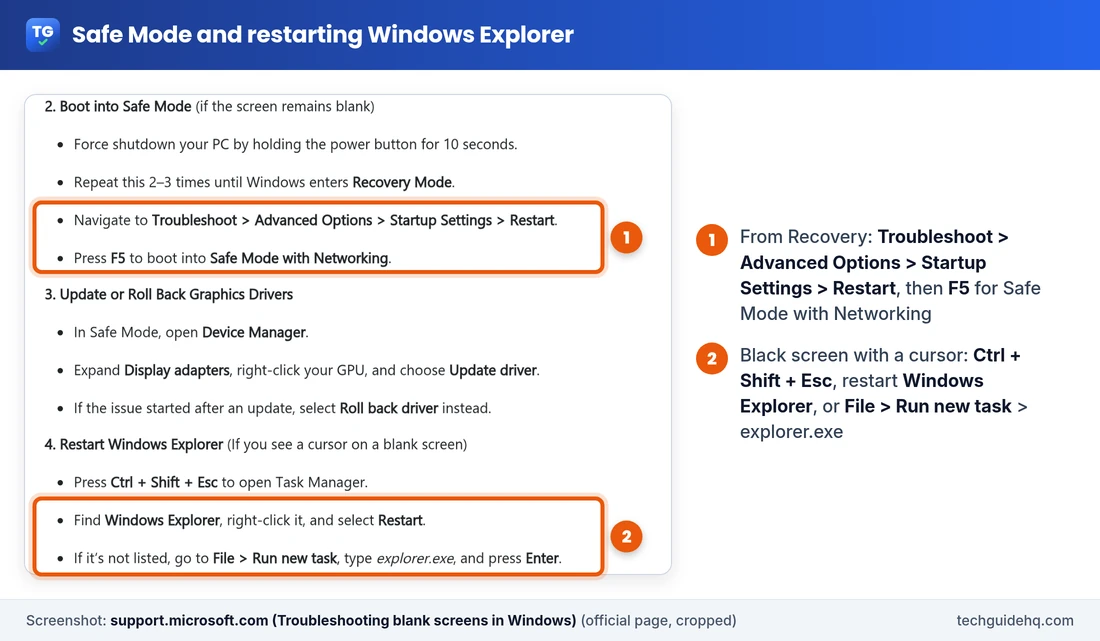
- If Windows Explorer is in the list, right-click it and select Restart.
- If it isn’t listed, select Run new task (under File on some layouts), type explorer.exe and select OK or press Enter.
The desktop should come back within a few seconds. This fixes only the current session, so once you have a desktop, go to Settings > Windows Update > Check for updates and install everything offered.
5. Force a restart
If you can’t open anything, press and hold the power button. Microsoft’s blank screen article says to hold it for 20 seconds. Then turn the PC back on. Save this for when the shortcuts above didn’t work, since any unsaved work in open apps is lost.
Still Black? Use Safe Mode to Fix the Display Driver
Safe Mode starts Windows with a basic set of drivers. If the desktop shows up there, your display driver or a startup app is the likely cause.
How do I get into Safe Mode from a black screen?
- Turn the PC on. As soon as the Windows or manufacturer logo appears, press and hold the power button until it shuts down.
- Do that a second time. On the third start, Windows should open Automatic Repair. Select Advanced options.
- Go to Troubleshoot > Advanced options > Startup Settings > Restart.
- When the list appears, press F5 for Safe Mode with Networking.
If you can see the sign-in screen, there’s a quicker way in: hold Shift and select Power > Restart. Before you start, have your BitLocker recovery key ready. Microsoft warns that encrypted devices ask for it before some recovery tools will run. If you don’t know it, Microsoft’s Find your BitLocker recovery key page explains where it’s usually saved, such as your Microsoft account. The same key matters before any BIOS change, such as turning on Secure Boot; our guide to the Windows Security Secure Boot certificate status explains when that change is worth making.
The Startup Settings list also has Enable low-resolution video. Microsoft says it starts Windows with your current video driver at low resolution and refresh rate, which helps if the black screen came from a display setting your monitor can’t show.
Update or roll back the graphics driver
- In Safe Mode, right-click Start and open Device Manager.
- Expand Display adapters and right-click your graphics card.
- If the black screen started right after a driver or Windows update, open Properties > Driver and select Roll Back Driver. Otherwise choose Update driver.
- Restart normally and sign in.
If the desktop loads in Safe Mode but goes black again in normal mode even after the driver change, the cause is probably a startup app or your user profile. The troubleshooting section below covers both.
Black Screen After a Windows Update? Undo the Change
When the problem began the moment an update finished, the recovery screen has two tools that undo recent changes without wiping your files. Get there with the same power-button method above, then open Troubleshoot > Advanced options.
- Uninstall Updates: removes a recently installed update. If the black screen is the known 25H2/26H2 Explorer issue, though, uninstalling isn’t the answer, because the bug came in August and the fix arrived in later updates. Removing the newest update can take the fix away. Install the latest update instead.
- System Restore: takes the PC back to a restore point from before the problem. Microsoft says it undoes recent changes such as app installs, driver updates and settings without affecting your personal files.
If Windows starts but keeps misbehaving after an update, our guide to the Windows 11 25H2 repair reinstall walks through Microsoft’s “Fix problems using Windows Update” option and what to do if it stalls.
Troubleshooting: When the Usual Fixes Don’t Work
Test a new user account
Microsoft lists corrupted user profiles as one cause of a black screen at login, and the 25H2/26H2 known issue hit some existing profiles more than others. To test it, get into Windows (Safe Mode works) and go to Settings > Accounts > Other users > Add account. To make a local test account, pick I don’t have this person’s sign-in information, then Add a user without a Microsoft account. Sign out and into the new account. If its desktop loads fine, the problem lives in your old profile, and moving your files across is often quicker than repairing it.
Check what Windows starts as the shell
Microsoft Learn’s guide for this exact symptom says to check the registry. This is for confident users: back up the registry first, because a wrong edit can cause bigger problems.
- Press Windows + R, type regedit and press Enter.
- Go to HKEY_LOCAL_MACHINE\SOFTWARE\Microsoft\Windows NT\CurrentVersion\Winlogon.
- Look at the Shell value. It should be explorer.exe. If it says something else, back up the registry and change it to explorer.exe.
Find a startup app that’s getting in the way
If none of this helps, Microsoft suggests a clean boot: start Windows with only Microsoft services and no startup apps, then turn things back on in batches until the black screen returns. You switch off non-Microsoft services in System Configuration (msconfig, with Hide all Microsoft services ticked) and startup apps in Task Manager’s Startup apps tab. Our slow Windows 11 laptop guide shows the same Safe Mode and clean boot test step by step.
Common Situations
- “Black screen after login with only the mouse cursor”: classic Explorer failure. Run explorer.exe from Task Manager, then update Windows.
- “Black screen after login and no Task Manager”: try Ctrl + Alt + Del first. If that does nothing either, force a restart and go into Safe Mode.
- “Black screen after the latest update, on a work PC”: on a shared or virtual desktop, tell your IT team. Microsoft’s fix is in the October 13, 2026 update and later.
- “Laptop screen is black but the external monitor works”: press Windows + P and pick PC screen only or Duplicate.
Frequently Asked Questions
Why is my screen black after login on Windows 11?
Usually either the graphics driver isn’t drawing anything or Windows Explorer, which shows the desktop and taskbar, didn’t start. Microsoft also lists display output mix-ups, corrupted user profiles, incompatible drivers and unfinished updates as causes.
How do I fix a black screen with a cursor on Windows 11?
Press Ctrl + Shift + Esc to open Task Manager. Restart Windows Explorer if it’s listed, or choose Run new task, type explorer.exe and select OK. Then install the latest update from Settings > Windows Update so the problem doesn’t return at the next sign-in.
Did a Windows 11 update cause a black screen after login?
It can. Microsoft confirmed that after the August 27, 2026 preview update KB5120998 and later updates, some devices, mainly Azure Virtual Desktop hosts using FSLogix, showed a black screen after sign-in. The October 13, 2026 update KB5127648 and later updates fix it on Windows 11 25H2 and 26H2.
What if Task Manager won’t open on the black screen?
Press Ctrl + Alt + Del and choose Task Manager, using the arrow keys and Enter if the mouse doesn’t respond. If nothing works, hold the power button to force a restart, then start Windows in Safe Mode from the recovery screen.
How do I get into Safe Mode when the screen is black?
Turn the PC on and hold the power button to shut it down as soon as the logo appears. Do it twice. On the third start, select Advanced options > Troubleshoot > Advanced options > Startup Settings > Restart, then press F5 for Safe Mode with Networking. Have your BitLocker recovery key ready.
More Windows fixes, from updates to Outlook, are collected on our Windows 11 Problems & Fixes page.
Related guides
- Windows 11 25H2 Repair Version Stuck at 99%? What to Do
- Windows 11 Laptop Slow? 9 Fixes That Work (2026)
- Windows 11 USB Audio No Sound Code 10? What Works
- Smart App Control Greyed Out in Windows 11? The Fix
Sources: Microsoft Support, Troubleshooting blank screens in Windows; Microsoft Support, KB5127648 release notes (October 13, 2026); Microsoft Support, KB5120998 release notes and known issues; Microsoft Learn, Black screen after you sign in to the system; plus Microsoft Support’s pages on Windows RE, startup settings, System Restore, user accounts, clean boot and BitLocker recovery keys.

I run TechGuide HQ from Islamabad, Pakistan. My team and I write step-by-step Windows, iPhone, Android and app guides, check them against official help pages, try some steps on my own devices, and personally answer questions sent through the contact page.