
Last updated: November 16, 2026
Last checked against Microsoft Support’s KB5127648 release notes (known issue: Smart App Control), the KB5127936 release notes and the Smart App Control FAQ on November 16, 2026, for Windows 11 25H2/26H2 (builds 26200.9818 and 26300.9818).
Summary
- It’s a confirmed Microsoft bug that only hits PCs where Smart App Control was off.
- On Windows 11 25H2 or 26H2, go to Settings > Windows Update > Advanced options > Optional updates, install KB5127936 (or any later update) and restart.
- Then open Windows Security > App & browser control > Smart App Control settings and choose On; PCs where it was already on aren’t affected.
- If it’s still greyed out, the cause is usually a work or school PC, Developer Mode, optional diagnostic data being off, or S mode.
You open Windows Security to switch Smart App Control back on, and the On option just sits there, grey and unclickable. If you’re seeing Smart App Control greyed out on your Windows 11 PC after the October 2026 update, you’re not imagining it: Microsoft has confirmed it as a known issue, and it has already shipped a fix. This guide shows you how to tell whether that bug is your problem, how to install Microsoft’s fix, and what the other, older reasons for a greyed-out switch are, so you don’t spend an evening on the wrong one.
Why Is Smart App Control Greyed Out?
There are two quite different reasons, and the fix depends on which one you’ve hit. One is a recent bug. The other is how Smart App Control has always been designed.
The October 2026 update bug (KB5127648)
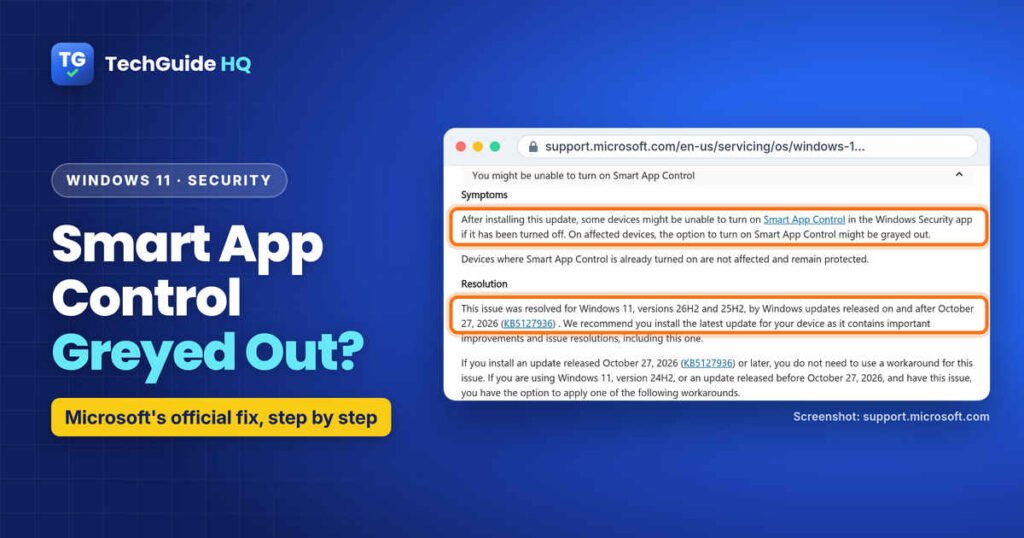
Microsoft’s release notes for the October 13, 2026 security update, KB5127648, list this known issue: after installing the update, “some devices might be unable to turn on Smart App Control in the Windows Security app if it has been turned off. On affected devices, the option to turn on Smart App Control might be grayed out.”
Two details in that note matter. First, it only bites if Smart App Control was off. Microsoft says devices where it’s already turned on “are not affected and remain protected.” Second, it affects Windows 11 24H2, 25H2 and 26H2, because KB5127648 was released for all three.
The typical story: you switched it off to install an app it kept blocking, the October update arrived, and now it won’t switch back on.
The older, by-design reasons
Smart App Control has always had rules about when it can run. Microsoft’s Smart App Control FAQ lists these reasons it can be turned off:
- the device is managed by an organisation (a work or school PC), or Developer Mode has been set up,
- it was turned off manually by you or someone else who signs in to the PC,
- the PC runs Windows 11 in S mode, or
- optional diagnostic data is turned off in Windows.
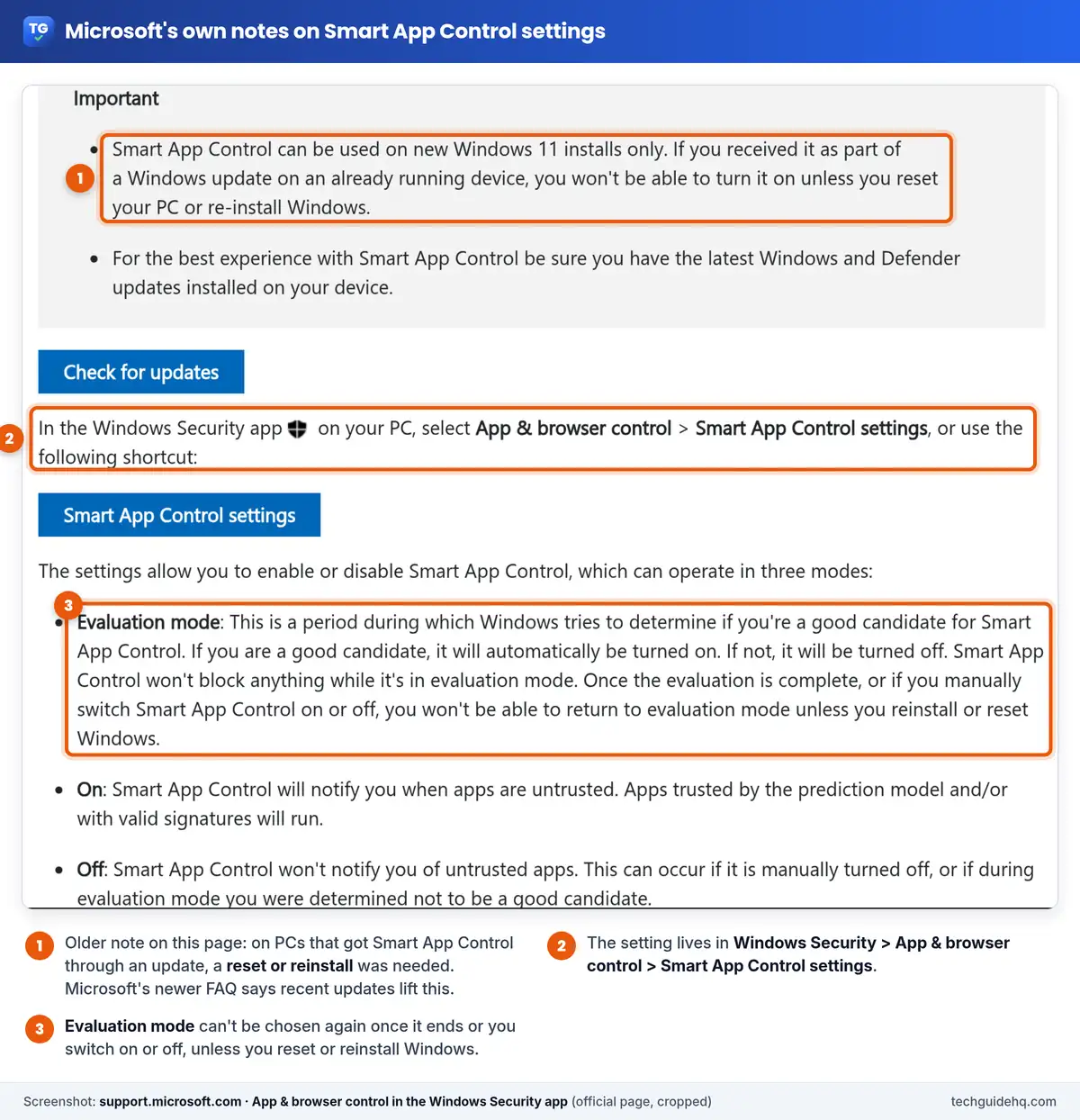
For years, the bigger trap was this: once Smart App Control was off, the only way back was a reset or a fresh install of Windows. Microsoft’s FAQ now says “recent Windows updates allow Smart App Control to be enabled without requiring a clean installation.” Its App & browser control page still carries the older note about new installs only, though, so you’ll see both statements on Microsoft’s own site. On an up-to-date PC that isn’t affected by any of the conditions above, the FAQ’s newer wording is the one that matches what you should see.
Check Which Version of Windows 11 You Have
Microsoft’s fix covers some versions and not others, so check yours first.
- Select Start > Settings > System > About.
- Under Windows specifications, look at Version (for example 25H2) and OS build.
If the build is 26200.9818 or 26300.9818 or higher, you already have the fix. If you’re on 24H2 (builds starting 26100), skip to the 24H2 section further down.
How to Fix Smart App Control Greyed Out on Windows 11 25H2 or 26H2
Microsoft’s resolution is simple: install the update that fixes it. The KB5127648 notes say the issue “was resolved for Windows 11, versions 26H2 and 25H2” by KB5127936 and later updates, and that if you install it “you do not need to use a workaround.”
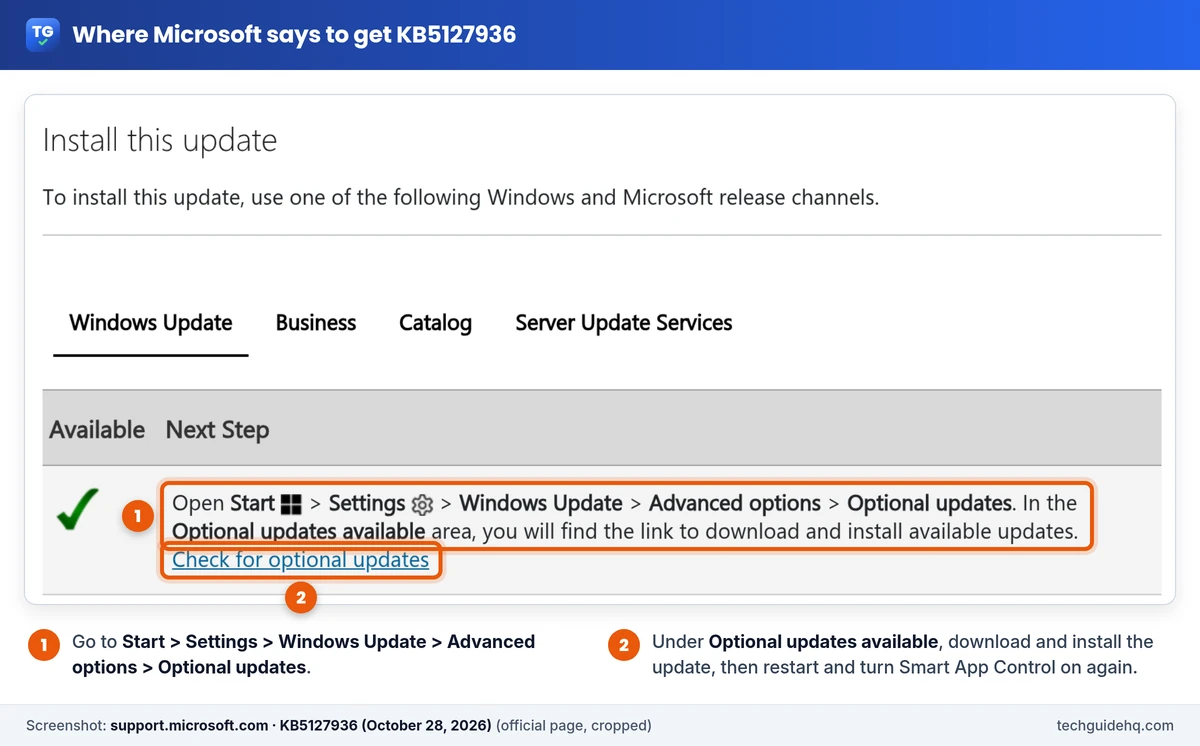
The catch is that KB5127936 is an optional preview update released on October 28, 2026. Windows doesn’t always install those on its own, so you may need to go and get it.
- Save your work and plug in your laptop. An update with a restart is not something you want running on 8% battery.
- Select Start > Settings > Windows Update and select Check for updates. If a newer regular update is offered, install it, because Microsoft says updates released after KB5127936 include the fix too.
- Still not there? Select Advanced options > Optional updates.
- Under Optional updates available, choose the update listed as KB5127936 (Microsoft calls it “2026-10 Cumulative Update Preview” in its catalogue) and download and install it.
- Restart when Windows asks.
- Check Settings > System > About again. The OS build should now read 26200.9818 (25H2) or 26300.9818 (26H2), or higher.
If the update download or install itself gets stuck, that’s a separate problem. Our guide to a Windows 11 25H2 repair stuck at 99% walks through the Windows Update troubleshooter, freeing space and clearing the update cache, all with Microsoft’s own tools. Our Windows 11 laptop guide covers optional driver updates too.
How to Turn Smart App Control Back On
Installing the update doesn’t switch Smart App Control on for you. It gives you back the ability to choose. So once the PC has restarted:
- Open Start, type Windows Security and open the app. (You can also go to Settings > Privacy & security > Windows Security.)
- Select App & browser control.
- Select Smart App Control settings.
- Choose On.
Know what you’re turning on. Microsoft says Smart App Control checks each app you run with its cloud security service. Apps it predicts are safe, or that have a valid signature, run. Apps it thinks are malicious, potentially unwanted or simply untrusted and unsigned get blocked. There’s no “allow this one app” button, according to Microsoft’s FAQ, so if an old unsigned tool you rely on gets blocked, your choices are to turn Smart App Control off again or ask the developer for a signed version.
Still Greyed Out After the Update? Check These
If you’re on build 26200.9818 or 26300.9818 (or later) and the switch is still grey, the October bug probably isn’t the reason anymore. Go through Microsoft’s list.
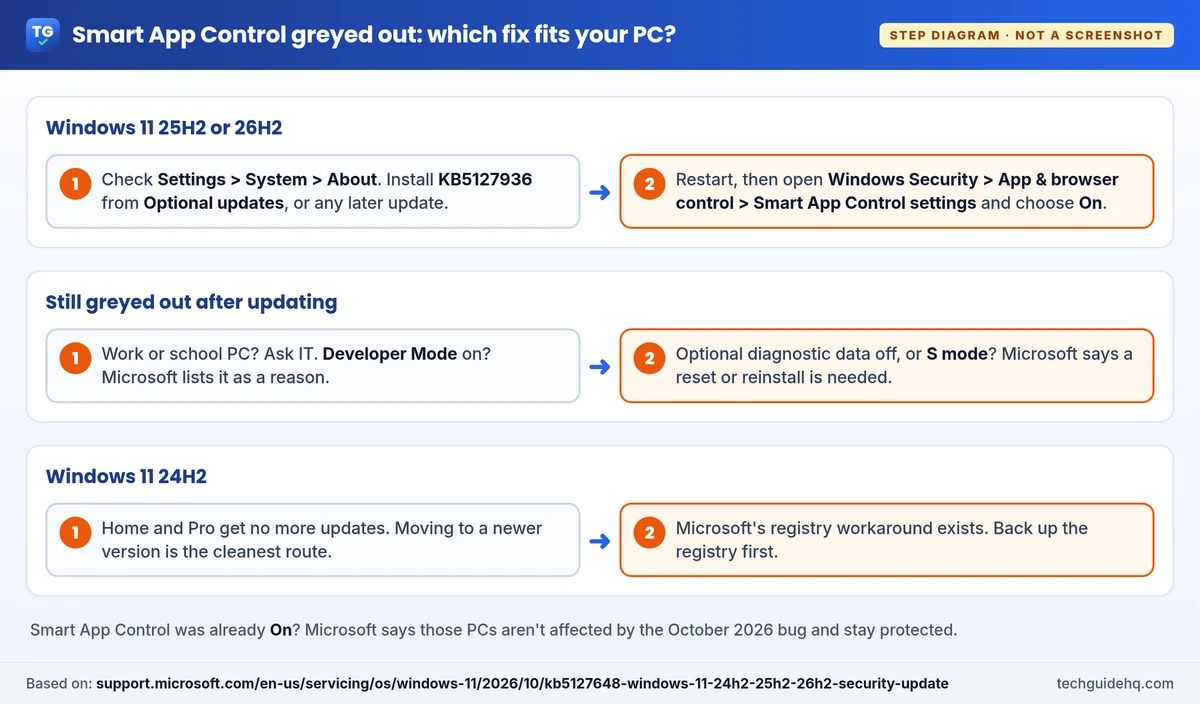
It’s a work or school PC
Microsoft says Smart App Control can be off because the device is enterprise-managed. If your PC belongs to an employer or school, Smart App Control is the IT team’s call. Ask them rather than trying to force it. Microsoft has also published two Group Policy downloads for IT admins on the KB5127648 page, and it says both need installing.
Developer Mode is turned on
Developer Mode is in the same Microsoft list. On Windows 11 25H2 and later, Microsoft Learn says it’s in the For developers section of Settings > System > Advanced. If you switched it on for a project and don’t need it now, turning it off is worth a try. If you do need it, Microsoft notes that Smart App Control turns itself off for developers and others whose work doesn’t suit it.
Optional diagnostic data is off
This one is easy to miss. Microsoft’s FAQ says that if optional diagnostic data is turned off, “you’ll need to reset this PC, or reinstall Windows, and select Send optional diagnostic data during the setup process.” In other words, flipping the setting later isn’t what Microsoft describes; it describes choosing it during setup. A reset reinstalls Windows and removes your apps even when you keep your files, so back up before you go that far, and only do it if Smart App Control really matters to you.
The PC is in S mode
Some laptops ship with Windows 11 Home in S mode. Microsoft’s FAQ says you’ll need to turn S mode off and then reset your PC. Bear in mind that Microsoft’s S mode FAQ calls switching out of S mode permanent: you can’t go back.
Smart App Control evaluation mode greyed out
This is by design, not a bug. Microsoft explains that evaluation mode is a period where Windows works out whether you’re a good candidate, and Smart App Control doesn’t block anything during it. “Once the evaluation is complete, or if you manually switch Smart App Control on or off, you won’t be able to return to evaluation mode unless you reinstall or reset Windows.” So a greyed-out Evaluation option is normal once you’ve moved past it. On and Off are what you choose between.
On Windows 11 24H2? Your Options
KB5127936 is only for 25H2 and 26H2. For 24H2, Microsoft’s KB5127648 notes say the issue was resolved by Windows updates released on or after November 10, 2026 (KB5132061). That November update is available for 24H2 Enterprise and Education. Windows 11 24H2 Home and Pro have reached end of updates, and the October 2026 security update was the last one for those editions. Microsoft recommends upgrading “to the latest version of Windows 11” to stay protected. On 24H2 Home and Pro, that’s also the cleanest fix for this bug. Check Settings > Windows Update for KB5132061 or for a newer version of Windows 11.
If you can’t install KB5132061 or a later update (for example, on 24H2 Home and Pro, or on a PC still on an update older than the fix), Microsoft does publish a registry workaround on the KB5127648 page. We’d only use it if the update or an upgrade isn’t possible, and Microsoft’s own warning comes first: “Before you modify the registry, back it up and make sure that you know how to restore it if a problem occurs.” Its guide is How to back up and restore the registry in Windows.
Microsoft’s steps are to type cmd in the search box, select Run as administrator, enter these two commands exactly as published, then restart:
reg add "HKLM\SYSTEM\CurrentControlSet\Policies\Microsoft\FeatureManagement\Overrides" /v 2883193997 /t REG_DWORD /d 1 /f
reg add "HKLM\SYSTEM\CurrentControlSet\Policies\Microsoft\FeatureManagement\Overrides" /v 2850574478 /t REG_DWORD /d 1 /f
Microsoft says this restores “the ability to turn on Smart App Control.” It doesn’t switch it on by itself, so go back to Windows Security afterwards. Don’t add any other values you find online, and don’t do this on a work PC.
What Not to Do
- Don’t uninstall the October security update to get the switch back. KB5127648 carries that month’s security fixes, and Microsoft’s update pages warn about the risks of removing security updates. The proper fix is the newer update, not going backwards.
- Don’t download “Smart App Control fixer” tools or run scripts from forums. Everything you need is in Windows Update and Windows Security.
- Don’t reset your PC first. On 25H2 or 26H2, the update is the fix.
Common Situations People Ask About
“It was on before the update. Am I unprotected now?”
No. Microsoft says devices where Smart App Control is already turned on “are not affected and remain protected.” Leave it alone and keep installing updates.
“I turned it off to install one app and now it won’t turn back on”
That’s exactly the pattern Microsoft’s known issue describes. Install KB5127936 or a later update, restart and choose On. Just remember the app you installed may now be blocked again, since Smart App Control has no per-app exceptions.
“Smart App Control blocked an app that may be unsafe”
That message means it’s working. If you don’t recognise the app, don’t try to get around it. If you downloaded something dodgy and typed passwords into it, our guide on how to check if your password was leaked shows what to change first.
Official sources: Microsoft Support: KB5127648 (known issue: Smart App Control), KB5127936 (October 28, 2026 preview), Smart App Control Frequently Asked Questions, App & browser control in the Windows Security app and Microsoft Learn: Developer Mode. More PC guides are in our Windows & PC section.
Frequently Asked Questions
Why is Smart App Control greyed out in Windows 11?
Most often because of a known issue in the October 13, 2026 update KB5127648: if Smart App Control was off, the option to turn it on can be greyed out. Microsoft also lists managed work or school PCs, Developer Mode, Windows in S mode and optional diagnostic data being off as reasons it stays off.
Does KB5127936 fix Smart App Control greyed out?
Yes, on Windows 11 25H2 and 26H2. Microsoft says the issue was resolved by KB5127936, the October 28, 2026 optional update, and later updates. Install it from Settings, Windows Update, Advanced options, Optional updates, restart, then turn Smart App Control on in Windows Security. On 24H2, Microsoft’s KB5127648 page says the issue was resolved by updates released on or after November 10, 2026 (KB5132061).
How do I turn on Smart App Control without reinstalling Windows?
Microsoft’s FAQ says recent Windows updates allow Smart App Control to be turned on without a clean installation. Update Windows fully, then open Windows Security, App and browser control, Smart App Control settings and choose On. Reset or reinstall is still needed if optional diagnostic data is off or the PC was in S mode.
Why is Smart App Control evaluation mode greyed out?
That’s by design. Microsoft says that once the evaluation is complete, or once you switch Smart App Control on or off yourself, you can’t return to evaluation mode unless you reset or reinstall Windows. You can still choose On or Off.
Is Smart App Control available on Windows 10?
No. Microsoft says Smart App Control is not available in Windows 10. It’s a Windows 11 feature in the Windows Security app.
Do I need Smart App Control if I have antivirus?
It’s optional. Microsoft says Smart App Control works alongside Microsoft Defender or other antivirus software for added protection. It doesn’t replace your antivirus, and there’s no way to allow a single blocked app, so some people who run unsigned tools keep it off.
More Windows fixes, from updates to security settings, are collected on our Windows 11 Problems & Fixes page.
Related guides
- Windows 11 25H2 Repair Version Stuck at 99%? What to Do
- Windows 11 Laptop Slow? 9 Fixes That Work (2026)
- How to Check if Your Password Was Leaked (2026)

I run TechGuide HQ from Islamabad, Pakistan. My team and I write step-by-step Windows, iPhone, Android and app guides, check them against official help pages, try some steps on my own devices, and personally answer questions sent through the contact page.