
Last updated: November 18, 2026 · By Abubakar Iqbal
Checked against: Acer’s NitroSense software, NitroSense quick launch key and NitroSense V3 security articles, plus Microsoft’s lodctr documentation, on November 18, 2026.
Summary
- Restart the laptop, then rebuild Windows performance counters by running lodctr /R in an admin Command Prompt.
- If it still fails, uninstall NitroSense and reinstall the version Acer lists for your exact model.
- For a dead Nitro key, Acer Quick Access must be installed too.
You press the Nitro key before a game and nothing happens. Or the NitroSense window flashes for a second and vanishes, or it opens with blank temperature dials and fan buttons that don’t respond. Your laptop is fine. The app that talks to its fans and sensors has lost its connection, and that’s usually fixable without reinstalling Windows.
First, which NitroSense problem do you have?
“Not working” covers three different faults, and each one has a different first fix. Pick yours before you start uninstalling things.
- It won’t open at all, or the splash screen appears and closes. That points to the app or its background service failing to start.
- The Nitro key does nothing, or it opens AcerSense instead. That’s a shortcut problem, handled by a separate Acer app.
- It opens but shows no temperatures, fan modes won’t change, or every reading sits at zero. The window works, but it isn’t getting data from the hardware.
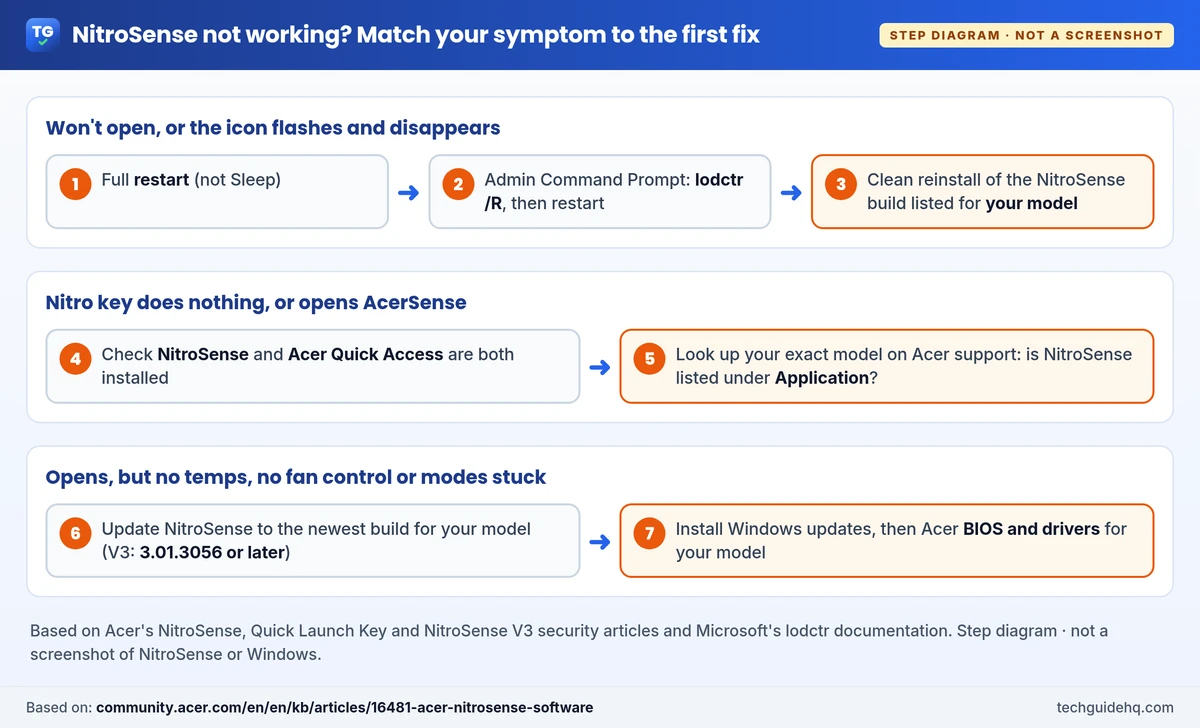
Why does NitroSense stop working after a Windows update?
NitroSense isn’t one program. The window you click is only the front end. Behind it, Acer installs background services that do the real work of reading sensors and sending fan commands. Acer’s own security notice names one of them, the PSAdminAgent service (Acer). If that service crashes or doesn’t start, the window has nothing to show, so it either hangs or closes.
A big Windows update can upset that chain. It replaces system files, resets some settings and sometimes installs newer drivers from Windows Update. Acer community moderators most often blame broken Windows performance counters, which apps use to read system data, and that’s why lodctr /R shows up in almost every Acer thread on the subject. One owner of a Nitro AN515-45 on Windows 11 build 26200.8737 reported in the Acer Community that PSAdminAgent.exe crashed right after launch, even after clean reinstalls. That’s one user’s report, not a confirmed bug, but it shows the service is where things break.
Our view on order: start with the steps that change nothing permanent (restart, counters), then reinstall, and only then look at drivers and BIOS. Most people do it backwards and reinstall Windows first.
Does your Nitro model support NitroSense?
Check this before you spend an hour on fixes. Acer says Nitro Lite models don’t support NitroSense, AcerSense or other Acer apps, and the support site has no app downloads for them (Acer).
Some Nitro V owners also find AcerSense installed in place of NitroSense. In an Acer Community thread, a volunteer said NitroSense may not be available for certain Nitro V configurations. AcerSense is a different app: Acer describes it as a place to monitor performance, manage battery settings and run a health check, and the owner in that thread says it has no fan controls.
The reliable test: go to Acer’s support site, enter your serial number or SNID, open Application and see whether NitroSense is listed. If it isn’t, no fix in this guide will add it.
How to fix NitroSense not working on Windows 11
Work down the list and stop when NitroSense opens and shows live readings.
1. Do a full restart
- Save your work and close any game launchers.
- Select Start > Power > Restart.
- After you sign in, wait a minute so background services can start, then open NitroSense from the Start menu, not the Nitro key.
Opening it from Start first tells you whether the app or only the key is the problem.
2. Rebuild Windows performance counters
This is the fix Acer’s community team suggests most. Microsoft documents lodctr /r as restoring the performance counter settings from the current registry and Windows’ cached files (Microsoft Learn). It doesn’t touch your files or games.
- Select Start, type cmd, right-click Command Prompt and choose Run as administrator.
- Type
lodctr /Rand press Enter. - Acer moderators also suggest running
%SystemRoot%\SysWOW64\lodctr.exe /Rfor the 32-bit counters. It’s harmless to run both. - Restart the laptop and open NitroSense again.
If you see an error instead of a success message, read it. Microsoft notes that the command finishing doesn’t by itself mean it worked.
3. Repair or reset the app, if Windows offers it
- Go to Settings > Apps > Installed apps and find NitroSense.
- Select the three dots. If you see Advanced options, open it.
- Try Repair first. If that doesn’t help, try Reset, which clears the app’s saved settings.
Not every app has these buttons, as Microsoft explains. If yours doesn’t, move on.
4. Clean reinstall from Acer’s support page
This replaces both the window and its background services. Acer’s own steps are short (Acer):
- In Settings > Apps > Installed apps, uninstall NitroSense and any entry called NitroSense Service. Restart.
- Open Acer’s Drivers and Manuals page and enter your serial number or SNID. You’ll find it on the sticker under the laptop.
- Select Application and download NitroSense.
- Right-click the ZIP, choose Extract All, then double-click Setup.exe in the extracted folder.
- Restart once more before you open it.
Two traps here. First, use the download listed for your model, not a “latest” file from another Nitro: models list different builds, and one Acer Community reply for the AN16-42 pointed to version 5.1.385. If your page lists two versions, try the newer one first. Second, if Setup finishes but the window still won’t open, several owners report that installing the .appxbundle file inside the extracted folder fixed it. That’s a user workaround, not an Acer instruction.
5. Make sure you’re on a patched version
This one most guides miss. In May 2026 Acer published a security notice, CVE-2026-9789, for NitroSense V3. Versions up to and including 3.01.3052 have a flaw in the PSAdminAgent service that could let any local user delete files with system rights. Acer says it’s fixed in V3.01.3056 and later (Acer).
So if an old installer “works” and the new one doesn’t, don’t just keep the old one. And skip NitroSense packages shared on forums or download sites. You can’t tell what’s inside them, and the background service runs with full system rights.
6. Install Windows updates, then Acer drivers and BIOS
- Go to Settings > Windows Update, select Check for updates and install everything. Then look under Advanced options > Optional updates for driver updates.
- On your model’s Acer support page, check Driver and BIOS/Firmware for anything newer than what you have.
- Before a BIOS update, plug in the charger, and if your laptop uses BitLocker or device encryption, have your recovery key saved.
In the AN16-42 thread above, the reply also said a Windows Update agent service driver (v1.2.108.1) solved it. That’s model-specific, but it’s why Windows Update belongs on this list. If you’ve been holding off on updates because of a recent Windows release, our Windows 11 26H2 problems guide covers the known issues.
7. Fix the Nitro key itself
If NitroSense opens from Start but not from the key, the app is fine. Acer says the quick launch key needs both NitroSense and Acer Quick Access installed (Acer). Download Quick Access from the same Application list for your model, install it, and restart.
If the key opens AcerSense or a Microsoft Store page, Windows has the wrong app tied to it. Reinstalling NitroSense first and Quick Access second, with a restart between, is the order suggested in the Acer Community.
What if fan control still doesn’t work?
Sometimes NitroSense opens and shows temperatures, but fan modes won’t stick. Before you blame the app, plug the charger in, restart, and try the fan modes again.
If it’s still stuck, you’re probably looking at a NitroSense build that doesn’t get along with your current Windows or BIOS version. Some Acer Community members have said fan control is broken on certain models until Acer releases a newer build. Treat those as reports, not confirmed facts, and keep checking your model’s support page.
Meanwhile, keep the laptop cool the low-risk way: hard flat surface, clear vents, and a balanced power mode for everyday use. Third-party fan tools exist, but an Acer Community reply notes they usually fail to manage Nitro fan curves properly. Opening the laptop to clean or repaste it is optional, and it may affect your warranty, so check with Acer first.
Common wrong advice
- “Just reinstall Windows.” It’s the slowest fix and doesn’t help if the NitroSense build itself clashes with your Windows version. Try steps 1 to 6 first.
- “Grab an older NitroSense from a download site.” Older V3 builds have the security flaw described above, and unofficial mirrors are a malware risk.
- “Reset the WMI repository.” Some forum answers suggest it. It’s a system-wide reset and isn’t in any Acer support article. We’d leave it alone.
- “Turn off Windows Update.” You’d lose security fixes, and newer drivers are sometimes what fixes NitroSense.
Common situations
It broke right after a Windows update. Steps 2 and 4 cover most cases. If several people with your model report the same thing at the same time, Acer may need to release an update. Check your model’s support page every few days.
The new version installs, but only the icon appears. An owner reported this with V3.01.3056. Run step 2, then reinstall and try the .appxbundle workaround from step 4.
After a motherboard repair, the Nitro key opens AcerSense. Owners in the threads above saw this. Reinstall NitroSense and Quick Access for your exact model number, and contact Acer if the model name is missing under Settings > System > About.
Games feel slower since NitroSense broke. The laptop may be stuck in a quieter mode. Plug in, and see our guide to fixing a slow Windows 11 laptop for settings you can check without NitroSense.
When should you contact Acer?
Contact Acer support if NitroSense isn’t listed for your model but your laptop shipped with it, if your model name is missing from Windows, or if a clean reinstall of the newest listed version still fails. Have your serial number, Windows version (Settings > System > About) and NitroSense version ready. Those three details get you past the basic script faster.
If your games themselves won’t launch, that’s a different problem: start with our Steam not opening fixes.
Frequently Asked Questions
Why won’t NitroSense open on my Acer Nitro?
Usually its background service fails to start after a Windows update, or Windows performance counters are broken. Restart, run lodctr /R in an admin Command Prompt, restart again, and if it still won’t open, reinstall the NitroSense version Acer lists for your model.
How do I reinstall NitroSense on Windows 11?
Uninstall NitroSense and NitroSense Service in Settings > Apps > Installed apps and restart. On Acer’s support site, enter your serial number or SNID, open Application, download NitroSense, extract the ZIP and run Setup.exe.
Why doesn’t the Nitro key open NitroSense?
Acer says the NitroSense key needs both NitroSense and Acer Quick Access installed. If NitroSense opens from the Start menu but not from the key, install Quick Access for your model and restart.
Does every Acer Nitro laptop support NitroSense?
No. Acer says Nitro Lite models don’t support NitroSense or other Acer apps, and some Nitro V configurations come with AcerSense instead. Check your model’s Application downloads on Acer’s support site.
Is it safe to keep using an older NitroSense version?
Not for V3. Acer says NitroSense versions up to and including 3.01.3052 have a security flaw (CVE-2026-9789) that lets a local user delete files with system rights. Update to V3.01.3056 or later from Acer’s support site.
More gaming fixes are collected in our Gaming Laptop & PC Game Fixes section.
Related guides
- Steam not opening on Windows 11
- How to fix a slow Windows 11 laptop
- Windows 11 26H2 problems and known issues
- Windows Security Secure Boot certificate status explained
Sources: Acer NitroSense software; Acer NitroSense quick launch key; Acer NitroSense V3 security vulnerability; Acer AcerSense software; CVE-2026-9789; Microsoft lodctr; Microsoft Repair apps and programs in Windows.
Images: the diagram is our own, based on the Acer and Microsoft pages above, and is not a screenshot. Featured photo: “Laptop in close-up” by seth schwiet, Wikimedia Commons, CC0 public domain, flipped and cropped with a title added. It’s a generic laptop photo, not an Acer Nitro.

I run TechGuide HQ from Islamabad, Pakistan. My team and I write step-by-step Windows, iPhone, Android and app guides, check them against official help pages, try some steps on my own devices, and personally answer questions sent through the contact page.