
Last updated: November 17, 2026 · By Abubakar Iqbal
Checked against: Microsoft’s Secure Boot status article (KB5087130) and Acer’s Secure Boot certificate update page, on November 17, 2026.
Summary
- Open Windows Security > Device security > Secure Boot and read the sentence, not just the badge colour.
- “All required certificate updates have been applied” means you’re done.
- A yellow or red message means you should update Windows or your firmware.
- No Secure Boot section usually means Secure Boot is off, so check msinfo32 first.
You hear that Microsoft’s old Secure Boot certificates have expired, so you open Windows Security to check. Some people find a green tick, others a yellow warning. And some, like the owner of the Acer Nitro below, find no Secure Boot section at all. This guide shows where the Windows Security Secure Boot certificate status lives, what each message means, why it can be missing, and what to do next.
Where Do You Find the Secure Boot Certificate Status?
Since April 2026, Microsoft says the Windows Security app shows whether your PC has received the newer 2023 Secure Boot certificates, not only whether Secure Boot is on (Microsoft Support, KB5087130). Here’s the path:
- Click Start, type Windows Security and open it.
- Select Device security in the left menu.
- Look for a section called Secure Boot with a coloured badge on its icon.
- Read the full sentence under it. That sentence is the certificate status.
The badge can also appear on the taskbar shield, but Microsoft says that icon shows the most severe state across all features, so a yellow shield doesn’t automatically mean Secure Boot.
Two quick checks that work even when the section is missing
- Press Windows + R, type msinfo32 and press Enter. In System Summary, look at BIOS Mode (UEFI or Legacy) and Secure Boot State (On, Off or Unsupported). Acer’s Secure Boot guide explains those three values.
- Optional: in Terminal (Admin), run
Confirm-SecureBootUEFI. Microsoft’s documentation says it returns True (on), False (supported but off) or “Cmdlet not supported on this platform” (Legacy BIOS).
Neither shows which certificates you have. They show whether the certificate status can apply to your PC at all.
Why Is There No Secure Boot Section in Windows Security?
Because the section only appears when Secure Boot is on. Microsoft’s Device security page says: “If secure boot is enabled, you can find more information about it.” Off means no section, and no certificate status.
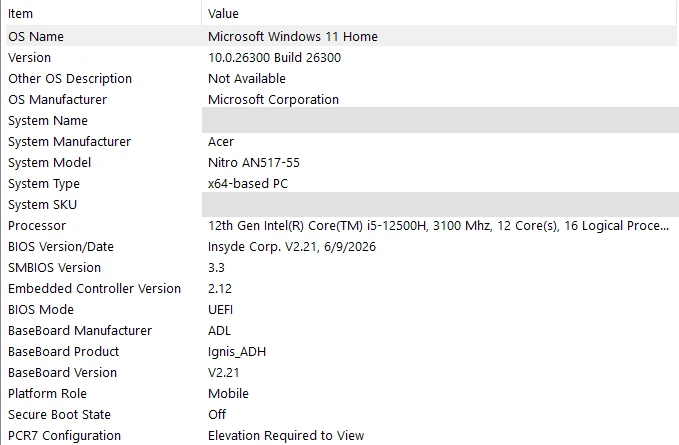
Checked on an Acer Nitro AN517-55 (Windows 11 Home): that’s exactly what the owner’s screens show. System Information reports build 26300, Insyde BIOS V2.21, BIOS Mode: UEFI and Secure Boot State: Off.
On the same laptop, Windows Security > Device security shows only Core isolation and Security processor. No Secure Boot section, no badge, and at the bottom: “Standard hardware security not supported.”
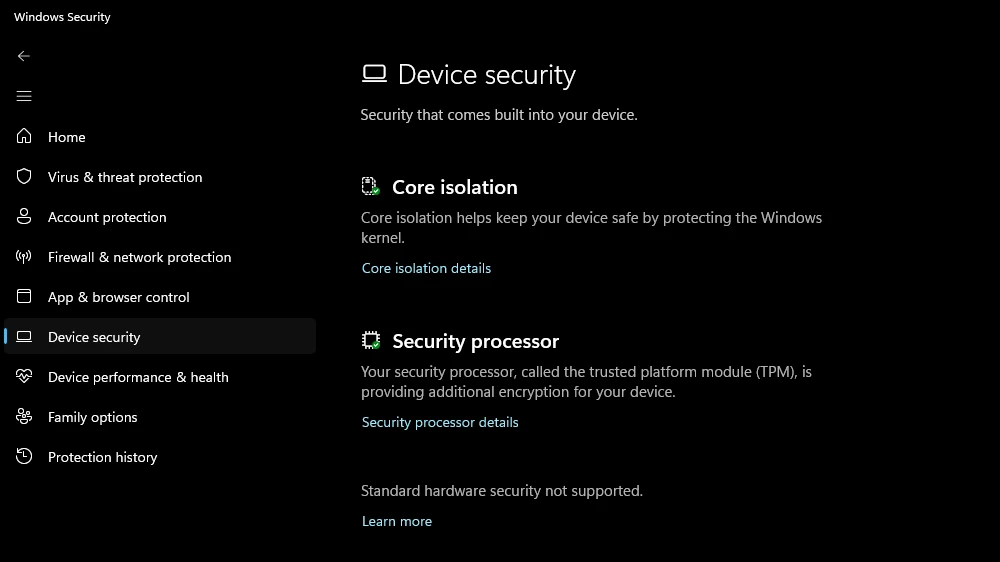
What those two screens tell you
- The PC can do Secure Boot. BIOS Mode is already UEFI, the requirement Microsoft’s Windows 11 and Secure Boot article names. No Legacy or CSM changes needed.
- “Standard hardware security not supported” likely has the same cause. Microsoft’s requirements are TPM 2.0, Secure Boot enabled, DEP and UEFI MAT. The TPM is listed as Security processor; Secure Boot is off. The screen can’t prove the other two are fine.
- The firmware isn’t the blocker. Acer’s certificate page lists the Nitro AN517-55 with BIOS v2.21 “available on Windows Update”, the version this laptop already reports. The missing piece is the Secure Boot switch.
- The certificates can’t arrive yet. Microsoft’s Secure Boot update FAQ says devices with Secure Boot disabled “will not receive the new Secure Boot certificates in firmware.”
Easy to miss: the Data encryption section Microsoft lists for this page isn’t there either. A screenshot can’t confirm why, but Microsoft’s Device Encryption page lists “Secure Boot is disabled” as one cause of “PCR7 binding is not supported.” The msinfo32 PCR7 Configuration line says “Elevation Required to View”, so run System Information as administrator to see it.
What Does Each Secure Boot Message Mean?
If your section is there, the badge gives the mood and the sentence gives the facts. Microsoft says: “A green checkmark alone does not confirm your certificates are updated.” Match your sentence here.
| Message in the Secure Boot section | What it means | What to do |
|---|---|---|
| Secure Boot is on and all required certificate updates have been applied. | Fully updated, including the new Boot Manager | Nothing |
| Secure Boot is on, but your device is using an older boot trust configuration that should be updated. | Still on the 2011 certificates; Windows Update should fix it | Install all updates, restart when asked |
| …updates are temporarily paused while Microsoft and partners work toward a supported resolution. | Your device type is on hold because of a known issue | Wait; Microsoft says it resumes automatically |
| …There is not yet enough data to classify your device for automatic update. | Microsoft hasn’t cleared your model for the automatic rollout yet | Keep updating; see aka.ms/getsecureboot |
| …does not support the automated Secure Boot certificate update due to hardware or firmware limitations. | Firmware has to change first | Check your PC maker for a BIOS update |
| …this device can no longer receive required updates for the Windows boot experience. | Red state: still on old certificates after expiry, and a boot fix can’t be delivered | Follow aka.ms/getsecureboot and contact the PC maker |
| No Secure Boot section at all | Secure Boot is off, or the PC is in Legacy mode | Check msinfo32 (see above) |
Wording from Microsoft’s KB5087130 table, shortened where marked “…”.
Have the Old Certificates Already Expired?
Yes. Microsoft’s expiration article (KB5062710) lists Microsoft Corporation KEK CA 2011 (June 24, 2026), Microsoft UEFI CA 2011 (June 27, 2026) and Microsoft Windows Production PCA 2011, which signs the Windows boot loader (October 19, 2026). Their 2023 replacements are what Windows Update installs.
So “not yet updated” today doesn’t mean “soon”. Your PC is already past expiry. Microsoft says that’s not an emergency: it keeps starting, normal updates keep installing, and Secure Boot still blocks known threats. What stops is new early-boot protection, a gap that grows over time.
Which Should You Check First, and Why?
Most guides start with Windows Update. If your Secure Boot section is missing, updating all day changes nothing, because a PC with Secure Boot off isn’t in line for the certificates. This order saves time:
- msinfo32: BIOS Mode. Legacy means Secure Boot can’t run yet, and switching to UEFI is a bigger job (see the warning below).
- msinfo32: Secure Boot State. Off on a UEFI PC, like the Nitro above, means the fix is one BIOS setting.
- Windows Security message. Only once Secure Boot is On does the certificate sentence matter.
- Windows Update. Install everything, including restarts. Acer adds that its PCs need OS build 26200.8246 or newer to detect its Secure Boot BIOS update through Windows Update.
- Your PC maker. Only if the message mentions hardware or firmware limitations, or the status stays red.
Before Any BIOS Change: Save Your BitLocker Recovery Key
Warning: firmware changes and BIOS updates can make Windows ask for your 48-digit BitLocker recovery key at the next start. Acer’s certificate page makes saving it the first two steps. Without the key, you may have to reset the PC, and Microsoft says that removes your files.
- On another device, go to aka.ms/myrecoverykey and sign in with the Microsoft account used on the PC.
- Find this PC’s key and write it down, print it or save it to a USB drive. Microsoft’s recovery key guide lists other places it might be.
- No key listed? Check Settings > Privacy & security > Device encryption to see whether the drive is encrypted at all.
Also ask why Secure Boot is off. Acer says it’s on by default on most of its notebooks, so someone may have turned it off on purpose. Microsoft notes some graphics cards, hardware, Linux or older Windows versions may need it off. If this PC dual-boots Linux, turning Secure Boot on can stop that system from starting.
How Do You Turn Secure Boot On?
These steps come from Microsoft and Acer guidance. We didn’t turn Secure Boot on or change any BIOS setting on the Nitro above, so treat this as the official route, not something confirmed on that laptop. Menu names vary by model.
Get into the BIOS (any brand)
- Open Settings > System > Recovery.
- Next to Advanced startup, select Restart now.
- Choose Troubleshoot > Advanced options > UEFI Firmware Settings, then Restart.
On an Acer, you can also shut down fully, power on and tap F2 when the Acer logo appears.
Switch it on (Acer’s steps)
- Find Secure Boot on the Security, Boot or Authentication tab.
- Greyed out? Open Security > Set Supervisor Password, set one and record it. Acer says some notebooks need this first.
- Select Secure Boot, press Enter and choose Enabled.
- Press F10, choose Yes and let it restart.
- If the password was only for this, remove it: Set Supervisor Password, enter the current one, leave the new fields blank. A forgotten BIOS password is a far bigger problem.
Other brands use different menus; Microsoft’s Windows 11 and Secure Boot article links to Dell, HP, Lenovo and others.
Legacy BIOS Mode is a different job. Acer warns that if Windows was installed in Legacy mode, switching to UEFI “may prevent the operating system from starting.”
What Happens After Secure Boot Is On?
- Run msinfo32 again and confirm Secure Boot State now says On.
- Go to Settings > Windows Update, select Check for updates, install everything and restart if asked.
- Reopen Windows Security > Device security. A Secure Boot section should now appear, with one of the messages from the table above.
- Seeing “older boot trust configuration”? Give Windows Update time; Microsoft says most PCs get the full set automatically.
If the PC won’t start afterwards, Acer says to restore the previous Secure Boot and boot mode settings in the BIOS. Changing Secure Boot doesn’t touch your files or apps, Acer adds.
Common Wrong Advice About the Secure Boot Status
- “Turn Secure Boot off and the warning goes away.” It does, and that’s the problem. The Nitro screens show what “no warning” looks like: no section, no status, no new certificates. Microsoft says disabling Secure Boot “is not recommended” and leaves you less secure than an outdated setup.
- “A green tick means you’re done.” Not alone. Look for the sentence saying all required certificate updates have been applied.
- “Just hit Dismiss.” Microsoft allows it, but says dismissing isn’t recommended if the certificates haven’t arrived. It hides the badge, not the gap.
- “Switch to UEFI to fix it.” Only relevant if BIOS Mode says Legacy. On a UEFI PC like the Nitro, the setting to change is Secure Boot.
- “Grab the BIOS from a download site.” Use Windows Update or your PC maker’s support site only.
Windows 10, Windows 11 and Work PCs: Does It Look Different?
Microsoft’s IT admin guide says the status arrived on April 8, 2026 for Windows 11 versions 23H2, 24H2, 25H2 and 26H1 (app update), and on April 14, 2026 for Windows 10 versions 22H2, 21H2 and 1809 (cumulative update). Work and school PCs show the status text, but Microsoft turns off the badge changes and notifications by default on managed devices, so a calm-looking work laptop proves nothing. Ask your IT team.
Troubleshooting: Quick Fixes by Symptom
| Symptom | First thing to try |
|---|---|
| No Secure Boot section | msinfo32: check Secure Boot State and BIOS Mode |
| Secure Boot State Off, but BIOS says Enabled | Confirm BIOS Mode is UEFI; Acer suggests restoring BIOS defaults or updating the BIOS |
| Secure Boot greyed out in an Acer BIOS | Set a temporary supervisor password, remove it after |
| Older boot trust configuration | Windows Update, restart, check again later |
| Hardware or firmware limitations | BIOS update via Windows Update or the PC maker |
| Red stop icon | aka.ms/getsecureboot, then the PC maker |
| BitLocker recovery screen after a BIOS change | Enter the key from aka.ms/myrecoverykey |
| PC won’t start after enabling Secure Boot | Undo the change in the BIOS (Acer’s advice) |
Frequently Asked Questions
Where do I see the Secure Boot certificate status in Windows?
Open Windows Security, select Device security and look at the Secure Boot section. Read the sentence under the badge: only “all required certificate updates have been applied” means you’re fully updated.
Why is there no Secure Boot section in Windows Security?
Microsoft says the section shows information only when Secure Boot is enabled. Run msinfo32 and check Secure Boot State. If it says Off and BIOS Mode says UEFI, Secure Boot can be turned on in the BIOS, after you save your BitLocker recovery key.
Is it safe to ignore a yellow Secure Boot badge?
Your PC will keep working, but don’t just dismiss it. Microsoft says a yellow badge means there’s a recommended action, often a hardware or firmware limit. Install all updates, then check your PC maker for a BIOS update.
Will my PC stop booting now that the 2011 certificates have expired?
No. Microsoft says PCs without the 2023 certificates keep starting normally and keep getting standard Windows updates. What they lose is new security protection for the early boot process.
Does turning on Secure Boot delete my files?
Acer says changing the Secure Boot setting doesn’t affect personal files or installed programs. Save your BitLocker recovery key first anyway, because firmware changes can trigger a recovery prompt. If you dual-boot Linux, that system may stop starting with Secure Boot on.
More Windows fixes are collected on our Windows 11 Problems & Fixes page.
Related guides
- Smart App Control greyed out in Windows 11
- Windows 11 black screen after login
- Windows 11 26H2 problems and known issues
- Windows 11 repair version stuck at 99%
Sources (Microsoft unless marked): KB5087130 Secure Boot status in Windows Security; KB5062710 certificate expiration; If you’re prevented from updating; Secure Boot update FAQ; Windows 11 and Secure Boot; Device security; Device Encryption; Find your BitLocker recovery key; Confirm-SecureBootUEFI; Acer Secure Boot certificates update; Acer Enable or disable Secure Boot.
Images: screenshots are the owner’s own Acer Nitro AN517-55, with personal details removed. Featured photo: “Backlit laptop keyboard” by Markus Petritz, Wikimedia Commons, CC0 public domain (generic stock photo, not the Acer laptop in this guide).

I run TechGuide HQ from Islamabad, Pakistan. My team and I write step-by-step Windows, iPhone, Android and app guides, check them against official help pages, try some steps on my own devices, and personally answer questions sent through the contact page.