
Last updated: November 2, 2026
Checked by Abubakar Iqbal on an Acer Nitro laptop (Windows 11), Nov 2026: I tried these steps myself, and most of them worked for me.
Checked against: Windows 11, version 25H2 (latest build listed by Microsoft: OS build 26200.9818, released October 28, 2026), using current Microsoft Support and Microsoft Learn documentation.
Seeing your Windows 11 25H2 repair version stuck at 99% in Windows Update is worrying, especially because you probably started the repair to fix a different problem. The entry usually reads Windows 11, version 25H2 (repair version), and it can sit at 99% for a long time. People on Microsoft Q&A describe it staying there for hours. This guide explains what the repair version actually does, how to tell whether it’s still working, and the safe, Microsoft-documented steps to try next, from simply waiting to an in-place repair that keeps your files and apps.
Quick answer: Keep the PC plugged in and online, and open Task Manager to see whether the disk is still busy. If it is, give it more time, because Microsoft doesn’t give a fixed duration. If nothing has changed for a long time and there’s no disk activity, restart from the Start menu, then run the Windows Update troubleshooter (Settings > System > Troubleshoot > Other troubleshooters > Windows Update), make sure you have at least 20 GB free, disconnect extra devices and run DISM and SFC. Then try Fix problems using Windows Update again. If it still won’t finish, do an in-place repair from Microsoft’s official Windows 11 download and choose Keep personal files and apps.
What the “Repair Version” Is
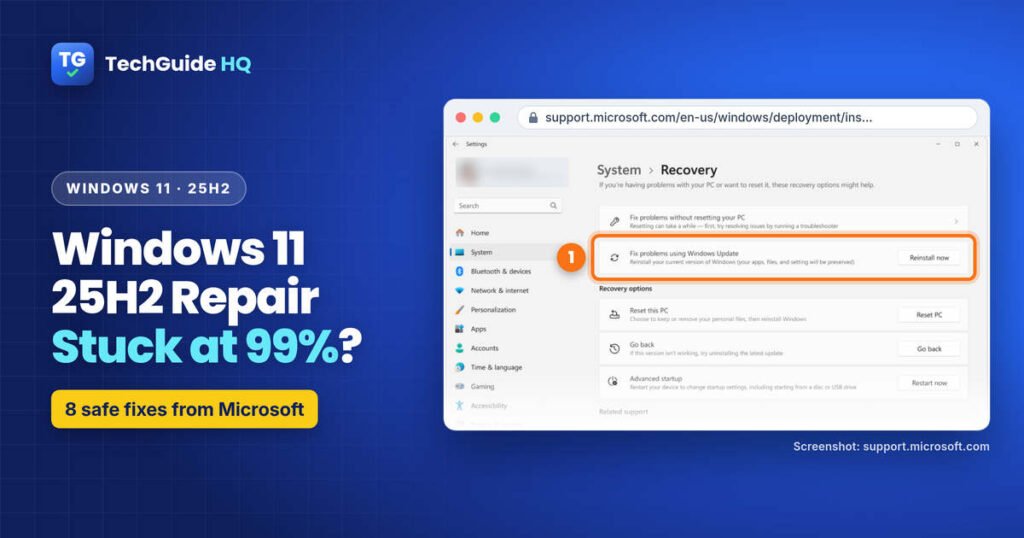
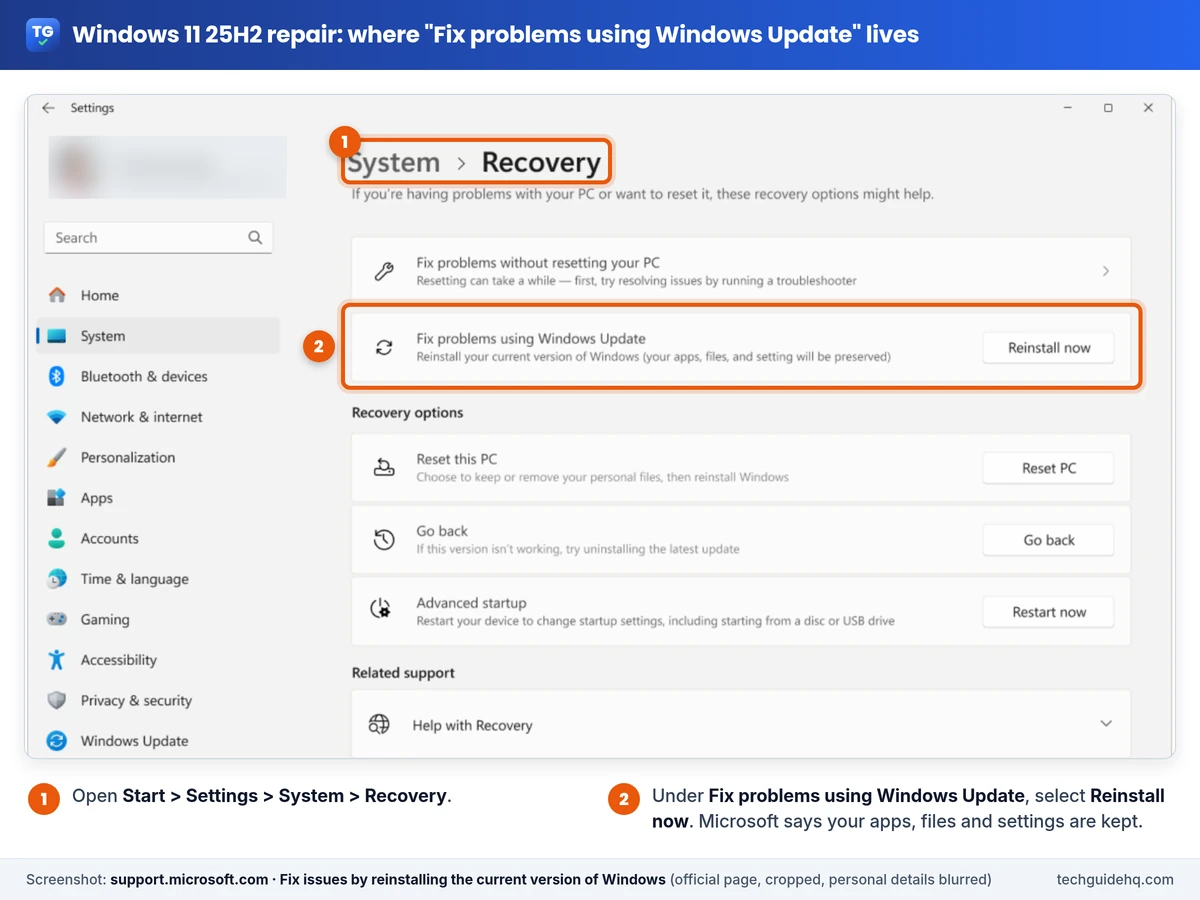
The repair version comes from a Windows 11 recovery option called Fix problems using Windows Update. You can start it yourself from Settings > System > Recovery > Reinstall now. Windows Update may also suggest it after an update fails, with the message “Reinstall your current version of Windows to repair system files and components.”
According to Microsoft Support, it:
- reinstalls the same version of Windows that’s already on your PC (so 25H2 stays 25H2),
- repairs system files and components, and
- keeps your apps, files and settings.
Windows downloads a repair version of the last update that installed successfully, installs it, then restarts. That’s why it appears on the Windows Update page as a normal download and install with a percentage. Microsoft asks you to keep the PC connected to power and the internet for the whole process.
Is It Really Stuck at 99%?
Not always. Microsoft doesn’t say how long the repair should take, and the last few percent of a Windows install can involve a lot of disk work while the percentage stays the same. Before you interrupt anything, check whether your PC is still doing something:
- Right-click the Start button and select Task Manager.
- Select Performance and look at your disk (usually Disk 0) and the CPU.
- If the disk is still busy, the repair is most likely still working. Leave it running and plugged in.
If several hours have passed and Task Manager shows almost no disk or CPU activity, the install has probably stalled, and it’s reasonable to move on to the fixes below.
How to Fix a Windows 11 25H2 Repair Stuck at 99%
Before you start: back up important files to an external drive or OneDrive. Microsoft recommends this before any Windows Update troubleshooting. If this is a work or school PC, talk to your IT team first, because updates on managed PCs are often controlled centrally.
1. Restart the PC once, the normal way
If the repair has clearly stalled, save any open work and restart from Start > Power > Restart. If Windows offers Update and restart instead, choose that. Avoid holding down the power button. And if you see a full-screen message such as “Working on updates” or “Don’t turn off your computer”, leave the PC alone until that screen finishes.
After the restart, open Settings > Windows Update. Sometimes the repair has actually finished, or Windows picks up where it left off.
2. Run the Windows Update troubleshooter
- Select Start > Settings > System.
- Select Troubleshoot, then Other troubleshooters.
- Next to Windows Update, select Run and follow the on-screen steps.
Microsoft also offers the same troubleshooter in the Get Help app on Windows 11.
3. Make sure there’s enough free space
Microsoft says a 64-bit PC needs at least 20 GB of free space for an upgrade (16 GB for 32-bit). Check in Settings > System > Storage. If you’re short of space, our guide to fixing a slow Windows 11 laptop has a section on freeing up disk space with temporary-file cleanup, Storage Sense and Disk Cleanup.
4. Remove the usual blockers
These all come from Microsoft’s Windows Update troubleshooting guide:
- Disconnect external hardware that isn’t needed for basic use, such as external drives, USB sticks and docks, then try again.
- Turn off your VPN while the repair runs.
- Check the date and time: go to Settings > Time & language > Date & time and turn on Set time automatically and Set time zone automatically.
- Third-party antivirus: Microsoft suggests temporarily pausing third-party antivirus or firewall software that might block an update. Use the app’s own pause option, and switch protection back on as soon as you’re done.
- Make sure you’re signed in with an administrator account, since some updates need administrator access.
5. Clear the Windows Update cache
Microsoft says corrupt files in the update cache can cause errors. Clearing it makes Windows download the update files again:
- Press Windows key + R, type services.msc and press Enter.
- Find Windows Update, right-click it and select Stop.
- Open File Explorer and go to C:\Windows\SoftwareDistribution.
- Delete all the files and folders inside that folder. Don’t delete the SoftwareDistribution folder itself, and don’t delete anything anywhere else.
- Go back to Services, right-click Windows Update and select Start.
6. Repair system files with DISM and SFC
These are Windows’ own repair tools. Microsoft says to run DISM first, then System File Checker:
- Type cmd in the search box, right-click Command Prompt and select Run as administrator.
- Type
DISM.exe /Online /Cleanup-image /Restorehealthand press Enter. It can take several minutes, and it uses Windows Update to get clean copies of files. - When it finishes, type
sfc /scannowand press Enter. Don’t close the window until verification reaches 100%. - Restart the PC.
If SFC says it found corrupt files and repaired them, that might already fix what the repair version was trying to fix.
7. Try “Fix problems using Windows Update” again
- Select Start > Settings > System > Recovery.
- Under Fix problems using Windows Update, select Reinstall now.
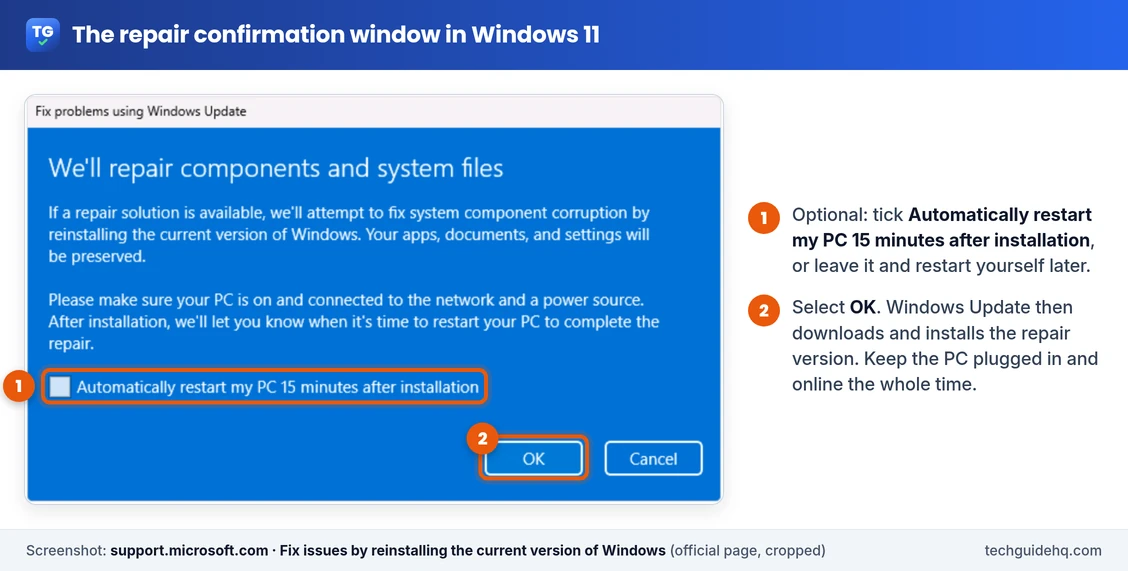
- Choose whether the PC may restart automatically 15 minutes after the install finishes, then select OK.
- Keep the PC plugged in and online until it’s done, then restart if it doesn’t restart on its own.
If problems started right after a particular update rather than at random, Microsoft also explains how to uninstall that update. Our guide to fixing a slow Windows 11 laptop covers it in Slow after a Windows update? Uninstall the update. Microsoft’s advice on Windows 11 is to try reinstalling your version of Windows before you remove a security update.
8. Do an in-place repair with Microsoft’s official download
If the repair version keeps stalling, you can repair Windows with Microsoft’s own installation files while you’re signed in. Microsoft calls this an in-place upgrade, and with the right option it keeps your personal files, apps and settings.
Important: As of November 2, 2026, Microsoft’s Download Windows 11 page offers Windows 11 2026 Update, version 26H2. So this method doesn’t just repair 25H2, it also moves your PC to version 26H2. Choose the same language as your current Windows, which you can check in Settings > Time & language, and keep your edition (Home or Pro) the same.
- Back up your important files.
- On Microsoft’s Download Windows 11 page, under Download Windows 11 Disk Image (ISO) for x64 devices, choose Windows 11 (multi-edition ISO for x64 devices), pick your language and download it. (PCs with Arm processors have a separate download.)
- Right-click the downloaded ISO file and select Mount. If Mount isn’t there, Microsoft explains how to set the ISO to open with Windows Explorer on the same page.
- Open the new virtual drive and double-click setup.exe. Select Yes if Windows asks for permission.
- When you reach the choice of what to keep, select Change what to keep and choose Keep personal files and apps, then Next.
- Select Install. The PC restarts several times. Keep it plugged in.
Don’t start the PC from a USB drive or DVD for this. Microsoft’s in-place method runs setup.exe from inside Windows. Starting the PC from installation media is the route Microsoft describes for a clean install, which removes your files, apps and settings.
Microsoft’s page also offers the Windows 11 Installation Assistant, which installs the latest version on the PC you’re using. It needs an x64 processor (it doesn’t run on Arm), 9 GB of free space and administrator rights.
If Windows Won’t Start After a Failed Repair
If your PC gets stuck in a restart loop or won’t reach the desktop, use the Windows Recovery Environment (Windows RE). Microsoft says Windows enters it automatically if it fails to start correctly several times. Select Troubleshoot > Advanced options > Uninstall Updates to remove the latest quality or feature update. Microsoft documents this in How to uninstall a Windows Update.
The last resort is Reset this PC in Settings > System > Recovery, which can keep your personal files but removes your apps. Back up first.
Troubleshooting
“Fix problems using Windows Update” is missing
Microsoft says the option might be unavailable if your PC is managed by work or school. It also needs Windows 11 version 22H2 or later with the February 2024 optional update or a later update. On a managed PC, ask your IT department. Otherwise, install the latest updates and check again.
The repair fails with an error code
Go to Settings > Windows Update > Update history and note the code. Microsoft’s Troubleshoot problems updating Windows page explains common ones. For example, Microsoft links 0x800f0922 to a lack of disk space and suggests turning off any VPN, and 0xC1900101 points to an incompatible driver. For driver errors, Microsoft suggests updating or reinstalling network and graphics drivers and trying a clean boot. See how to do a clean boot in Windows 11 in our laptop guide.
It’s stuck at 0%, at 97% or while downloading
The same steps apply. A download that never starts points more toward your connection, the update cache (step 5) or a VPN. An install that stops near the end points more toward disk space, drivers, external hardware or security software.
Is this a known Windows 11 25H2 issue?
As of November 2, 2026, Microsoft’s Windows 11, version 25H2 known issues page on Windows release health doesn’t list the repair version stalling at 99%. Microsoft Q&A has several user threads about it, and the advice there matches the steps above.
What Not to Do
- Don’t download third-party “Windows repair” or “update fixer” tools. Windows already includes the troubleshooter, DISM, SFC and Microsoft’s own installation files. Third-party tools add risk and aren’t needed.
- Don’t edit the registry or delete system folders other than the update cache folder Microsoft names in step 5.
- Don’t force the PC off while a “Working on updates” or “Don’t turn off your computer” screen is showing.
The Short Version
A Windows 11 25H2 repair stuck at 99% is often still working, so check Task Manager before you do anything. If it has really stalled, restart once, run the Windows Update troubleshooter, free up space, remove blockers, clear the update cache and run DISM and SFC, then try Reinstall now again. If it still won’t finish, an in-place repair from Microsoft’s official Windows 11 download fixes Windows while keeping your files and apps, but it also moves the PC to version 26H2. Whatever you try, back up first and stick to Microsoft’s own tools.
Official sources: Microsoft Support: Fix issues by reinstalling the current version of Windows, Troubleshoot problems updating Windows, Use the System File Checker tool, Reinstall Windows with the installation media and Microsoft Learn: Windows 11 release information. More Windows guides are in our Windows & PC section.
Frequently Asked Questions
How long should the Windows 11 25H2 repair version take?
Microsoft doesn’t give a fixed time. It depends on your PC and connection, and users on Microsoft’s support forums report it staying at 99% for hours. If Task Manager still shows disk activity, let it keep running with the PC plugged in and online.
Will the repair version delete my files or apps?
No. Microsoft says Fix problems using Windows Update reinstalls the same version of Windows and keeps your apps, files and settings. It’s still sensible to back up important files before any repair.
Is it safe to restart if the repair is stuck at 99%?
If there has been no disk activity for a long time, restarting from Start, Power is the usual next step. Avoid holding the power button, and don’t turn the PC off while a Working on updates or Don’t turn off your computer screen is showing.
Does an in-place repair upgrade me to Windows 11 26H2?
Yes, if you use Microsoft’s current download. As of November 2, 2026, the Download Windows 11 page offers version 26H2, so an in-place repair with it also upgrades your PC. Choose Keep personal files and apps to keep your data and programs.
Why is Fix problems using Windows Update not showing on my PC?
Microsoft says it may be unavailable on PCs managed by work or school, and it needs Windows 11 version 22H2 or later with the February 2024 optional update or newer. Install the latest updates, or ask your IT team on a managed PC.
Other Windows update and repair guides are on our Windows 11 Problems & Fixes page.
Related guides

Abubakar Iqbal is the founder and editor of TechGuide HQ, a free how-to site run from Islamabad, Pakistan. Abubakar writes plain-English, step-by-step fixes for everyday Windows, iPhone, Android, home Wi-Fi and app problems, from WhatsApp backups that won’t finish to locked Gmail accounts. Before a guide is published, every step and menu path is checked against official help pages from Apple, Google, Microsoft, Samsung, WhatsApp and router makers, and those sources are linked in the guide. Abubakar re-checks guides when major software updates ship and personally answers reader questions and corrections sent through the TechGuide HQ contact page.