
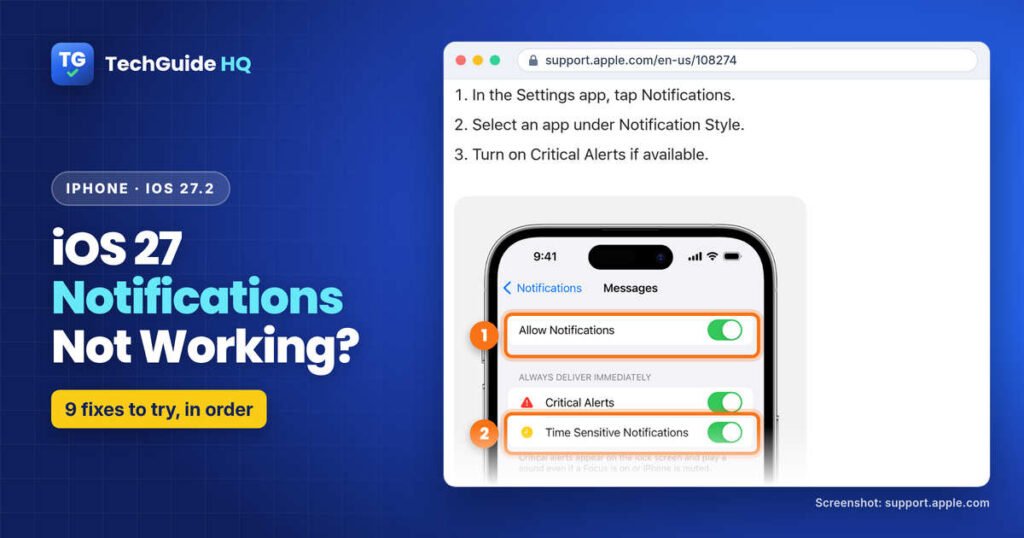
Last updated: November 4, 2026
Checked against: iOS 27.2 (the latest update on Apple’s About iOS 27 Updates page as of November 4, 2026), Apple’s iPhone User Guide for iOS 27 and current Apple Support articles.
You pick up your iPhone and there are six WhatsApp messages you never heard arrive. Or your bank app only shows its alert when you open it yourself, hours later. If iOS 27 notifications are not working like that, it’s maddening, because nothing looks broken. The good news is that it usually isn’t broken. Apple’s release notes for iOS 27, 27.0.1 and 27.2 don’t list a general notification bug. Much more often, a setting is quietly holding your alerts back or sending them somewhere else.
This guide goes through those settings in the order that makes sense, using the exact names from Apple’s iOS 27 documentation. Start at the top and stop when your alerts come back.
Quick answer: Open Control Center and make sure no Focus (such as Do Not Disturb, Sleep or Reduce Interruptions) is on. Then go to Settings > Notifications, tap the app that’s gone quiet, and check that Allow Notifications is on, that Lock Screen, Notification Center and Banners are selected, and that Notification Delivery is set to Immediate Delivery rather than Scheduled Summary. Check the app’s own notification settings too. If alerts arrive but make no sound, check Silent mode. Still nothing? Turn off Low Power Mode, update iOS and the app, and restart your iPhone.
Which Kind of Notification Problem Do You Have?
“Notifications not working” covers a few different problems, and each one points to a different setting. Spend ten seconds working out which one you have. It saves a lot of tapping.
- No alerts at all, from any app: most likely a Focus, an Apple Watch taking the alerts, or a connection problem. Start with fixes 1, 5 and 7.
- One app is silent while others work: check that app’s settings on the iPhone and inside the app itself (fixes 2, 3 and 6).
- Messages only appear when you open the app: the alert never reached you while the app was closed. Check fixes 3 and 6.
- Alerts arrive late or all at once: that’s how Scheduled Summary and a Focus behave. See fixes 1 and 2.
- Alerts arrive but make no sound: delivery is working, so check Silent mode and the app’s sound settings (fix 4).
- Messages or Mail only: both have extra settings, covered in the situations section below.
Is There an iOS 27.2 Notifications Bug?
Not one that Apple has acknowledged. As of November 4, 2026, Apple’s About iOS 27 Updates page doesn’t list a fix for notifications failing to arrive in iOS 27, 27.0.1 or 27.2. The only related fix, in iOS 27.0.1, stopped the touchscreen becoming unresponsive when Notification Center and Control Center were opened at the same time.
That doesn’t mean nobody has had trouble. After the iOS 27 update, some people posting on Reddit’s r/ios said a few third-party apps went quiet while Apple’s own apps kept working, and one person in that thread later said iOS 27.0.1 seemed to fix it for them. These are individual reports, not a confirmed bug. So update if you’re still on iOS 27.0, then treat it as a settings problem and work through the fixes below.
9 Fixes for iOS 27 Notifications Not Working
1. Turn Off Focus, or Let the App Through
Start here. A Focus that’s on, or one that switched itself on at bedtime, is the classic reason a phone goes quiet. While a Focus is on, it silences notifications from anyone and any app you haven’t allowed.
- Open Control Center. If a Focus such as Do Not Disturb, Work or Sleep is showing, tap it to turn it off. If you only see the Focus icon, no Focus is on.
- Check your other Apple devices too. If Share Across Devices is on, a Focus turned on from your iPad or Mac also applies to your iPhone.
- If you want to keep using a Focus, go to Settings > Focus, tap that Focus, tap People or Apps, make sure Allow Notifications From is selected, then tap Add People or Add Apps and choose the ones you need.
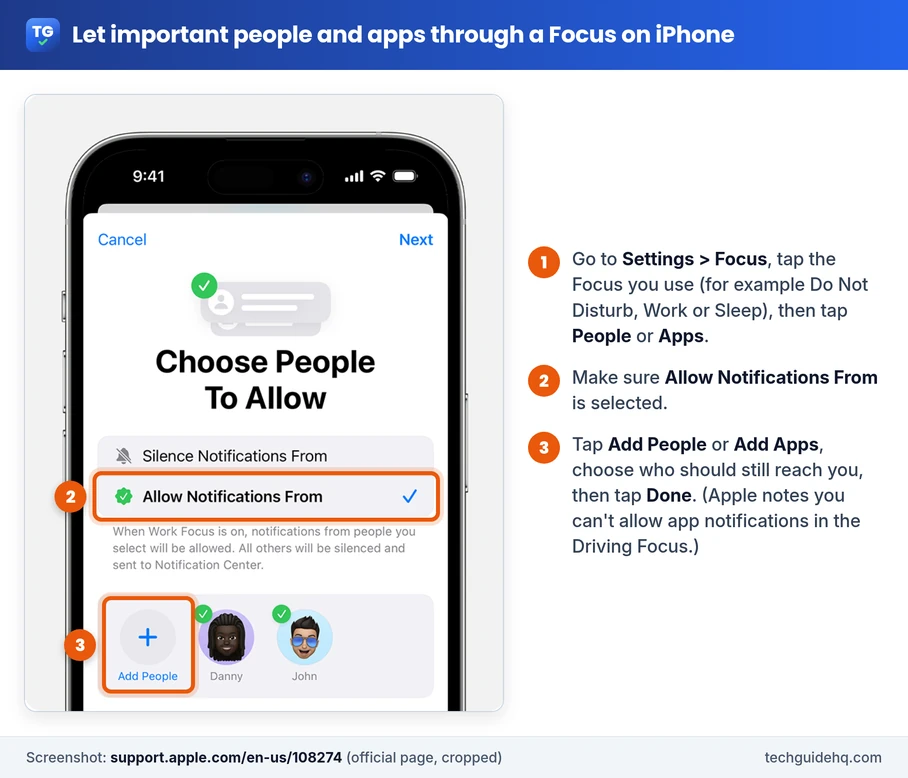
A Focus can also turn on by itself on a schedule, such as a sleep schedule, so check each Focus in Settings > Focus. Apple notes that you can’t allow app notifications in the Driving Focus.
On iPhone models with Apple Intelligence (iPhone 15 Pro, iPhone 15 Pro Max and iPhone 16 or later), there’s also a Reduce Interruptions Focus. Apple says it shows only notifications that might need your attention right away and silences the rest, so less urgent alerts can seem to vanish. Turn it off in Control Center, or allow specific people and apps in Settings > Focus > Reduce Interruptions.
2. Notifications Delayed? Take the App Out of Scheduled Summary
Scheduled Summary holds back notifications from the apps you choose and hands them over together at set times, say 8 a.m. and 6 p.m. It’s easy to switch on during setup and forget about. Then a delivery app’s “your driver is outside” alert turns up at six o’clock, and it feels exactly like notifications stopped.
- Go to Settings > Notifications > Scheduled Summary to see whether it’s on and which apps are included.
- To fix a single app, go to Settings > Notifications, tap the app, and under Notification Delivery choose Immediate Delivery.
3. Check the App’s Notification Settings (on the iPhone and in the App)
Every app has its own page in Settings, and it only takes one switch in the wrong place. This is also where an app ends up if you tapped Don’t Allow on its first pop-up without thinking.
- Go to Settings > Notifications and tap the app below Notification Style.
- Turn on Allow Notifications.
- Under Alerts, select Lock Screen, Notification Center and Banners. If Banners is off, you’ll only find alerts later in Notification Center.
- If the app offers Time Sensitive Notifications, turn it on if you want its urgent alerts. Some apps also offer Critical Alerts, which Apple says come through even when your iPhone is muted or a Focus is on.
- If you see Customize Notifications, tap it to check which types of alerts the app is allowed to send.
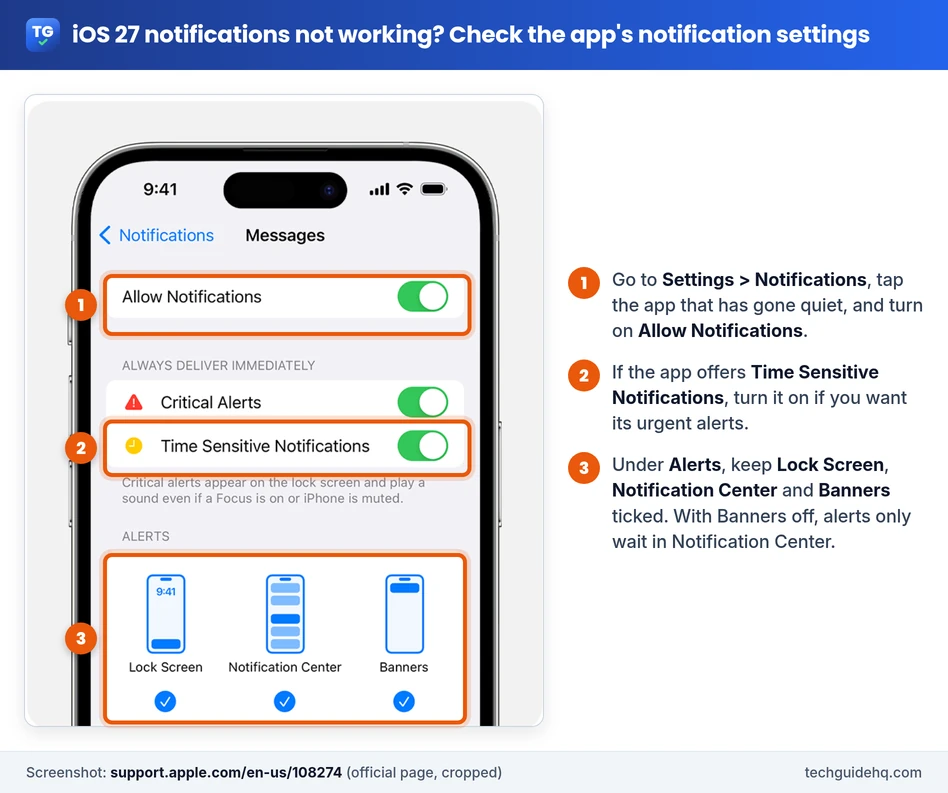
Many apps also have their own switches, so iOS can be set up perfectly while the app itself has alerts off for a chat or a type of message. Check the app’s own settings, or tap the link to them at the bottom of its page in Settings > Notifications, if there is one. WhatsApp, for example, has its own Settings > Notifications screen, and its Help Center notes that if Sound is set to None there, you won’t hear an alert even though iOS sounds are on.
If alerts appear without their content, go to Settings > Notifications > Show Previews and choose Always or When Unlocked.
4. Notification Sound Not Working? Check Silent Mode and Sounds
Here’s the giveaway: you pick up the phone and the alerts are all sitting there, you just never heard them. Delivery is fine. The problem is sound. Apple notes that when your iPhone is silenced or the volume is all the way down, notification sounds won’t play.
- Make sure your iPhone isn’t in Silent mode. Depending on your model, that’s set with the Ring/Silent switch or the Action button.
- Go to Settings > Sounds & Haptics and check the volume slider.
- Go to Settings > Notifications, tap the app, and tap Sounds (if the app supports it) to make sure a sound is chosen.
5. Wearing an Apple Watch? It May Be Taking the Alerts
If your watch buzzes while your iPhone stays dark on the desk, that’s by design. Apple says notifications go to either the watch or the iPhone, not both. When your iPhone is unlocked, you get them on the iPhone. When it’s locked or asleep, they go to the watch, unless the watch is locked.
To change what the watch does for a particular app, open the Apple Watch app on your iPhone, tap My Watch > Notifications, then tap the app and choose Mirror my iPhone or set it to Custom.
6. Notifications Only Show When You Open the App? Check Battery and Background Settings
This is the “nothing, nothing, then everything at once when I open WhatsApp” problem. WhatsApp’s Help Center describes it well: if you only see new messages after you open the app, the alerts aren’t reaching you while it’s closed, and that depends on notification permissions, background data and battery settings.
- Turn off Low Power Mode: Apple lists what Low Power Mode limits to save battery. Among other things, it turns off Background App Refresh and email fetch. On iPhone 15 and later, go to Settings > Battery > Power Mode. On iPhone 14 and earlier, go to Settings > Battery. You can also tap the battery icon in Control Center. It turns off by itself once you charge to 80% or more.
- Check Background App Refresh: go to Settings > General > Background App Refresh. Make sure it isn’t turned off completely and that the app you care about is on. WhatsApp asks you to check this setting for its app.
- Stop swiping the app away: Apple says an app you quit from the app switcher might not run or check for new content until you open it again. WhatsApp gives the same warning and says force-quitting it can stop its notifications. Apple also says closing all your apps doesn’t help if your iPhone seems slow or the battery drains quickly, so you can leave them in the app switcher.
These settings affect other background jobs too. Our guide to a WhatsApp backup stuck on Preparing explains how they can hold up WhatsApp backups on iPhone.
7. Push Notifications Not Working? Check Your Internet Connection
App notifications travel over Apple’s Push Notification Service, and Apple says your iPhone needs a steady connection to Apple’s servers over Wi-Fi or cellular data to get them.
- Open a website in Safari to confirm you’re online. Try switching between Wi-Fi and cellular data to see if alerts come through on one but not the other.
- If alerts only fail on one particular network, such as office, school or hotel Wi-Fi, that network’s firewall may be blocking Apple’s push service. Apple has a guide for network administrators listing what must be allowed, so ask whoever runs the network.
8. Update iOS 27 and Your Apps, Then Restart
- Go to Settings > General > Software Update and install the latest version of iOS 27. If your iPhone says there isn’t enough space, our guide on how to free up space on iPhone covers how to make room for an iOS update.
- Open the App Store, tap your profile picture and update the app that isn’t notifying you. An older version of an app may not work properly with a new version of iOS.
- Turn your iPhone off, wait a few seconds and turn it back on.
If one app still won’t notify you, you can delete it and install it again from the App Store. If it asks whether it can send you notifications, tap Allow. Be careful: deleting an app also deletes the data stored in it. For a chat app, make sure your chats are backed up first, and for an authenticator or sign-in app, make sure you can still get into your accounts before you remove it. Our guide on how to back up WhatsApp on iPhone shows how to check that a recent backup exists.
9. Reset All Settings (Last Resort)
If nothing above helps and lots of apps are affected, resetting your settings can clear a setting you just can’t find. It doesn’t delete your apps, photos or messages, but it does reset a lot, so leave it until last.
- Go to Settings > General > Transfer or Reset iPhone > Reset.
- Tap Reset All Settings. Don’t tap Erase All Content and Settings, which wipes the iPhone.
Apple says Reset All Settings resets network settings (you’ll need your Wi-Fi passwords again), the keyboard dictionary, and location and privacy settings, and removes Apple Pay cards. No data or media are deleted. Apple suggests backing up first, so you can restore your old settings if the reset doesn’t help.
Common Situations People Ask About
WhatsApp notifications not working on iOS 27
Say your one-to-one chats ping as normal but the family group never does. WhatsApp treats group notifications separately, and each group can be muted on its own, so first make sure the group itself isn’t muted, then check Group notifications in WhatsApp’s Settings > Notifications. If nothing arrives while WhatsApp is closed, go back to fix 6. WhatsApp also says that if you use Scheduled Summary, its alerts may be delayed until you remove it from the summary.
iPhone notifications not showing on the Lock Screen
First, look at the bottom of your Lock Screen. If you see something like “3 Notifications” instead of the alerts themselves, the layout is set to Count. Go to Settings > Notifications and, under Display As, choose Stack or List. If one app never appears there, make sure Lock Screen is selected under its Alerts (fix 3). And if alerts work while you’re using the phone but stop the moment it locks, check your Focus settings: Apple says Focus options such as Sleep and Do Not Disturb can be set to silence notifications only while your iPhone is locked.
Not getting notifications from one person
If texts from everyone else arrive but one friend’s never make a sound, that conversation may be muted. Open it in Messages, tap the name or picture at the top and turn off Hide Alerts. Apple also notes that if Screen Unknown Senders is on, you don’t get notifications for messages from unknown senders or messages marked as spam. Those go to the Unknown Senders filter or the Spam folder in Messages. Move a message out of Spam or mark the sender as known to get alerts for them again. If a Focus is on, check that the person is on its allowed list (fix 1). You also won’t get a separate alert for each message while you have the Messages app open and in use.
New emails show up late in Mail
Mail only gets instant alerts from accounts that support push. Other accounts fetch new mail on a schedule. Go to Settings > Apps > Mail > Mail Accounts > Fetch New Data to check. Apple says that with the default Automatically option, new data is fetched in the background only when your iPhone is charging and connected to Wi-Fi, so choose a timed schedule if you want mail checked more often. Then check Settings > Notifications > Mail for alerts, sounds and badges.
Alerts look different or come out of order
On iPhone models with Apple Intelligence, Summarize Notifications condenses alerts (summaries appear in italics) and Prioritize Notifications moves important ones to the top of the stack. Both change what you see rather than stopping delivery. Turn either off in Settings > Notifications.
The Short Version
When iOS 27 notifications stop working, the cause is usually a setting that holds alerts back or sends them elsewhere: a Focus, Scheduled Summary, an app’s own switches, Silent mode, an Apple Watch or Low Power Mode. Check those first, keep iOS 27 and your apps updated, and save Reset All Settings for last. If one app still stays silent after all that, the next step is that app’s developer, since they’re the ones who can check it from their end.
Official sources: Apple Support: How to get notifications on your iPhone and Apple Watch, iPhone User Guide: Change notification settings, Use notifications on your iPhone or iPad, If you don’t receive Messages notifications, Use Low Power Mode and WhatsApp Help Center: Can’t see or hear notifications. Read how we write our guides. More iPhone and Android guides are in our Smartphones section.
Frequently Asked Questions
Why did my notifications stop working after the iOS 27 update?
Apple’s iOS 27, 27.0.1 and 27.2 notes don’t list a general notification bug, so check your settings first. The usual causes are a Focus that is on or scheduled, Scheduled Summary, an app with Allow Notifications turned off, Low Power Mode, or an Apple Watch receiving the alerts while your iPhone is locked.
Is there an iOS 27.2 notifications bug?
Apple hasn’t listed one. As of November 4, 2026, its About iOS 27 Updates page shows no fix for missing notifications in iOS 27.2. Some people have reported individual third-party apps going quiet after updating, so update iOS and the app, check its notification settings, and reinstall it only after backing up its data.
Why am I not getting notifications until I open the app?
That means the alert isn’t reaching you while the app is closed. Check that Allow Notifications is on for the app, turn off Low Power Mode, make sure Background App Refresh is on for the app, and stop swiping it away in the app switcher. Apple and WhatsApp both say a force-quit app might not get new content until you open it again.
Why are my iPhone notifications not showing on the Lock Screen?
Check Settings, Notifications, Display As. If it’s set to Count, the Lock Screen only shows a number, so choose Stack or List. Then make sure Lock Screen is selected under the app’s Alerts, and check whether a Focus is set to silence notifications while your iPhone is locked.
Why do I get notifications on my Apple Watch but not my iPhone?
That’s how Apple designed it. Notifications go to either the watch or the iPhone, not both. If your iPhone is unlocked, alerts appear on the iPhone. If it’s locked or asleep, they go to your Apple Watch, unless the watch is locked.
Why are my iOS 27 notifications delayed?
Delays usually come from Scheduled Summary, which delivers alerts at set times, or from a Focus, which holds back alerts until it ends. For email, accounts without push only fetch new mail on a schedule. Set the app to Immediate Delivery in Settings, Notifications.
Will Reset All Settings delete my photos or apps?
No. Apple says no data or media are deleted. It does reset network settings, so you’ll need your Wi-Fi passwords again, plus the keyboard dictionary, location and privacy settings, and it removes Apple Pay cards. Don’t confuse it with Erase All Content and Settings, which wipes the iPhone.
More iOS 27 fixes are collected on our iPhone & iOS 27 Problems page.
Related guides
- How to Free Up Space on iPhone (iOS 27 Guide)
- How to Back Up WhatsApp on iPhone & Android (2026)
- WhatsApp Backup Stuck on Preparing? How to Fix It (2026)

Abubakar Iqbal is the founder and editor of TechGuide HQ, a free how-to site run from Islamabad, Pakistan. Abubakar writes plain-English, step-by-step fixes for everyday Windows, iPhone, Android, home Wi-Fi and app problems, from WhatsApp backups that won’t finish to locked Gmail accounts. Before a guide is published, every step and menu path is checked against official help pages from Apple, Google, Microsoft, Samsung, WhatsApp and router makers, and those sources are linked in the guide. Abubakar re-checks guides when major software updates ship and personally answers reader questions and corrections sent through the TechGuide HQ contact page.