
Last updated: November 16, 2026 · By Abubakar Iqbal
Last checked against official page: Valve’s Steam Client Troubleshooting and Steamwebhelper is not responding pages, on November 16, 2026.
Summary
- Steam is often stuck in the background: press Ctrl + Shift + Esc, end every Steam process, restart the PC and open Steam once.
- For a “Steamwebhelper is not responding” box, use the dialog’s buttons starting with Restart Steam; for a black or blank window, restart with GPU acceleration off and update the graphics driver.
- If Steam starts then closes or stalls on updating, pause antivirus, firewall or VPN to test and restart the router; also update Windows and drivers and try a clean boot.
- As a last resort, reinstall Steam into the same folder, which Valve says keeps your games, and never uninstall it without moving steamapps out first.
You double-click the Steam icon, the cursor spins for a second, and then nothing. No window, no error, no library. Steam not opening on Windows 11 is annoying, but it’s rarely serious, and you almost never need to lose your games to fix it. This guide puts Valve’s own troubleshooting steps in the order that saves the most time, explains what each one does, and warns you before the one step that can delete game files.
Why Won’t Steam Open on Windows 11?
Valve’s own answer is honest: Steam crashes “can be caused by many factors,” because every PC has a different mix of hardware and software. In practice, it usually comes down to one of these:
- A stuck process. Steam is already “running” in the background, so a second click does nothing.
- A slow or crashed webhelper. Valve describes steamwebhelper.exe as handling Steam’s “rendering components,” the screens you see. If it’s slow to respond, Steam can sit there with no usable window.
- Graphics driver trouble. Valve says some video drivers “can have trouble rendering Steam content” when GPU acceleration is on.
- Another program getting in the way. Valve names antivirus, firewalls, ad-blockers, system cleaners, recording software and “performance boosters.”
- Damaged Steam files. A reinstall over the top replaces them.
Sometimes the fault is Steam’s, not yours. Valve says some crashes can only be fixed by its developers through client updates, so if Steam broke for everyone at once, waiting can be the real fix.
How to Fix Steam Not Opening on Windows 11
Work through these in order, easiest first. Nothing before step 10 touches your games.
1. Close Steam completely in Task Manager
Why: if an earlier copy of Steam froze while starting, Windows still counts it as running, so another click does nothing.
- Press Ctrl + Shift + Esc to open Task Manager (Microsoft lists this shortcut in its Windows keyboard shortcuts).
- On the Processes tab, look for anything named Steam. Select it and choose End task.
- For a thorough check, open the Details tab and end steam.exe and any steamwebhelper.exe entries that are still listed.
- Wait a few seconds, then open Steam once. Don’t click it five times; each click can start another stuck copy.
2. Restart your PC (a real restart)
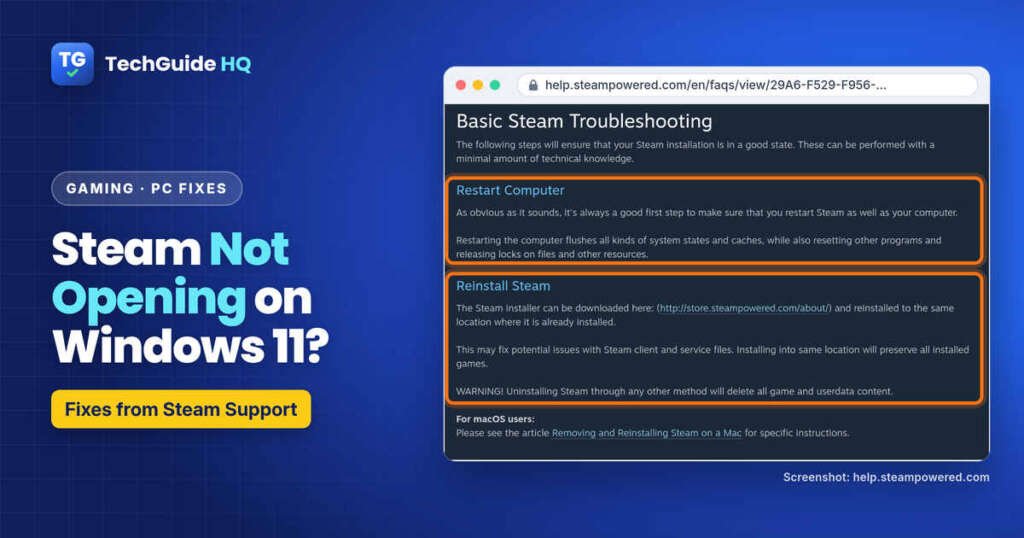
Valve’s first step is to restart both Steam and the computer. A restart “flushes all kinds of system states and caches” and releases file locks. Use Start > Power > Restart, not Sleep, then open Steam before anything else.
3. Seeing “Steamwebhelper is not responding”? Use the buttons in order
This message means “a key component of Steam was slow to respond,” in Valve’s words. The dialog itself gives you the fixes, and Valve explains each one:
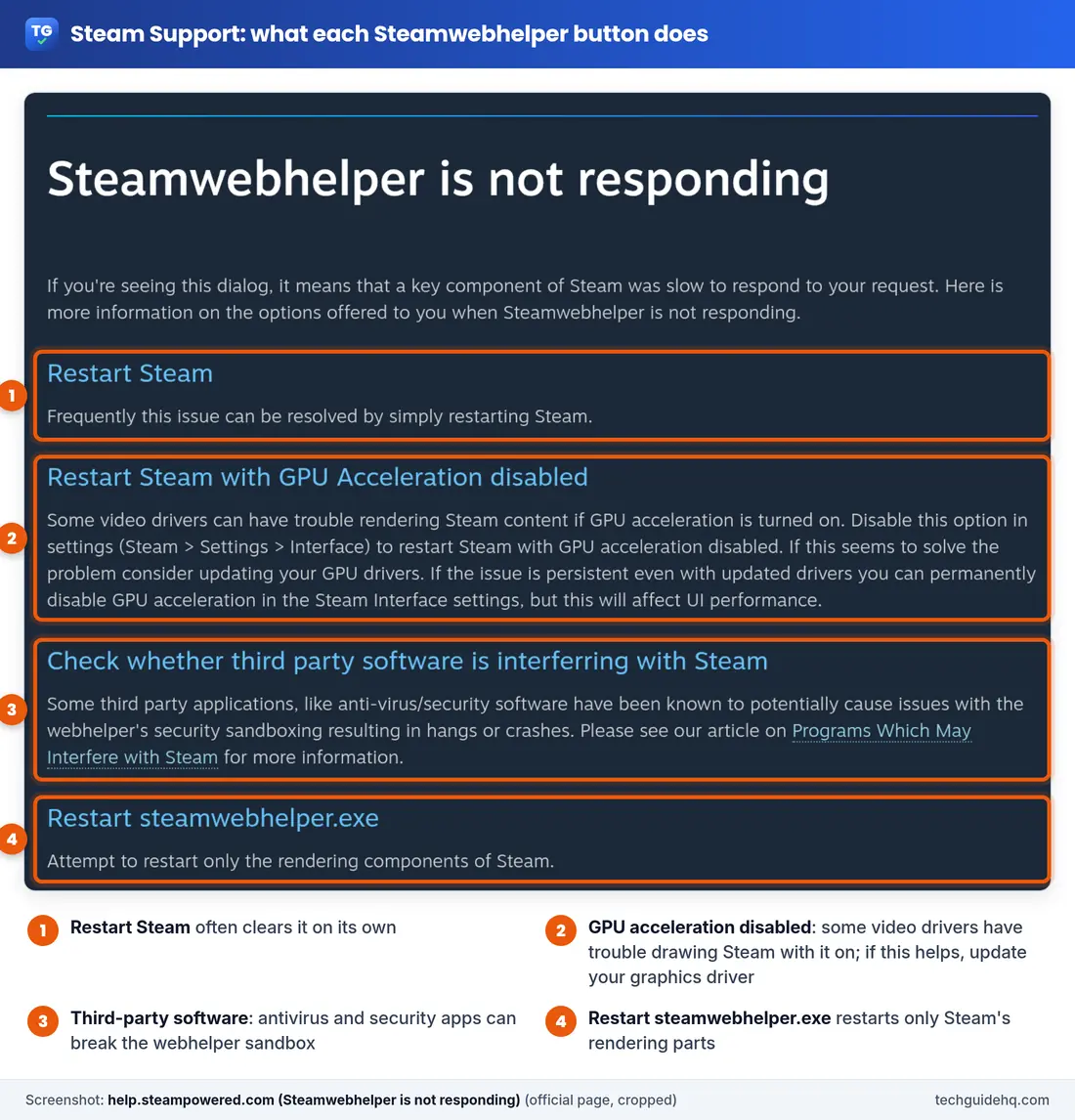
- Restart Steam. Valve says this “frequently” solves it on its own.
- Restart Steam with GPU Acceleration disabled. Pick this if a plain restart didn’t help. Valve says some video drivers have trouble rendering Steam with GPU acceleration on.
- Restart steamwebhelper.exe. This restarts only the parts that draw Steam’s screens.
- If the message keeps coming back, check your security software (step 7). Valve says anti-virus and security apps can interfere with the webhelper’s sandbox and cause “hangs or crashes.”
4. Turn off GPU acceleration in Steam and update your graphics driver
Why: with GPU acceleration on, Steam uses your graphics card to draw its windows, and Valve says some video drivers have trouble rendering Steam content that way.
- If Steam opens at all, go to Steam > Settings > Interface and turn off the GPU acceleration option, then restart Steam. (If Steam won’t open, use the Restart Steam with GPU Acceleration disabled button from step 3 instead.)
- If that fixes it, update your graphics driver. Microsoft says the best way is Windows Update, which also delivers video card drivers. You can also right-click Start, open Device Manager, expand Display adapters, right-click your graphics card and choose Update driver, then Search automatically for updated driver software.
- Try turning GPU acceleration back on after the driver update. Valve says that if the problem continues even with new drivers, you can leave it off permanently, but “this will affect UI performance,” so the Steam window may feel a little less smooth.
Started right after a driver update? Microsoft’s Device Manager page also explains Roll Back Driver on the device’s Driver tab (administrator account needed).
5. Install Windows updates
Valve asks you to make sure Windows and “all hardware drivers are up to date.” Go to Start > Settings > Windows Update, select Check for updates, install what’s offered and restart. If an update itself is stuck or failing, our guide to Windows 11 26H2 problems and known issues lists what Microsoft currently confirms.
6. Unplug controllers, wheels and other extras
Valve says external input devices need their own drivers, and those “can interfere with Steam.” Unplug controllers, racing wheels, USB hubs and anything else you don’t need, then try Steam again. If it opens, plug things back one at a time.
7. Check your antivirus, firewall and VPN
Valve says antivirus software “hooks very deep” into Windows and can affect disk and network activity that Steam depends on. Firewalls can stop Steam talking to its servers, and a VPN can keep the client off the Steam network.
- Add an exception for Steam (and its games, if the app supports it), as Valve suggests.
- For a quick test, pause the antivirus, VPN or firewall, try Steam, then switch protection back on straight away. Don’t browse or download anything while it’s off.
- Also close download managers, “PC booster” or cleaner tools and screen recorders.
8. Do a clean boot to find a conflicting app
If you can’t tell which background program is to blame, Microsoft’s clean boot starts Windows “with only essential drivers and startup programs.” Here’s the short version of Microsoft’s clean boot steps:
- Sign in with an administrator account. Select Search, type msconfig and open System Configuration.
- On the Services tab, tick Hide all Microsoft services, then select Disable all and Apply.
- On the Startup tab, select Open Task Manager and disable each enabled startup app. Write down what you turned off.
- Close Task Manager, select OK and restart. Then try Steam.
If Steam opens in a clean boot, another app or service is the cause. Microsoft suggests turning half the items back on per restart until you find it. Afterwards, choose Normal startup on the General tab of msconfig and re-enable your startup apps.
A long list of startup apps also slows the whole PC down. If your laptop feels sluggish in general, our guide on fixing a slow Windows 11 laptop shows which ones are safe to switch off.
9. Restart your router or try another network
When Steam starts, it checks for updates and signs you in. Valve says a router or modem that has run for a long time can get into a “slow/broken state,” and that can make this launch process “fail silently or crash.” Restart the modem and router. If you can, test another connection, such as a phone hotspot; Valve notes some providers, especially mobile networks, compress data in ways that can cause issues with Steam.
10. Reinstall Steam into the same folder (keeps your games)
If Steam’s own files are damaged, this is the fix. It’s also the one people most often get wrong.
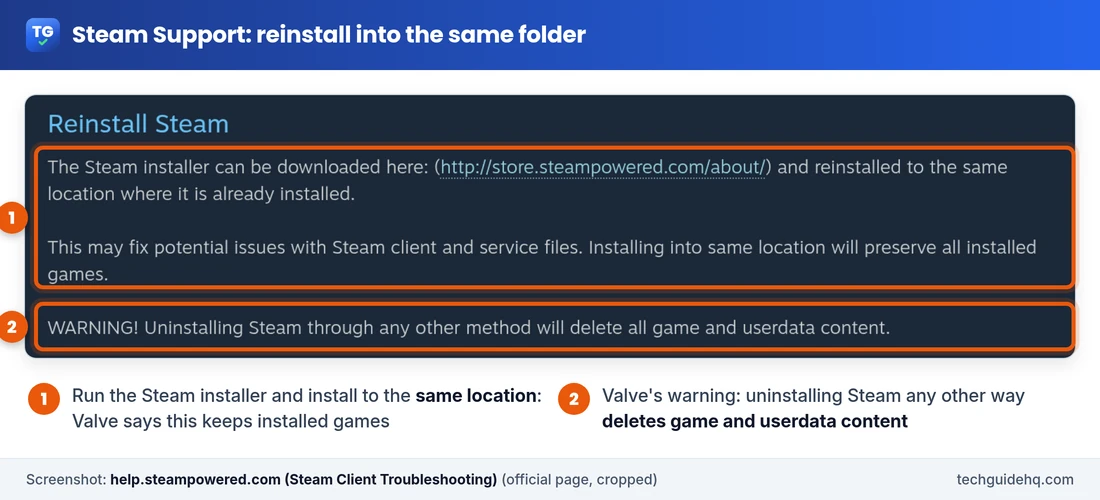
- Download the Steam installer from Valve’s official Steam download page. Don’t use a copy from another website.
- Close Steam in Task Manager (step 1).
- Run the installer and, when it asks where to install, choose the folder Steam is already in. On most PCs that’s C:\Program Files (x86)\Steam.
- Let it finish, then open Steam.
Valve says installing into the same location “will preserve all installed games.” But read its warning carefully: uninstalling Steam “through any other method will delete all game and userdata content.” So don’t uninstall Steam first unless you really mean to (see the next section).
Still Not Opening? Optional Advanced Checks
Warning: Valve calls these advanced steps and recommends a local IT specialist if you’re unsure.
- Turn off overclocking. If you or a tuning app overclocked the CPU, GPU or memory, Valve says running outside the maker’s settings “can cause memory and file corruption.” Set it back to default, which is usually done in the BIOS or the tuning app.
- Check the drive for errors. Open File Explorer > This PC, right-click the drive Steam is on, choose Properties > Tools > Check (under Error checking).
- Test your memory. Valve suggests running Windows Memory Diagnostic: search for mdsched from Start. It asks to restart the PC to run the test, so save your work first.
Last resort: a full uninstall (back up your games first)
If you really need to remove Steam completely, follow Valve’s Uninstall Steam page exactly. First move the steamapps folder (usually C:\Program Files (x86)\Steam\steamapps) out of the Steam folder, because the uninstaller deletes the whole Steam folder, games included. Valve’s manual registry removal is a last resort only.
Is Your PC Still Supported by Steam?
On Windows 11 you can skip this. On an older Windows 10 laptop, check it: Valve says that as of January 1, 2026, Steam stopped supporting 32-bit versions of Windows. Existing installs on Windows 10 32-bit may keep working “for the near term” but get no updates, and Steam Support can’t help with them. To check, right-click Start, open Settings > System > About and look under Device specifications: Microsoft’s find information about your Windows device page says it shows whether you’re running a 32-bit or 64-bit version of Windows. Windows 10 64-bit is still supported.
Common Situations
- “Steam won’t open when I click on it, but it’s in Task Manager.” That’s the stuck-process case. End it (step 1), restart, and open it once.
- “Steam opens to a black screen.” Try Restart Steam with GPU Acceleration disabled, then update the graphics driver (steps 3 and 4).
- “Steam stopped opening after a Windows update.” Install any remaining updates and restart, update the graphics driver, then reinstall Steam into the same folder. If the whole desktop goes black, see our Windows 11 black screen after login guide.
- “Steam won’t open on my new gaming laptop.” New laptops often come with trial antivirus and tuning or overlay apps. Check those first (steps 7 and 8). If it’s Acer NitroSense that won’t open, rather than Steam, see our guide to NitroSense not working on Windows 11.
- “Steam opened, but I can’t find GTA 6.” Official Rockstar, PlayStation and Xbox pages list Grand Theft Auto VI for PlayStation 5 and Xbox Series X|S on 19 November 2026, and they do not currently list a PC or Steam version. We collected the official dates, unlock times and pre-load details in our GTA 6 release date and pre-load guide.
Troubleshooting: Quick Fixes by Symptom
| Symptom | Most likely reason | Fix to try |
|---|---|---|
| Click does nothing | Steam stuck in the background | Step 1, then step 2 |
| “Steamwebhelper is not responding” | Webhelper slow, blocked or a driver issue | Step 3, then steps 4 and 7 |
| Black or blank Steam window | GPU acceleration and video driver | Step 4 |
| Stuck while updating or signing in | Network, firewall or VPN | Steps 7 and 9 |
| Only one game won’t start | The game, not Steam | Check that game’s support page; Steam itself is fine |
Frequently Asked Questions
Why is Steam not opening when I click on it?
Usually an earlier copy of Steam is stuck in the background. Press Ctrl + Shift + Esc, end every Steam process in Task Manager, restart the PC and open Steam once. If that fails, check drivers, antivirus and other background apps, then reinstall Steam into the same folder.
Will reinstalling Steam delete my games?
Not if you reinstall over the top. Valve says installing Steam into the same folder it’s already in preserves all installed games. Uninstalling Steam any other way deletes game and user data, so move the steamapps folder out first.
How do I fix Steamwebhelper is not responding?
Use the dialog’s options in order: Restart Steam, Restart Steam with GPU Acceleration disabled, then Restart steamwebhelper.exe. Valve says some video drivers struggle with GPU acceleration, so update your graphics driver and check your security software.
Can antivirus stop Steam from opening?
Yes. Valve says antivirus software hooks deep into Windows and can affect the disk and network activity Steam relies on. Add an exception for Steam, or pause the antivirus briefly to test, then turn protection back on.
Does Steam still work on Windows 10 32-bit?
Valve ended Steam support for 32-bit Windows on January 1, 2026. Existing installs may keep working for the near term but get no updates or support. Windows 10 64-bit and Windows 11 are still supported.
More Windows fixes, from updates to slow PCs, are collected on our Windows 11 Problems & Fixes page. New gaming guides will appear in Gaming Laptop & PC Game Fixes.
Related guides
- Windows 11 Black Screen After Login? 25H2 & 26H2 Fixes
- Windows 11 Laptop Slow? 9 Fixes That Work (2026)
- Windows 11 26H2 Problems: Known Issues & KB5132061 Fixes
- Windows 11 25H2 Repair Version Stuck at 99%? What to Do
Sources: Steam Support, Steam Client Troubleshooting; Steam Support, Steamwebhelper is not responding; Steam Support, Programs Which May Interfere with Steam; Steam Support, Uninstall Steam; Steam Support, Windows 32-bit OS Support; Microsoft Support, How to perform a clean boot in Windows; Microsoft Support, Update drivers through Device Manager in Windows; Microsoft Support, Keyboard shortcuts in Windows.

I run TechGuide HQ from Islamabad, Pakistan. My team and I write step-by-step Windows, iPhone, Android and app guides, check them against official help pages, try some steps on my own devices, and personally answer questions sent through the contact page.