
Last checked against official pages: Apple Support’s If you can’t connect to Wi-Fi on your iPhone or iPad and About Connectivity Assist, on November 14, 2026 (current version: iOS 27.2.1, released November 9, 2026, according to Apple’s security releases list and About iOS 27 Updates page).
Summary
- Update to iOS 27.2.1 in Settings > General > Software Update, restart, then scroll down in Settings > Wi-Fi and turn off Connectivity Assist.
- If it still drops, tap Forget This Network and rejoin, set Private Wi-Fi Address to Fixed, test without your VPN and restart the router.
- If every device drops, fix the router; if only the iPhone drops everywhere, reset network settings as the last step and then talk to Apple.
You’re on the sofa, a few steps from the router, and your iPhone drops off Wi-Fi again. The icon flickers, a video stalls, and for a moment the status bar shows 5G instead. If your iOS 27 Wi-Fi keeps disconnecting, especially since you installed iOS 27.2, you’re not imagining it, and most causes can be found in a few minutes. This guide puts Apple’s own fixes in a sensible order, starting with the new iOS 27 setting that makes a working connection look broken.
Why Does iOS 27 Wi-Fi Keep Disconnecting?
First, a quick test: do other phones, laptops or the TV stay connected when your iPhone drops? Apple’s Wi-Fi page says that if other devices connect, the router and network are working, so look at the iPhone. If everything drops together, skip to the router section.
When it’s only the iPhone, these are the usual suspects:
- Connectivity Assist. New in iOS 27. It mixes cellular data in with Wi-Fi when Wi-Fi is weak or busy, which can look exactly like a disconnect.
- A stale saved network. The saved profile still has an old password or setting after a router change.
- Private Wi-Fi Address. Routers that allow or block devices by address may not recognise a changing one.
- VPN and security apps. Apple lists them as a cause on its own Wi-Fi page.
- Router settings. Different names for 2.4 GHz and 5 GHz, a hidden network, MAC filtering or old firmware can all cause drops with Apple devices.
What about iOS 27.2 itself? Apple released iOS 27.2 on October 26, 2026 and iOS 27.2.1 on November 9, 2026, according to its security releases page. Apple describes 27.2.1 as “bug fixes and security updates” and doesn’t list a Wi-Fi fix. Some people on forums such as AppleVis report Wi-Fi drops on iOS 27.2, but as of November 12, 2026 we couldn’t find an Apple page confirming an iOS 27 Wi-Fi bug. So the fixes below are the ones Apple documents.
How to Fix iPhone Wi-Fi Disconnecting on iOS 27 (In This Order)
Go down the list and stop when the connection holds for a full day. The early steps are quick and don’t delete anything.
1. Update to iOS 27.2.1 and restart
Follow-up releases are where post-update bugs usually get fixed, and Apple asks you to update before changing settings like Private Wi-Fi Address.
- Open Settings > General > Software Update (Apple’s update guide shows the screen).
- Install any update that’s offered. If Wi-Fi keeps cutting out mid-download, plug the iPhone in and keep it close to the router.
- When it’s done, turn the iPhone off and back on, even if it already restarted during the update.
Turning Wi-Fi off and on in Settings > Wi-Fi often brings it back for a while. A stopgap, not a fix.
2. Turn off Connectivity Assist (the iOS 27 setting most guides miss)
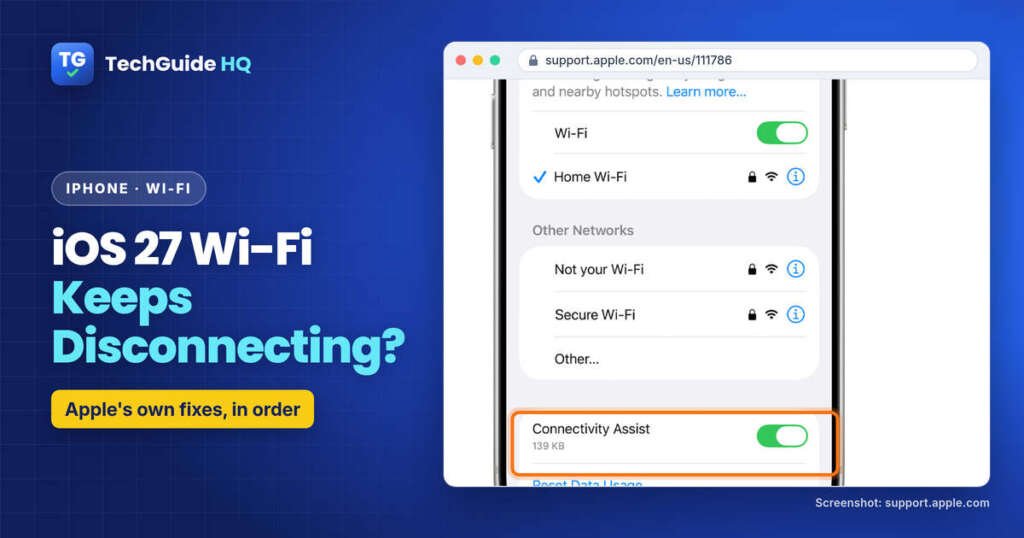
This is the big iOS 27 change. Apple’s Connectivity Assist page explains that it replaces Wi-Fi Assist, which used to live in Cellular settings. If you had Wi-Fi Assist on before you updated, Connectivity Assist is on by default.
Why does it matter? With Connectivity Assist on, your iPhone uses cellular data along with Wi-Fi when Wi-Fi is weak, busy or not connected to the internet. So in the back bedroom where the signal is patchy, you’ll see 5G appear and things load over mobile data. It feels like Wi-Fi dropped. With it off, Apple says the iPhone uses Wi-Fi only, even when the connection is weak. You get a clear answer: either Wi-Fi works or it doesn’t.
- Open Settings and tap Wi-Fi. Make sure Wi-Fi is on.
- Scroll down and turn off Connectivity Assist.
- To switch it off for one network only (say, your home Wi-Fi), tap the More Info button (the small “i”) next to that network and turn off Use Connectivity Assist.
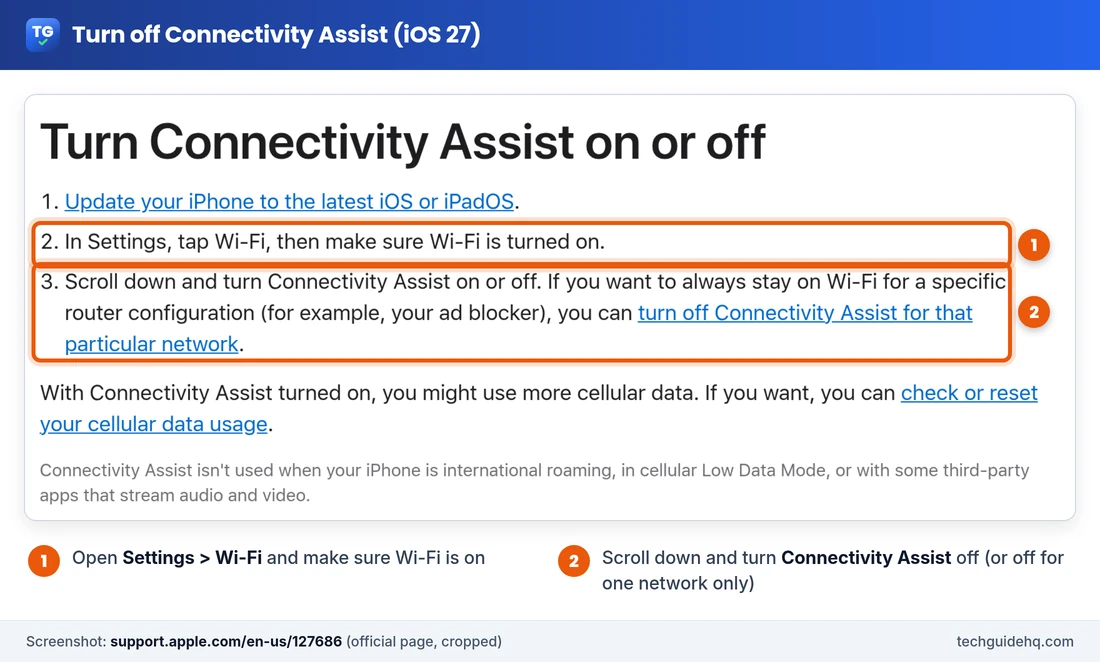
Note: “turn off Wi-Fi Assist in Settings > Cellular” is iOS 26 advice. On iOS 27 the switch lives in Wi-Fi settings, which also show how much cellular data Connectivity Assist has used.
3. Forget the Wi-Fi network and rejoin it
Your iPhone keeps a saved profile for every network. If the router’s password or security type changed, or a new router took over the old name, the phone keeps trying a profile that no longer fits. Forgetting the network makes it start fresh.
- Find the Wi-Fi password first. It’s often on a sticker on the router.
- Go to Settings > Wi-Fi and tap the More Info button next to the network.
- Tap Forget This Network and confirm.
- Tap the network name in the list and enter the password again. A blue checkmark means you’re connected.
Also worth a look on that same More Info screen: make sure Auto-Join is on for your home network, or the iPhone won’t rejoin by itself after a short drop.
4. Check Private Wi-Fi Address for that network
To protect your privacy, your iPhone uses a different Wi-Fi address (MAC address) for each network. Apple’s Private Wi-Fi Address page lists three settings: Off, Fixed and Rotating. Rotating changes the address every 2 weeks and is the default on networks with weak or no security. Fixed doesn’t change and is the default on networks with WPA2 or stronger.
Why it can cause drops: routers that use MAC address filtering, or allow and block devices by address, rely on that address staying the same. If the address changes, the router may treat your iPhone as a stranger. This is also worth checking if you recently blocked devices using our guide to seeing who is connected to your Wi-Fi.
- Go to Settings > Wi-Fi and tap the More Info button next to the network.
- Tap Private Wi-Fi Address.
- If it says Rotating, choose Fixed and test for a day. Try Off only if Fixed doesn’t help.
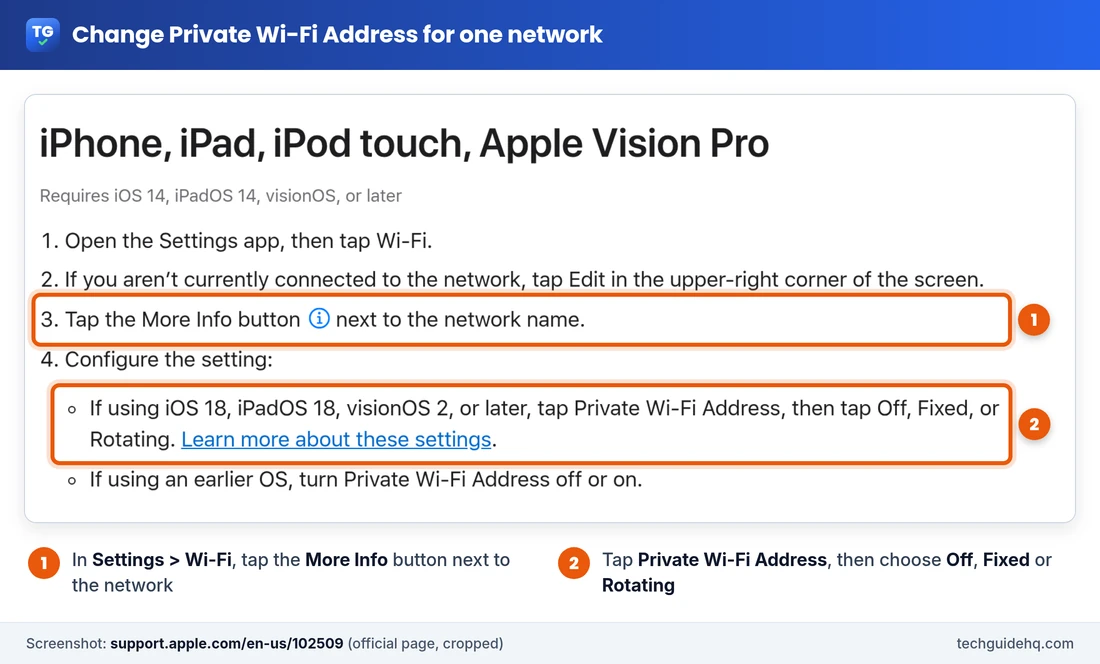
Apple recommends keeping the private address on where it works. If you turn it off, do it for that one network only.
5. Remove VPN and security apps (as a test)
VPNs, content filters and “security” apps sit between your iPhone and the network. When one of them stalls, the internet stops even though Wi-Fi looks connected. Apple’s Wi-Fi page lists this as a step of its own.
- Uninstall the VPN or security app.
- Restart the iPhone.
- Test Wi-Fi for a while.
If the drops stop and you need that app, Apple says to contact your VPN manager or the software provider.
6. Check the per-network options: Low Data Mode and Limit IP Address Tracking
Two more switches on the More Info screen can make Wi-Fi feel like it’s dropping. Apple’s Manage Wi-Fi settings guide explains both:
- Low Data Mode reduces data use on that network, which can pause background updates and syncing. Turn it off on your home Wi-Fi if you don’t need it.
- Limit IP Address Tracking hides your IP address from known trackers. If only some apps or sites fail on one network, turn it off for that network briefly to test.
7. Stop your iPhone hopping to a hotspot
Got an iPad, a second iPhone or a family member’s phone sharing a Personal Hotspot? When the home Wi-Fi wobbles, your iPhone can jump to that hotspot instead, and it looks like your Wi-Fi vanished. Apple’s guide says you can control this:
- Go to Settings > Wi-Fi and tap Auto-Join Hotspot.
- Choose Ask to Join or Never instead of Automatic.
8. Turn on Location Services for Networking & Wireless
This one surprises people. Apple’s router settings page says Wi-Fi channels and signal strength are regulated by country, and Location Services helps your device connect reliably. If you turned off system location services, check this:
- Open Settings > Privacy & Security > Location Services and make sure it’s on.
- Scroll to the bottom, tap System Services, and turn on Networking & Wireless.
9. Reset Network Settings (last resort on the iPhone)
Apple says to do this only if other solutions fail. It doesn’t delete photos, apps or messages, but it removes every saved Wi-Fi network and password, cellular settings, and VPN and APN settings. If a school or company set up your network, Apple suggests asking their IT team first.
- Open Settings > General.
- Tap Transfer or Reset iPhone, then Reset.
- Tap Reset Network Settings and confirm.
- Rejoin your Wi-Fi with its password.
Be careful to pick Reset Network Settings, not Erase All Content and Settings. They sit close together and do very different things.
Does Every Device Drop? How to Check the Router
If laptops and TVs drop too, the iPhone isn’t the problem. Apple’s Wi-Fi page suggests restarting the router and cable modem by unplugging them and plugging them back in, updating the router’s firmware, and checking you’re in range. If your router has separate 2.4 GHz and 5 GHz networks, try joining the other one.
If you manage the router yourself, Apple’s recommended settings for Wi-Fi routers page has the details that matter most for iPhones. The ones that most often cause drops:
| Router setting | What Apple recommends | Why it matters |
|---|---|---|
| Network name (SSID) | One name for all bands | Different names for 2.4 and 5 GHz can stop devices connecting reliably |
| Security | WPA3 Personal, or WPA2/WPA3 Transitional | Old modes like WEP, TKIP or WPA/WPA2 mixed reduce reliability |
| MAC address filtering | Disabled | Clashes with private Wi-Fi addresses |
| Channel width | 20 MHz on 2.4 GHz; Auto on 5 and 6 GHz | Fewer clashes with nearby networks and Bluetooth devices |
| DHCP | On for one device only | Two DHCP servers (modem and router) can cause address conflicts |
Back up the router’s settings before changing anything, and forget the network on each device afterwards so it picks up the new settings, as Apple suggests. While you’re in there, it’s a good moment to follow our guide on how to secure your home Wi-Fi.
Common Situations
“iPhone Wi-Fi keeps disconnecting but other devices are fine.” Focus on steps 2 to 5: Connectivity Assist, forgetting the network, Private Wi-Fi Address and VPN apps. Apple’s test is simple. If other devices connect, the router is working.
“My iPhone disconnects from Wi-Fi when locked.” Some people have reported this on iOS 27, sometimes on the 5 GHz band only. Apple hasn’t documented it. Update to iOS 27.2.1, forget and rejoin the network, and try the router’s other band to see if the pattern changes.
“It keeps disconnecting and reconnecting every few minutes.” Often Connectivity Assist flipping to cellular, or Auto-Join Hotspot jumping to a nearby hotspot. Turn both off (steps 2 and 7) and watch for a day.
“It drops everywhere, at home, at work and in cafés.” If your iPhone can’t stay on any Wi-Fi network, Apple says to contact Apple. If it connects but nothing loads on any device, contact your internet provider instead.
Frequently Asked Questions
Why does my iPhone Wi-Fi keep disconnecting on iOS 27?
The most common iOS 27 cause is Connectivity Assist, which uses cellular data alongside Wi-Fi when Wi-Fi is weak or busy, so it can look like Wi-Fi dropped. Other causes Apple lists are a stale saved network, VPN or security apps, and router settings. Update to iOS 27.2.1, turn off Connectivity Assist in Settings > Wi-Fi, then forget and rejoin the network.
What happened to Wi-Fi Assist in iOS 27?
Apple replaced it with Connectivity Assist, which now sits in Settings > Wi-Fi instead of Cellular settings. If Wi-Fi Assist was on when you updated, Connectivity Assist is on by default. You can turn it off for all networks, or for one network from its More Info screen.
Does iOS 27.2.1 fix Wi-Fi problems?
Apple describes iOS 27.2.1 (released November 9, 2026) as bug fixes and security updates and doesn’t list a specific Wi-Fi fix. It’s still worth installing first, because it’s the latest version and Apple asks you to update before changing settings like Private Wi-Fi Address.
Why does my iPhone Wi-Fi keep disconnecting but other devices are fine?
If other devices stay connected, Apple says the router and network are working, so the cause is on the iPhone. Check Connectivity Assist, forget and rejoin the network, set Private Wi-Fi Address to Fixed for that network, and test without any VPN or security app.
Why does my iPhone disconnect from Wi-Fi when locked?
Some users have reported this on iOS 27, but Apple hasn’t documented it as a known issue. Update to the latest iOS, forget and rejoin the network, make sure Auto-Join is on for it, and try the router’s other band (2.4 GHz or 5 GHz) to see if the pattern changes.
Will Reset Network Settings delete my photos or apps?
No. Reset Network Settings removes saved Wi-Fi networks and passwords, cellular settings, and VPN and APN settings. Your photos, apps and messages stay. It’s different from Erase All Content and Settings, which wipes the iPhone.
More iPhone fixes for the iOS 27 cycle are collected on our iPhone & iOS 27 Problems page, and router help lives on Home Wi-Fi & Router Security.
Related guides
- Samsung One UI 9 Wi-Fi Disconnecting? 9 Fixes
- How to See Who Is Connected to My Wi-Fi (and Kick Them Off)
- How to Secure Your Home Wi-Fi (2026)
- iPhone Battery Drain After iOS 27.2? Fixes
Sources: Apple Support, If you can’t connect to Wi-Fi on your iPhone or iPad; About Connectivity Assist; Use private Wi-Fi addresses on Apple devices; Recommended settings for Wi-Fi routers and access points; iPhone User Guide, Manage Wi-Fi settings and Connect iPhone to the internet; Apple security releases. User reports: AppleVis forum.

I run TechGuide HQ from Islamabad, Pakistan. My team and I write step-by-step Windows, iPhone, Android and app guides, check them against official help pages, try some steps on my own devices, and personally answer questions sent through the contact page.