
Last updated: November 16, 2026
Last checked against Microsoft’s Windows 11, version 25H2 known issues page, the Fix sound or audio problems in Windows support article and Microsoft Learn’s Code 10 and USB Audio driver pages on November 16, 2026.
Update, Nov 16, 2026: Microsoft says this issue was resolved in KB5132061, released Nov 10, 2026. Install it from Settings > Windows Update.
Summary
- Code 10 means a driver couldn’t start the device, and Microsoft confirmed that after the September 8, 2026 Windows update some USB Audio Class 1.0 devices show Code 10, play no sound or have volume stuck at zero.
- Check in Device Manager: double-click the device and look at Driver > Driver Details; usbaudio.sys matches the known issue.
- If it does, install KB5132061 or a later update from Settings > Windows Update and restart.
- If the problem remains, try a 2-channel format, plug straight into the PC or use another output; if the file is anything else, update, reinstall or roll back the driver.
You plug in the USB headset you used yesterday, join a call, and hear nothing. The volume slider won’t move. Device Manager has a yellow warning on the device and says This device cannot start. (Code 10). That’s the Windows 11 USB audio no sound Code 10 problem, and the headset probably isn’t broken. Since September 2026, Microsoft has listed a known issue that hits exactly this kind of device. This guide shows you how to tell whether you have that bug or an ordinary driver problem, and what to do in each case.
Windows 11 USB Audio No Sound Code 10: What’s Going On
Start with what the error actually means. Microsoft Learn’s page for CM_PROB_FAILED_START says Code 10 is set when one of the drivers in the device’s driver stack fails to start it. Microsoft’s recommended fix is to select Update Driver. That’s the generic story, and it covers webcams, network adapters and audio devices alike.
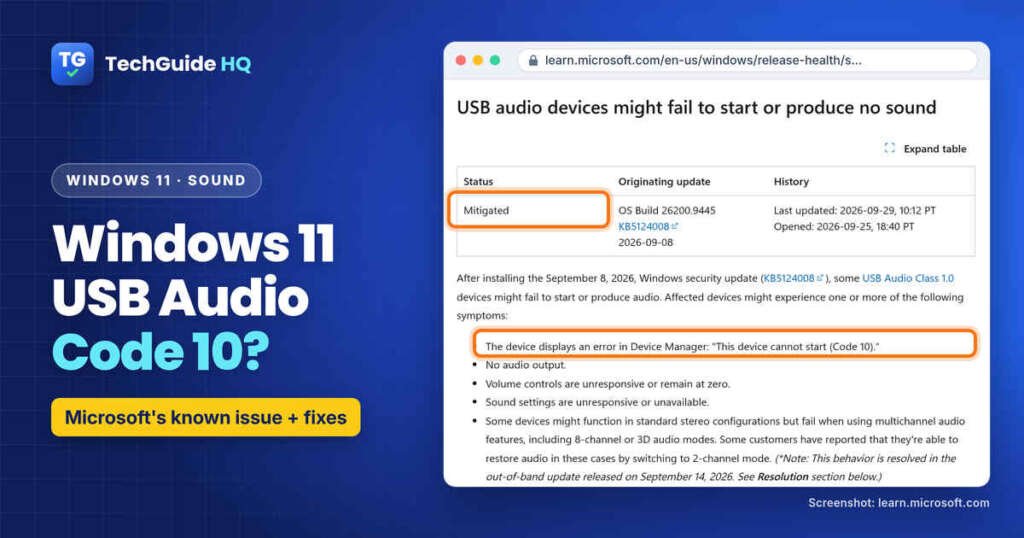
The specific story for USB audio is newer. On Microsoft’s Windows release health page, the entry USB audio devices might fail to start or produce no sound says that after the September 8, 2026 security update (KB5124008 on 24H2 and 25H2), some USB Audio Class 1.0 devices might show one or more of these symptoms:
- Device Manager shows “This device cannot start (Code 10).”
- No audio output.
- Volume controls are unresponsive or stay at zero.
- Sound settings are unresponsive or unavailable.
- The device works in stereo but fails in 8-channel or 3D audio modes.
Microsoft says the issue is limited to USB Audio Class 1.0 devices. The out-of-band update on September 14, 2026 (KB5129195) fixed only the last symptom, the multichannel one. For the rest, Microsoft marked the issue Resolved on November 10, 2026, in the KB5132061 security update and later updates. When we checked on November 16, 2026, the entry was marked Resolved KB5132061.
The affected list is long: Windows 11 versions 23H2, 24H2, 25H2, 26H1 and 26H2, plus Windows 10 22H2 and several Server releases. So a newer version of Windows won’t dodge it on its own.
Is It the Known Issue? Check Your USB Audio Driver First
This two-minute check decides which half of this guide you need. The fixes for the update bug and for a plain driver failure are different.
- Right-click Start and select Device Manager.
- Expand Sound, video and game controllers. Your USB headset, speaker or DAC should be listed there, often with a yellow warning sign.
- Double-click it. On the General tab, read the Device status box and confirm it says Code 10.
- Open the Driver tab and select Driver Details.
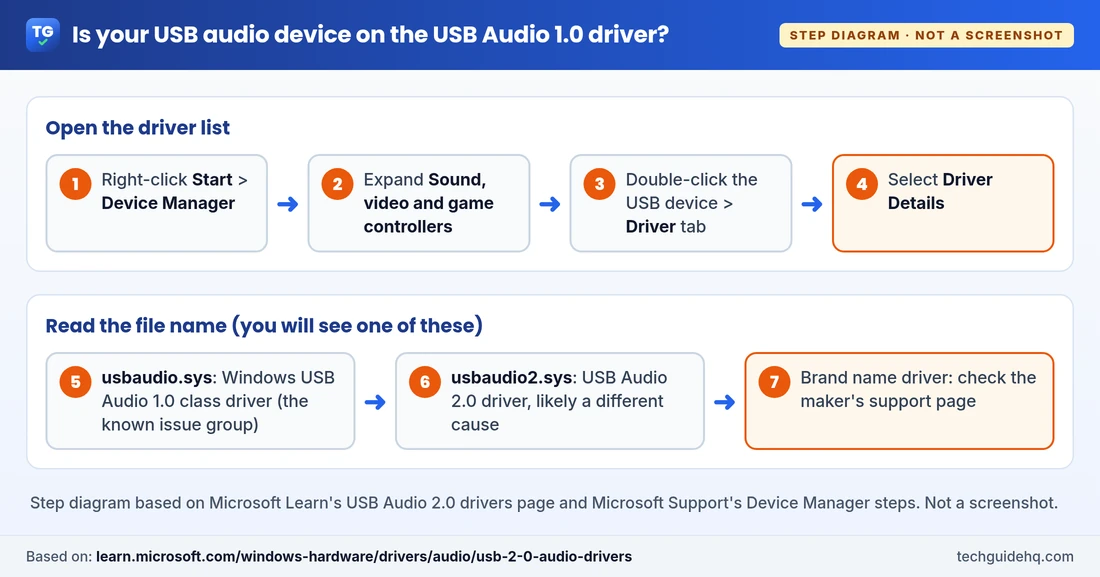
Now read the file name. Microsoft Learn’s USB Audio 2.0 drivers page names the two built-in drivers:
- usbaudio.sys is Windows’ USB Audio 1.0 class driver. That’s the group in Microsoft’s known issue, so follow the “known issue” steps below.
- usbaudio2.sys is the USB Audio 2.0 driver, which shows in Device Manager as USB Audio Class 2 Device unless the product supplies its own name. The known issue doesn’t name 2.0 devices, so jump to the driver fixes.
- A brand name driver (from the headset or PC maker) points to that maker’s software. Check their support page first, then use the driver fixes.
Fixes for the September 2026 USB Audio Code 10 Bug
If your device uses usbaudio.sys, start by installing Microsoft’s fix, then use the steps below if the problem is still there.
1. Install every Windows update, then restart
Why first? Microsoft resolved the remaining Code 10 and no-sound symptoms in KB5132061, released November 10, 2026. Updates are cumulative, so the newest one carries all earlier repairs, including that fix.
- Open Settings > Windows Update and select Check for updates.
- Install what’s offered, then go to Start > Power. If you see Update and restart, use it.
The November 10, 2026 security update, KB5132061, is the one Microsoft marked as resolving this issue. After it installs, check Settings > Windows Update > Update history for KB5132061. If you still see Code 10 after a restart, try the steps below. KB5127936 is also the update that fixed the Smart App Control greyed out bug.
2. Switch the device to a 2-channel format
Some devices only break when Windows asks them for surround or 3D audio. Microsoft’s known issue note says some customers restored sound by switching to 2-channel mode, and the September 14 update was meant to fix that case. It still costs nothing to try, and it rules the multichannel problem out.
- Type control panel in the taskbar search box and open it.
- Select Hardware and Sound > Sound.
- On the Playback tab, right-click your USB device and select Properties.
- On the Advanced tab, under Default Format, choose a 2-channel option, select OK and test.
If your headset came with its own app that turns on 7.1 or virtual surround, switch that off too. If the device doesn’t appear on the Playback tab at all, this step can’t help. If that still happens after KB5132061, try the other steps below.
3. Plug it straight into the PC, then try another port
Microsoft’s sound troubleshooting article suggests connecting speakers and headphones to a different USB port. Go one better and skip any hub, dock or front-panel extension. Unplug the device, restart from Start > Power > Restart, then plug it into a port on the PC itself. On a desktop, the rear ports connect directly to the motherboard.
4. Uninstall the device and let Windows find it again
A failed start can leave Device Manager holding onto a bad state. Removing the device forces Windows to set it up from scratch when you plug it back in. It won’t replace Microsoft’s update, but it clears the stuck state if that’s all it was.
- In Device Manager, right-click the USB audio device and select Uninstall device.
- Leave Attempt to remove the driver for this device unticked for a built-in class driver like usbaudio.sys. Select Uninstall.
- Unplug the device, restart the PC, then plug it back in.
5. Check for a maker’s driver or firmware
Microsoft Learn says that if a partner driver exists on the PC or on Windows Update, it’s installed and overrides the class driver. In plain English: if your headset maker ships a Windows driver, the device may stop using usbaudio.sys. Check the maker’s official support page for your exact model. Don’t use driver sites you’ve never heard of. We can’t promise a maker’s driver avoids the bug on every device, so treat it as worth a try.
6. Use another output if you still need sound now
If you have a meeting in ten minutes, this is the fastest way back to sound. Bluetooth headphones, a wired headset in the 3.5 mm jack, monitor speakers over HDMI and built-in laptop speakers don’t depend on the USB Audio 1.0 driver.
- Select the speaker icon on the taskbar.
- Select the arrow next to the volume slider (Select a sound output) and pick the other device.
- In Teams, Zoom or Meet, pick the speaker and microphone again inside the app. They keep their own settings.
Should you uninstall the update?
Usually not. The bug started with September’s update, and updates are cumulative, so removing only the latest one leaves you on a build that already has the problem. You’d also lose that month’s security fixes. If you ever do need to remove an update, our Windows 11 slow laptop guide shows the Uninstall updates steps and the warnings that go with them.
USB Audio Device Code 10 Fixes When It’s Not the Update Bug
If Driver Details shows usbaudio2.sys or a maker’s driver, or the problem started before September 2026, you’re looking at an ordinary Code 10. Work through Microsoft’s own driver steps in this order.
Update the driver
This is Microsoft Learn’s recommended resolution for Code 10, so it goes first.
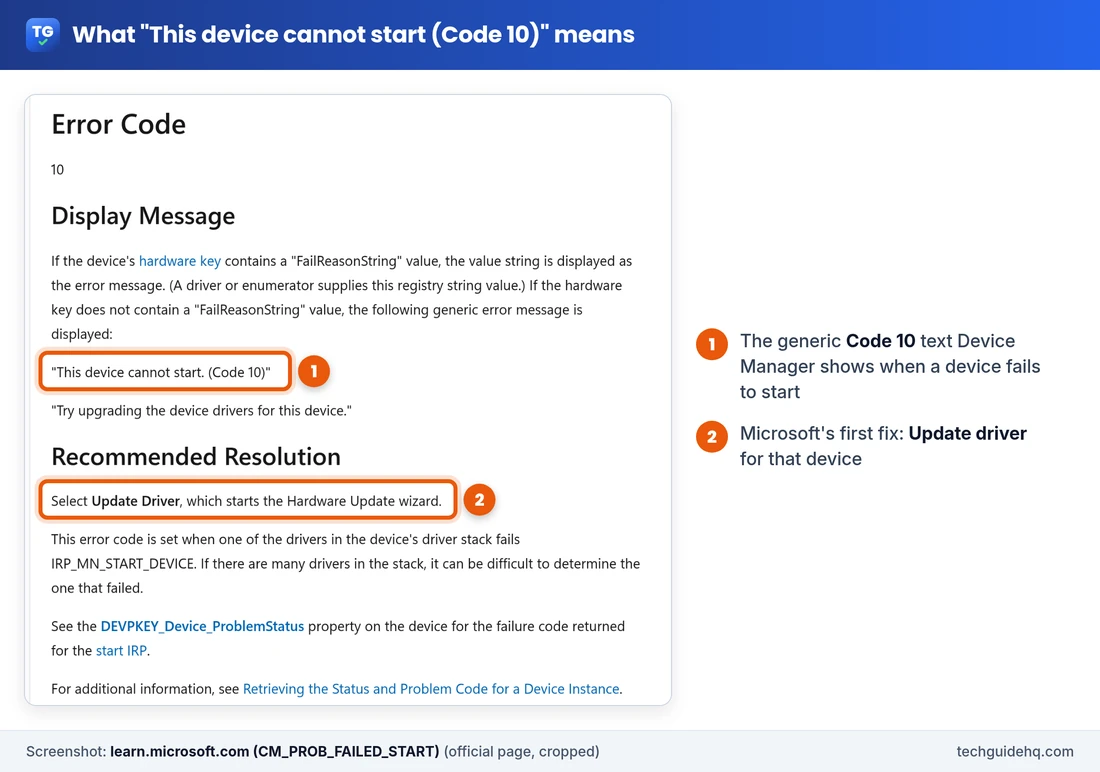
- In Device Manager, expand Sound, video and game controllers.
- Right-click your USB audio device and select Update driver.
- Select Search automatically for drivers and follow the prompts.
If Windows says the best driver is already installed, look on the device or PC maker’s site for a newer one.
Reinstall the driver
Right-click the device, select Uninstall device, tick Attempt to remove the driver for this device, select Uninstall, and restart. Microsoft says the restart prompts Windows to reinstall the audio driver. Save your work first.
Roll back the driver if sound broke after an update
When audio worked yesterday and a driver update arrived overnight, the old driver is the quickest way back. Right-click the device, select Properties, open the Driver tab and select Roll Back Driver. If the button is greyed out, there’s no older driver saved to go back to.
Run the audio troubleshooter and restart the audio services
These won’t repair a driver that refuses to start, but they catch settings problems that look the same.
- Go to Settings > System > Troubleshoot > Other troubleshooters and select Run next to Audio. Microsoft also offers the audio troubleshooter in the Get Help app.
- Type services in the taskbar search box. Right-click Windows Audio, select Restart, and do the same for Windows Audio Endpoint Builder.
- In Settings > System > Sound, select the USB device under Output and set Audio enhancements to Off.
USB Headset No Sound in Windows 11: Match the Symptom
| What you see | Most likely cause | Start with |
|---|---|---|
| Code 10, Driver Details shows usbaudio.sys | September 2026 known issue | Fixes 1 to 6 |
| Works in stereo, fails in 7.1 or 3D | Multichannel symptom | Fix 1, then Fix 2 |
| Code 10, usbaudio2.sys or maker’s driver | Driver failed to start | Update driver |
| Sound stopped right after a driver update | New driver | Roll back |
| No warning icon, but still silent | Wrong output or muted | Fix 6 steps, then the troubleshooter |
| Works on another PC, not this one | Windows, not hardware | The driver check |
Common Situations
“My USB headset says Code 10 after the Windows update.” That’s the textbook case. Confirm usbaudio.sys, install all updates, try 2-channel, and use another output for calls in the meantime.
“USB audio device cannot start, Code 10, but only the mic is affected.” The same bug can hit a USB microphone. Check it in Device Manager the same way. Then open Settings > Privacy & security > Microphone and make sure Microphone access and Let apps access your microphone are on.
“My USB-C to 3.5 mm dongle stopped working.” Many small dongles and DACs use the built-in class driver. Run the Driver Details check. If it’s usbaudio.sys, treat it like the headset case.
“AMD USB Audio Device or Realtek USB Audio shows Code 10 on my desktop.” Some motherboards have on-board audio that connects over USB internally, so it appears as a USB audio device. In a Microsoft Q&A thread about Realtek USB audio and Code 10, the suggested fix was the motherboard maker’s own audio driver. Look up your board model with msinfo32 and get the driver from the maker’s support page.
Frequently Asked Questions
Why does my USB audio device say Code 10 in Windows 11?
Code 10 means one of the drivers for the device failed to start it. Since the September 8, 2026 update, Microsoft has listed a known issue where some USB Audio Class 1.0 devices show Code 10, play no sound or have unresponsive volume controls. Check Driver Details in Device Manager: usbaudio.sys points to that issue.
Has Microsoft fixed the USB audio Code 10 issue?
Yes. The September 14, 2026 update KB5129195 fixed devices that failed in 8-channel or 3D audio modes. Microsoft marked the remaining Code 10 and no-sound symptoms resolved on November 10, 2026, in KB5132061 and later updates. Install that update from Settings > Windows Update. If the problem remains after a restart, try the workaround steps in this guide.
How do I fix a USB headset with no sound in Windows 11?
Check the output under the speaker icon on the taskbar, try a different USB port, and run the Audio troubleshooter in Settings > System > Troubleshoot > Other troubleshooters. If Device Manager shows Code 10, install all Windows updates, then update, reinstall or roll back the driver.
Will uninstalling the Windows update fix USB audio Code 10?
Usually not. The problem started with the September 2026 update and later updates are cumulative, so removing only the latest one leaves the bug in place and removes security fixes. Install the newest update and use the 2-channel setting or another audio output instead.
How do I know if my device is USB Audio Class 1.0?
Open Device Manager, double-click the device, go to the Driver tab and select Driver Details. If the list shows usbaudio.sys, it uses Windows’ USB Audio 1.0 class driver. usbaudio2.sys means the USB Audio 2.0 driver.
Does the USB audio Code 10 bug affect Bluetooth or HDMI audio?
Microsoft says the issue is limited to USB Audio Class 1.0 devices. Bluetooth headphones, HDMI audio and the 3.5 mm headphone jack don’t use that driver, so they’re a good stopgap if you still have no USB audio after installing the update.
More Windows fixes, from updates to Outlook, are collected on our Windows 11 Problems & Fixes page.
Related guides
- Smart App Control Greyed Out in Windows 11? The Fix
- Windows 11 Laptop Slow? 9 Fixes That Work (2026)
- Windows 11 25H2 Repair Version Stuck at 99%? What to Do
Sources: Microsoft Learn, Windows 11, version 25H2 known issues and notifications; Microsoft Support, Fix sound or audio problems in Windows; Microsoft Learn, CM_PROB_FAILED_START (Code 10); Microsoft Learn, USB Audio 2.0 drivers; Microsoft Support, Windows 11 version 25H2 update history. Community answer: Microsoft Q&A, This device cannot start (Code 10).

I run TechGuide HQ from Islamabad, Pakistan. My team and I write step-by-step Windows, iPhone, Android and app guides, check them against official help pages, try some steps on my own devices, and personally answer questions sent through the contact page.