
Summary
- NVIDIA has confirmed a bug where its driver can keep writing to a log file called nvlog.nvlgstg in the background, and fixed it in GeForce Hotfix 621.35 (20 November 2026).
- To see if your PC is affected, open Resource Monitor (resmon) and watch the Write column for NVDisplay.Container.exe while the PC sits idle.
- Your options: install the optional 621.35 hotfix, roll back to an older driver in Device Manager, or wait for the next WHQL driver, which NVIDIA calls the safest choice.
- Reports that writes can come back after hours of idling on 621.35 come from one user’s test and are unconfirmed by NVIDIA.
- On an NVMe SSD, Windows 11 shows drive health under Settings > System > Storage > Advanced storage settings > Disks & volumes.
Your PC is doing nothing. No game, no browser, just the desktop. Yet a background NVIDIA process is quietly writing to your SSD over and over. That’s the bug a lot of GeForce owners spotted in November 2026, and NVIDIA has now acknowledged it. The good news: you can check for it yourself in about ten minutes with tools already built into Windows 11, and the fixes are simple. This guide covers what NVIDIA has actually confirmed, how to tell whether your PC is affected, and which fix makes sense for you.
Checked against: NVIDIA’s hotfix and driver pages and Microsoft Support, opened on 24 November 2026 (PKT). We haven’t measured this bug on our own hardware, so every number below is credited to whoever reported it.
What NVIDIA has confirmed, and what’s still only reported
News about this bug mixes official facts with forum measurements, and it’s easy to lose track of which is which. Here’s the split as of today.
| Claim | Status | Where it comes from |
|---|---|---|
| The driver can cause excessive background writes to nvlog.nvlgstg | Confirmed | NVIDIA lists it as the single fix in GeForce Hotfix 621.35 (bug 7116722) |
| The hotfix is beta, optional and only lightly tested | Confirmed | NVIDIA’s hotfix page, which also says waiting for the next WHQL driver is the safest option |
| Drivers 621.14 (4 Nov) and 621.24 (12 Nov) are the affected versions | Reported | User reports covered by Tom’s Hardware; NVIDIA’s page doesn’t name versions |
| Writes of several GB, up to about 30 GB, per hour | Reported | Individual users’ measurements; they vary a lot from PC to PC |
| Writes can return on 621.35 after a long idle | Unconfirmed | One user’s overnight test, reported by Neowin; not reproduced or confirmed by NVIDIA |
The process people keep naming is NVDisplay.Container.exe. It runs as the NVIDIA Display Container LS service, and reports say it’s needed for the NVIDIA Control Panel and NVIDIA App to work. Remember that second part, because it matters when we get to the advice you should skip.
Step 1: Find out which driver you have
There’s no point chasing a bug your driver doesn’t have. If you’re still on an October driver, you may not need to do anything.
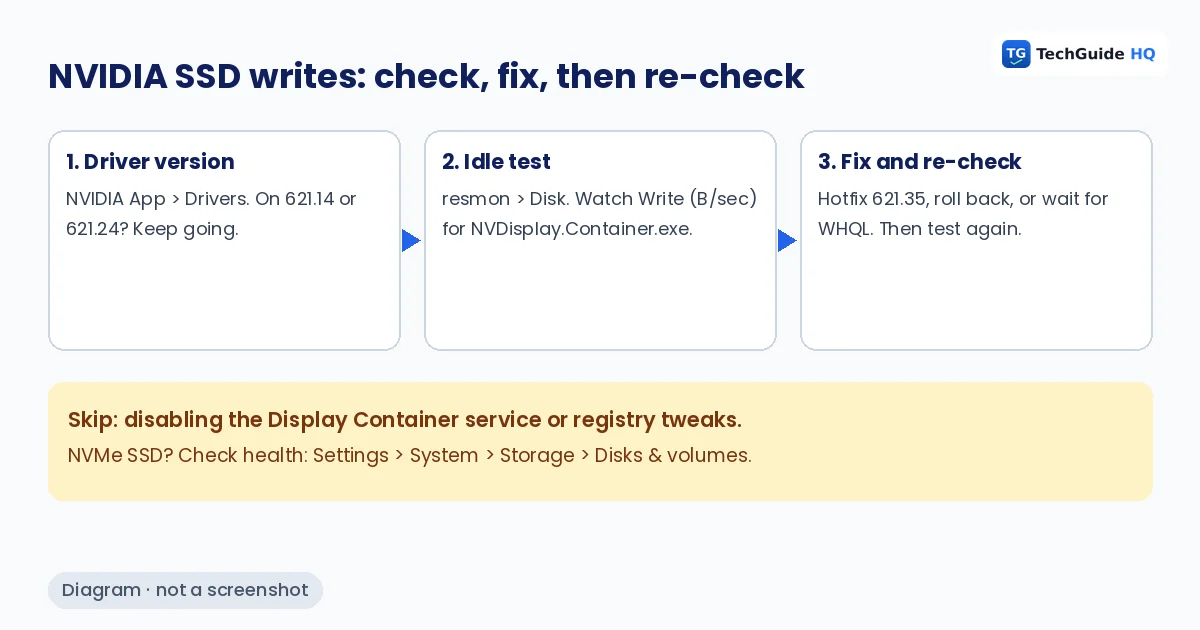
- Open the NVIDIA App and go to Drivers. The installed version appears at the top.
- No NVIDIA App? Right-click the desktop, open NVIDIA Control Panel, then choose Help > System Information. Look for Driver version.
- Compare the number with NVIDIA’s release list. On NVIDIA’s own driver pages, 621.14 came out on 4 November 2026 and 621.24 on 12 November 2026. As of today, 621.24 is still the newest WHQL Game Ready driver.
If you’re on 621.14 or 621.24, keep going. If you’ve already installed 621.35, do Step 2 anyway, because of that unconfirmed report about writes coming back.
Step 2: Watch NVDisplay.Container.exe while the PC is idle
The bug shows up when nothing else is happening, so test it that way. Close games, launchers and browsers first, otherwise their disk activity hides what you’re looking for.
- Press Windows + R, type
resmonand press Enter to open Resource Monitor. - Open the Disk tab and expand Processes with Disk Activity.
- Click the Write (B/sec) column header to sort by writes, and find NVDisplay.Container.exe.
- Leave the PC alone for 10 to 15 minutes and glance back. A process that sits near the top with steady writes while the PC is idle is a red flag. Brief blips are normal for any service.
Want a running total instead of a live rate? Open Task Manager (Ctrl + Shift + Esc), go to Details, right-click any column header, choose Select columns and tick I/O write bytes. That number counts up from the moment the process started. Note it, check again later, and subtract.
One honest limit: these counters show what the process asked Windows to write, which isn’t always the same as what physically reached the SSD. Reporters who looked deeper used the drive’s own SMART counters too. For a home check, a large, steadily growing number on an idle PC is enough reason to act.
Step 3: Choose your fix
There are three reasonable paths. Which one fits depends on whether you see the writes and how much you mind running a beta driver.
| Option | Good for | The catch |
|---|---|---|
| Install Hotfix 621.35 | You can see the writes on 621.14 or 621.24 and want to keep the newest game support | NVIDIA calls hotfixes beta and provided as-is, with an abbreviated QA process. It’s only offered on NVIDIA’s Customer Care site, not through Windows Update. |
| Roll back to an older driver | You see the writes and want a non-beta driver right now | You lose fixes and game profiles added since. NVIDIA’s 621.14 notes list a fix for video freezes and black screens on some RTX 50 Series GPUs after 621.01, so going back that far may bring that problem back on those cards. |
| Wait for the next WHQL driver | You don’t see unusual writes, or you’d rather not touch drivers | No release date announced. NVIDIA says the hotfix’s fix will be included in the next official driver. |
How to roll back the driver safely
Microsoft’s Device Manager guide covers this. You need an administrator account.
- Right-click Start and choose Device Manager.
- Expand Display adapters, right-click your NVIDIA GPU and choose Properties.
- Open the Driver tab and select Roll Back Driver. Pick a reason, confirm with Yes, then restart if asked.
If Roll Back Driver is greyed out, Windows doesn’t have the previous driver stored. In that case, download the older version from NVIDIA’s own driver search and install it over the top. Microsoft’s page is blunt on one point we agree with: don’t download drivers from anywhere other than the manufacturer’s official site.
After any change, repeat Step 2. A fix you haven’t verified is only a guess.
Gaming laptop? Check your laptop maker too
Most news coverage assumes a desktop. On a laptop with GeForce graphics, such as an Acer Nitro or similar gaming model, there’s a wrinkle. NVIDIA’s own driver pages note that while Game Ready drivers can be installed on notebook GPUs, the laptop maker provides certified drivers for your specific model on its website.
In practice that gives laptop owners a fourth option for rollback: the driver on your laptop maker’s support page. It’s usually older than NVIDIA’s latest, which can be exactly what you want right now. Acer Nitro owners whose NitroSense app is also misbehaving can use our NitroSense not working guide alongside this one.
Has your SSD actually been damaged?
This is the question behind most of the panic. SSDs are rated for a certain amount of writing over their life, so extra writes do use up some of that budget. But a few days or weeks of a buggy driver isn’t the same as a dead drive, and you don’t have to guess.
If your SSD is an NVMe drive, Windows 11 can show its health. Microsoft’s page on storage device warnings gives the path:
- Open Settings > System > Storage > Advanced storage settings > Disks & volumes.
- Select the drive and choose Properties.
- Check Estimated remaining life, Available spare and Temperature.
Microsoft says Windows only monitors NVMe SSDs this way, not SATA SSDs or hard drives. For those, use the SSD maker’s own tool. If Windows ever shows a critical warning such as “Spare capacity is low” or “Reliability is degraded”, back up straight away. Otherwise, fix the driver and move on. There’s no reason to replace a healthy drive.
Advice we’d skip
Forums filled up with quick fixes before NVIDIA released the hotfix. Some of them cause new problems.
- Disabling the NVIDIA Display Container LS service. It stops the writes, but reports say it also stops the NVIDIA Control Panel and NVIDIA App from working. It’s a stopgap, not a fix, and easy to forget about months later.
- Deleting nvlog.nvlgstg. The driver simply creates and writes it again. Reports describe this as temporary relief only.
- Registry tweaks shared on forums. One circulating change disables an NVIDIA plugin. NVIDIA doesn’t document it, and we wouldn’t edit the registry for a problem a normal driver change solves.
- Repeated “clean” reinstalls of the same driver. One affected user tried several clean installs of the same version and the writes continued, which makes sense: the bug is in the driver, not left-over files.
- Driver updater tools from third-party sites. Get drivers from NVIDIA, Windows Update or your laptop maker. Nowhere else.
Common situations
- “My PC feels fine. Should I worry?” Check your driver version. If you’re on an affected version, run the idle test once. If the writes look normal, waiting for the WHQL driver is perfectly reasonable.
- “I installed 621.35 and the writes stopped.” Good. Check once more after the PC has been idle for a few hours, with the monitor asleep, since that’s when the unconfirmed report saw writes return.
- “Games stutter more since the November driver.” Tom’s Hardware reports one user linking the bug to hitching under load, but there’s no official confirmation. Roll back or install the hotfix, then compare. For general slowdowns, see fixing a slow Windows 11 laptop.
- “I’m about to install GTA VI or another big game.” Sort the driver first, so you’re not judging a new game while a background process is busy. Our GTA 6 PC status guide covers what Rockstar has said about PC.
Frequently Asked Questions
What is NVDisplay.Container.exe?
It’s the process behind the NVIDIA Display Container LS service, which comes with GeForce drivers. Reports say the NVIDIA Control Panel and NVIDIA App depend on it, so it normally runs all the time. It isn’t malware, but in the November 2026 bug it was the process writing to the nvlog.nvlgstg log file.
Does the NVIDIA SSD writes bug affect every GeForce PC?
Not necessarily. NVIDIA hasn’t published a list of affected GPUs or systems, and users report very different amounts of writing. Notebookcheck reports that an NVIDIA staff member said on the GeForce Forums that RTX 50 Series cards aren’t affected, but that isn’t on NVIDIA’s hotfix page. Checking your own PC in Resource Monitor is the only reliable answer.
Is it safe to install GeForce Hotfix 621.35?
NVIDIA describes its hotfix drivers as beta, optional and provided as-is, with a shorter QA process than normal drivers. Many people install them without trouble, but NVIDIA itself says the safest option is to wait for the next WHQL driver. If you see heavy idle writes, the hotfix or a rollback is a reasonable trade.
Will Windows Update install the fix for me?
Not the hotfix. NVIDIA only offers hotfix drivers on its Customer Care site. NVIDIA says the fix will be included in the next official driver, which you can then get through the NVIDIA App or NVIDIA’s website.
Related guides
- Windows 11 laptop slow? What to check first
- Acer NitroSense not working on Windows 11
- Steam not opening on Windows 11
- GTA 6 PC: official status and requirements
More help with games, launchers and graphics drivers is in our Gaming Laptop & PC Game Fixes section.
Sources (opened 24 November 2026, PKT): NVIDIA GeForce Hotfix Display Driver version 621.35, Game Ready Driver 621.24 and Game Ready Driver 621.14; Microsoft Support Update drivers through Device Manager in Windows and What to do about a critical warning for a storage device. User reports as covered by Tom’s Hardware, Neowin and Notebookcheck.
Last updated: November 24, 2026 · By Abubakar Iqbal

I run TechGuide HQ from Islamabad, Pakistan. My team and I write step-by-step Windows, iPhone, Android and app guides, check them against official help pages, try some steps on my own devices, and personally answer questions sent through the contact page.