
Summary
- Two-factor authentication (2FA) means a service asks for a second proof, such as a code, a phone prompt or a fingerprint, on top of your password.
- 2FA, 2-step verification (2SV) and multi-factor authentication (MFA) are names for the same idea.
- Some second steps are stronger than others. Passkeys and security keys resist phishing best, app prompts and authenticator apps come next, and SMS codes are the weakest, though still better than nothing.
- Start with your email account, because whoever controls your inbox can reset most of your other passwords.
- Save backup codes or a second method before you need them, and never share a code with anyone who asks for it.
Your bank’s app keeps nagging you to “turn on two-factor authentication”. Or a six-digit code lands on your phone while you’re cooking dinner, and you didn’t ask for it. Either way, you’ve met 2FA, and it’s worth ten minutes to understand it properly. This guide explains what two-factor authentication is in plain words, which kind of second step is worth choosing, how to switch it on for Google, Apple and Microsoft accounts, and what to do if you lose your phone afterwards.
Checked against: guidance from the UK’s National Cyber Security Centre (NCSC) and the US Cybersecurity and Infrastructure Security Agency (CISA), plus Google, Apple and Microsoft help pages, opened on 23 November 2026 (PKT).
What is two-factor authentication, in plain English?
Think of your front door. A password is one key. Anyone who copies it walks straight in. Two-factor authentication adds a second lock that needs something different, maybe your thumbprint or a key that only lives on your keyring. A burglar who copied the first key is still stuck outside.
Online, that second lock is a second factor. CISA groups factors into three kinds:
- Something you know: a password or PIN.
- Something you have: your phone, an authenticator app on it, or a small hardware security key.
- Something you are: a fingerprint or face scan.
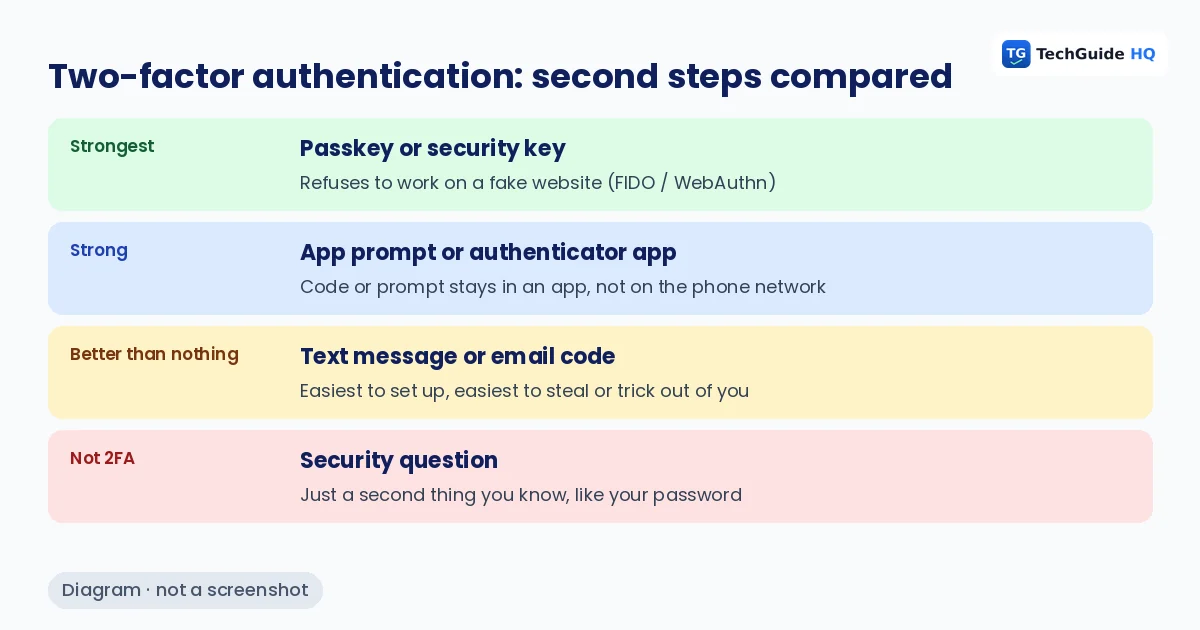
Real two-factor authentication combines two different kinds. A password plus a security question doesn’t count, because both are things you know. The NCSC says plainly that security questions such as “What was the name of your first pet?” don’t give the same protection, so you should still turn on 2FA where it’s offered.
2FA, 2SV, MFA: are they different?
Not in any way that matters to you. Google calls it 2-Step Verification, Microsoft says two-step verification, Apple says two-factor authentication, and businesses often say multi-factor authentication (MFA). The NCSC and CISA both treat these as names for the same thing: a second check on top of your password.
Why isn’t a strong password enough on its own?
Because a strong password can still be stolen, and that usually isn’t your fault. The NCSC says the most common way passwords get stolen is a data breach at a company that holds your details. Criminals then try the stolen email-and-password pairs on other sites, a trick called credential stuffing, which works because so many people reuse passwords. The other big route is phishing: a fake login page that you’re tricked into filling in.
A long, unique password doesn’t stop either of those. A second factor does, because the criminal has your password but not your phone, your security key or your face. If you want to see whether any of your passwords have already turned up in a breach, our guide on how to check if your password was leaked shows three safe ways to look.
What actually happens when you sign in with 2FA?
Less than most people expect. Here’s the usual flow:
- You enter your email and password as normal.
- The service asks for your second step: tap Yes on a prompt, type a code, or touch a fingerprint sensor.
- You’re in, and the device is usually remembered as trusted.
That third step is why 2FA isn’t the daily chore people fear. Apple says that once you’ve signed in on a device, it won’t ask for a code there again unless you sign out completely, erase the device or have to change your password for security reasons. The NCSC makes the same point in general terms: you’re mainly asked when it really matters, such as a sign-in from a new device, a password change or adding a new bank payee.
Which second step should you choose?
Not all second steps are equal. CISA’s guidance is that any MFA beats none, but some types are much harder to get around than others. From strongest to weakest:
1. Passkeys and hardware security keys
These are the only common methods built to beat phishing. CISA says the only widely available phishing-resistant authentication is FIDO/WebAuthn, the standard that passkeys and security keys use, because it refuses to work on a fake website. A passkey lives on your phone or computer and is unlocked with your fingerprint, face or screen lock.
2. App prompts and authenticator apps
A prompt is a notification that asks “Is this you trying to sign in?” Google recommends its prompts over typed codes and says they help protect against SIM swap and other attacks based on your phone number. CISA’s guidance is that authenticator apps build a rotating login code on the phone (typically every 30 seconds), rather than sending that code over the phone network. One caution: never approve a prompt you didn’t trigger. A burst of prompts you didn’t ask for means someone has your password.
3. Text message (SMS) and email codes
Codes by text or email are the easiest to set up and still much better than a password alone. They’re also the easiest to steal or trick out of you. Microsoft has announced it will start phasing out SMS as a way to sign in and recover personal Microsoft accounts. If a service offers an app or a passkey, pick that and keep SMS as a backup.
Is a passkey the same as two-factor authentication?
Not quite, but it covers the same ground in one step. A passkey proves two things at once: you have the device, and you could unlock it with your face, fingerprint or PIN. That’s why Google says signing in with a passkey skips the separate second step even when 2-Step Verification is on.
The NCSC went further in April 2026. It said passkeys should now be people’s first choice wherever a service supports them, and that its research found them at least as secure as the strongest password paired with two-step verification. Where a service doesn’t offer passkeys yet, the NCSC’s advice is to use a password manager and keep 2SV switched on.
A passkey needs a reasonably recent device. Google lists Windows 10, macOS Ventura, Android 9 or iOS 16 and newer. Only create passkeys on devices you own, because anyone who can unlock that device can use them.
How do you turn on 2FA for Google, Apple and Microsoft?
Do these three first if you use them, then work outwards to banking, social media and shopping accounts. Menu names below come from each company’s help page.
Google Account (Gmail, YouTube, Android)
- Open your Google Account and choose Security & sign-in.
- Under How you sign in to Google, select Turn on 2-Step Verification.
- Follow the steps on screen. If you add a phone number, Google says it can take up to 7 days before that number is fully trusted.
Work or school accounts may be controlled by an administrator. If the option is missing, ask them.
Apple Account (iPhone, iPad, Mac)
- On iPhone or iPad, open Settings. On a Mac, open System Settings.
- Tap your name, then Sign-In & Security.
- Turn on Two-Factor Authentication and follow the prompts.
Apple says two-factor authentication is already the default for most accounts, and features such as Apple Pay and Sign in with Apple require it. So on a newer iPhone, it’s probably already on.
Microsoft account (Outlook, Xbox, Windows)
- Go to account.microsoft.com/security and sign in.
- Select Manage how I sign in.
- Under Additional security > Two-step verification, choose Turn on.
Microsoft warns that with two-step verification on, you’ll always need two forms of identification. It strongly recommends keeping three pieces of security info on the account. Some older apps and devices, such as the Xbox 360, can’t use security codes at all. Microsoft says those need an app password instead.
What happens if you lose your phone?
This is the part people skip, then regret. Set up a fallback on the same day you turn 2FA on:
- Backup codes. Google lets you create a set of 10 one-time backup codes under Security & sign-in > 2-Step Verification > Backup codes. Each code works once. Print them and keep them with your passport or other important papers, not in a screenshot on the phone you might lose.
- A second method. Add a second phone number, a security key or an authenticator app on another device, so one lost phone doesn’t lock you out.
- Up-to-date recovery info. Microsoft says that if you lose your contact method, your password alone won’t get you back in, and regaining access can take 30 days. Apple uses your trusted phone number to send codes, so keep it current.
If you’re already locked out of a Google account, our guide to recovering Gmail without a phone number covers what Google can accept instead.
The one rule that keeps 2FA working
A code is for you, not for whoever asks. Scammers know 2FA stops them, so they try to talk the code out of you. They pose as your bank, as support staff, or as a friend whose WhatsApp “sent you a code by mistake”. Google says it never asks for a backup code anywhere except the sign-in screen. Microsoft says its support agents aren’t allowed to send password reset links or change account details for you.
If someone wants the code you just received, the honest answer is no, every time. Two of our guides show this trick in action: a WhatsApp code requested for your number and the fake “iPhone hacked” pop-up.
A sign-in code or prompt you didn’t request is a warning in itself. On accounts where the code only comes after the password, it can mean someone already has your password. Change it, and change it on any other account where you reused it.
Where to start today
You don’t have to secure everything tonight. Turn on 2FA for your main email account first, then whatever holds money or your phone backups. Use a passkey or app prompt where you can, and keep SMS as a fallback. Print your backup codes before you close the settings page. That’s most of the protection 2FA can give you, in about ten minutes.
Related guides
- How to check if your password was leaked
- Recover a Gmail account without a phone number
- WhatsApp code requested for your number? What to do
- What is a VPN, and do you actually need one?
More account and device safety help is in our Security & Privacy section.
Sources (opened 23 November 2026, PKT): NCSC Setting up 2-Step Verification (2SV), Turn on 2-step verification and “Leave passwords in the past – passkeys are the future” (23 April 2026); CISA More than a Password and Turn on MFA (both archived CISA pages that are still online); Google Account Help Turn on 2-Step Verification, Sign in with backup codes and Sign in with a passkey; Apple Two-factor authentication for Apple Account; Microsoft How to use two-step verification with your Microsoft account.
Last updated: November 23, 2026 · By Abubakar Iqbal

I run TechGuide HQ from Islamabad, Pakistan. My team and I write step-by-step Windows, iPhone, Android and app guides, check them against official help pages, try some steps on my own devices, and personally answer questions sent through the contact page.