
Summary
- Fastest way: open Terminal or Command Prompt, type
java -versionand press Enter. A version number means Java is installed; “not recognized” usually means there’s no Java on your PATH. - Also look in Settings > Apps > Installed apps and search “Java”, “JDK” and “OpenJDK”, because a PC can have more than one copy.
- Java4Shell (CVE-2026-114938) affects Java 17, 21, 25 and 27 builds up to the versions in the OpenJDK advisory of 17 November 2026. In the OpenJDK advisory, Java 8 and 11 aren’t listed for that CVE but did get other fixes.
- Not using Java? Uninstall it. Using it? Update from the same vendor you installed it from.
Most people never knowingly install Java, yet plenty of Windows PCs have it. It arrives with a game mod tool, a university coding course, a bank’s old signing app or a piece of office software, and then sits there for years. That’s normally harmless. It matters when a serious Java flaw makes the news, like Java4Shell in November, and you need a straight answer to a simple question: is Java on this PC, and which version?
This guide shows three ways to check your Java version on Windows 11, how to read the number you get, how to tell whether that version is affected, and how to decide between updating and removing it.
Checked against: Oracle’s java.com help pages, the OpenJDK vulnerability advisory, Microsoft’s Build of OpenJDK release post and the CISA alert, all opened on 26 November 2026 (PKT). We haven’t run these steps on our own laptop for this guide, so the commands and menus below follow the vendors’ documentation.
Method 1: Check with one command (works for any vendor)
- Right-click the Start button and choose Terminal. Command Prompt or PowerShell work too.
- Type
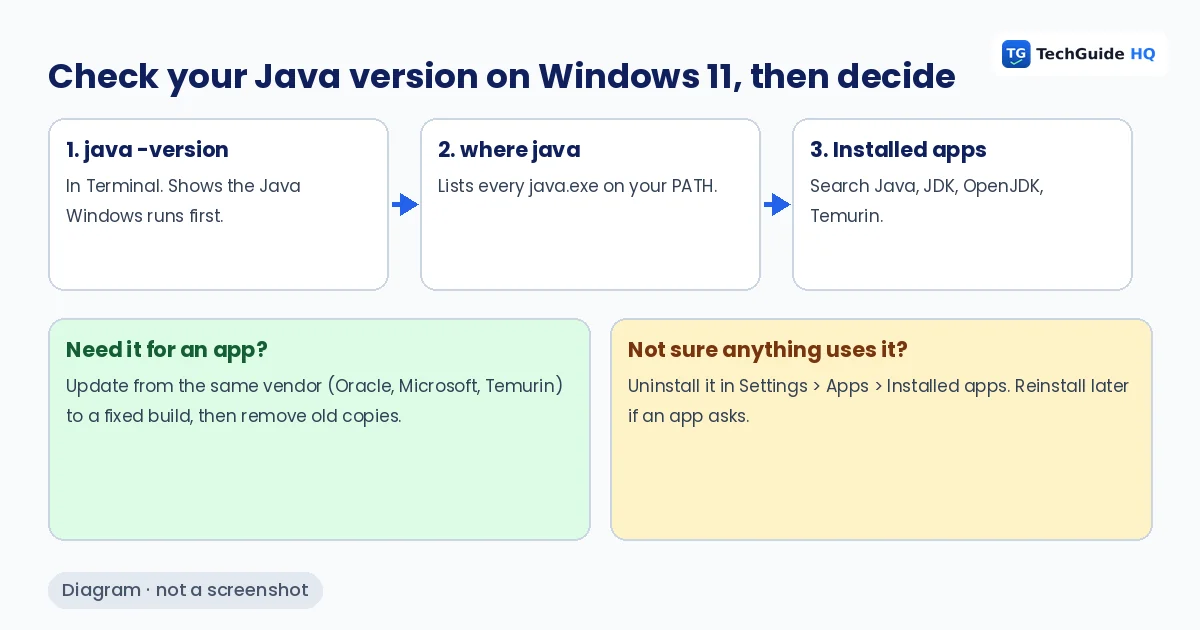
java -version(one dash, no space inside “-version”) and press Enter. - Read the first line. That’s the version Windows runs when something calls plain “java”.
- Now type
where javaand press Enter. Windows lists every java.exe it can find on your PATH, in the order it would use them. Microsoft documents this command on its where command page.
If you see “‘java’ is not recognized as an internal or external command”, there’s no Java on your PATH. That’s good news for most people, but it doesn’t prove there’s no Java at all. Apps can carry their own private copy, which brings us to the next method.
Method 2: Look in Installed apps
- Open Settings (Windows key + I).
- Go to Apps > Installed apps.
- Type Java in the search box. Then try JDK, OpenJDK, JRE, Temurin and Microsoft Build of OpenJDK, since vendors name it differently.
- Each entry shows its version under the name. Write down every one you find.
Oracle’s uninstall page notes that older copies can show up as “J2SE”, “Java 2”, “Java SE” or “Java Runtime Environment”, so don’t stop at the first match.
Method 3: The About Java window (Oracle Java 8)
If you installed Java from java.com, it’s probably Oracle Java 8, which adds its own Start menu entries. Oracle’s version help page describes two ways in: open the Java folder in the Start menu and click About Java, or open the Java Control Panel and click About on the General tab. Newer JDKs from other vendors usually don’t add these entries, so use Method 1 or 2 for those.
How do you read the version number?
Java has used two numbering styles. The first line of java -version looks roughly like one of these. NNN and x are placeholders for the update or build number on your PC, not real readings, and the exact wording depends on the vendor:
| What you see | What it means |
|---|---|
java version "1.8.0_NNN" | Java 8, update NNN. The “1.” prefix is the old style, so 1.8 means Java 8. |
openjdk version "11.0.x" | Java 11, an OpenJDK build (Microsoft, Eclipse Temurin and others) |
java version "21.0.x" or openjdk version "21.0.x" | Java 21. The first number is the major version: 17, 21, 25 and 27 work the same way |
| A second line naming Oracle, Microsoft, Temurin, Zulu or similar | Who built it. That tells you where updates come from |
Write down two things: the major version (8, 11, 17, 21, 25 or 27) and the vendor. You need both for the next step.
Is your version affected by Java4Shell?
Java4Shell is the nickname for CVE-2026-114938, a memory-corruption flaw in the HotSpot virtual machine’s Base64 decoder. CISA’s alert of 17 November 2026 says specially crafted Base64 input could crash the JVM and allow unauthenticated remote code execution, and it affects the x86-64 HotSpot JVM.
Here is the affected range for that CVE, taken from the OpenJDK advisory of 17 November 2026:
| Java major version | CVE-2026-114938 (Java4Shell) | Affected up to and including (OpenJDK numbering) |
|---|---|---|
| 8 | Not listed in the OpenJDK advisory | n/a (8u512 and earlier get other fixes in this release). Oracle’s own advisory also lists one special Java 8 build, 8u511b33-perf, so if you run Oracle’s Java 8, check Oracle’s advisory for your exact build |
| 11 | Not listed as affected | n/a (11.0.33 and earlier get other fixes) |
| 17 | Affected | 17.0.21.0.3 |
| 21 | Affected | 21.0.13.0.3 |
| 25 | Affected | 25.0.5.0.3 |
| 27 | Affected | 27.0.1.0.3 |
Vendors put their own build numbers on the end, so compare against the vendor’s notes, not just this table. For example, Microsoft’s November 2026 release post says its builds 17.0.21.1, 21.0.13.1 and 25.0.5.1 contain the fix. Oracle lists its Java SE products in the November 2026 Critical Security Patch Update.
How worried should a home user be? CISA’s advice is aimed at organisations and tells them to prioritise internet-facing systems, meaning servers and apps that take input from strangers. A copy of Java that only runs a desktop tool on your laptop is a lot less exposed. That’s not a reason to leave it unpatched, just a reason not to panic.
Update or uninstall: which should you do?
| Your situation | What to do |
|---|---|
| You can’t name a single program that needs Java | Uninstall it. You can always reinstall if something complains |
| A program you use needs Java (coding course, modding tool, work app) | Update it from the same vendor, to a version at or above the fixed build |
| You have several versions | Keep the one your program needs, updated. Remove the others |
| Java came inside another program’s folder | Update that program. Its maker has to ship the fixed Java |
How to update Java on Windows 11
- Check the vendor line from Method 1.
- Download the current release from that vendor only. For Oracle Java 8 that’s java.com, for Microsoft’s build it’s the Microsoft Build of OpenJDK download page, and for Eclipse Temurin it’s adoptium.net.
- Install it, then run
java -versionagain to confirm the new number. - Go back to Installed apps and remove the old version if the installer left it behind.
Never download Java from a pop-up, an ad or a “your Java is out of date” message on a random website. That’s a classic way to deliver malware. If you’re unsure whether a download site is real, our guide on checking if a website is legit walks through the checks.
How to uninstall Java on Windows 11
- Open Settings > Apps > Installed apps.
- Find the Java entry, click the three dots next to it and choose Uninstall.
- Confirm, and repeat for each Java entry you don’t need.
- Open a new Terminal window and run
java -version. “Not recognized” means it’s gone from your PATH.
Oracle also offers a Java Uninstall Tool that lists old Oracle Java versions and removes the ones you choose.
Java you can’t see: copies bundled inside apps
CISA makes a point worth repeating: Java runtimes are often bundled with other applications and may not appear as separate entries in a software list. Those copies won’t show in Installed apps and usually aren’t on your PATH, so java -version won’t find them either. You can’t safely swap them out yourself. The fix is to update the app that contains them once its maker ships a patched version. If an app you rely on is Java-based, check its website or update screen over the next few weeks.
Mistakes people make when checking Java
- Trusting one result.
java -versionshows only the first Java on your PATH.where javaplus Installed apps gives the full picture. - Confusing Java with JavaScript. JavaScript runs inside every web browser and has nothing to do with Java4Shell. You don’t need to (and can’t) uninstall it.
- Using an old, closed Command Prompt. After installing or removing Java, open a fresh Terminal window, or it may still report the old result.
- Uninstalling blindly before a deadline. If a work or school app needs Java, removing it will break that app. Update instead.
Related guides
- How to check if a website is legit before you buy
- What is memory integrity in Windows 11?
- How to fix a slow Windows 11 laptop
More plain-English Windows help is in our Windows & PC section.
Sources (opened 26 November 2026, PKT): CISA alert on CVE-2026-114938; OpenJDK Vulnerability Advisory 2026/11/17; Oracle Critical Security Patch Update, November 2026; Microsoft Build of OpenJDK November 2026 update; java.com How to find Java version and How to uninstall Java; Microsoft Learn where command.
Last updated: November 26, 2026 · By Abubakar Iqbal

I run TechGuide HQ from Islamabad, Pakistan. My team and I write step-by-step Windows, iPhone, Android and app guides, check them against official help pages, try some steps on my own devices, and personally answer questions sent through the contact page.