
Summary
- Live Listen Remote Control does not make your iPhone record the room. It only lets your own Apple Watch, iPad or second iPhone (signed in to the same Apple Account and nearby) start, stop or follow a Live Listen session.
- The viral “iOS 27 sends your conversations to Apple for ads” warning is wrong. DHS told Snopes the notice “was not accurate and was subsequently corrected.”
- To switch it off: Settings > Accessibility > Audio & Visual > Live Listen, then turn off Remote Control. Your own Live Listen still works.
- The real risk is someone else signed in to your Apple Account, so review your device list and keep two-factor authentication on.
If someone forwarded you a screenshot telling you to “turn off Live Listen right now”, you’re not alone. A notice that started inside a US government office, then spread on Facebook and X, claims the iOS 27 update quietly turned every iPhone into a listening device. It names a real setting, Live Listen Remote Control, and gives the right menu path, which is exactly why it feels believable. The description of what the setting does is the part that’s wrong.
Below we separate what’s confirmed from what isn’t, explain in plain words what the setting really does, show how to turn it off if you don’t use it, and point to the check that actually protects you.
Checked against: Apple’s iPhone and Apple Watch user guides, opened on 26 November 2026 (PKT). We haven’t run a Live Listen session ourselves for this guide, so the steps follow Apple’s own documentation, and anything from outside testing is credited to whoever did it.
What did the viral warning claim, and what’s true?
| Claim in the warning | Status | Where that comes from |
|---|---|---|
| A government office really sent a notice telling staff to disable Live Listen | Confirmed, but the notice itself was wrong | A DHS spokesperson told Snopes the notice “was not accurate and was subsequently corrected” |
| iOS 27 switches on Live Listen and captures conversations around you by default | False | Apple’s iPhone User Guide shows a session only starts when you start it, with hearing devices or AirPods connected |
| Transcripts are sent to Apple for advertising | No evidence | Nothing in Apple’s documentation says this, and Snopes found nothing to support it |
| The Remote Control option arrived with iOS 27 | False, according to Snopes | Snopes traced it to iOS 26 using the iPhone’s own Settings |
| An update turned Remote Control on for everyone | Reported, not confirmed by Apple | Snopes said the switch appeared to be on after the iOS 26 update in its own tests and in user reports. Apple hasn’t said either way |
A second, more polished copy of the notice that went around was flagged by Lead Stories as very likely AI-generated or edited. Snopes later found an earlier version without those signs, and DHS confirmed the notice existed. Either way, both copies carry the same incorrect description of the feature.
What is Live Listen in the first place?
Live Listen is a hearing accessibility feature. Your iPhone becomes a remote microphone: you put it near the person or sound you want to hear, and the audio plays in your hearing aids, AirPods or supported Beats. Think of a parent who is hard of hearing setting the phone down near a teacher at a school meeting, or someone following a conversation across a loud restaurant.
From Apple’s guide, a few things have to be true before any sound goes anywhere:
- A hearing device, AirPods or supported Beats must be paired and connected to that iPhone.
- Someone has to start the session, from Settings, Control Center, the Accessibility Shortcut or the Hearing Devices menu.
- The audio goes to those headphones. Since iOS 26 there can also be on-screen Live Captions of what the microphone hears, which Apple warns may not be available in every language or region.
What does the Remote Control switch actually add?
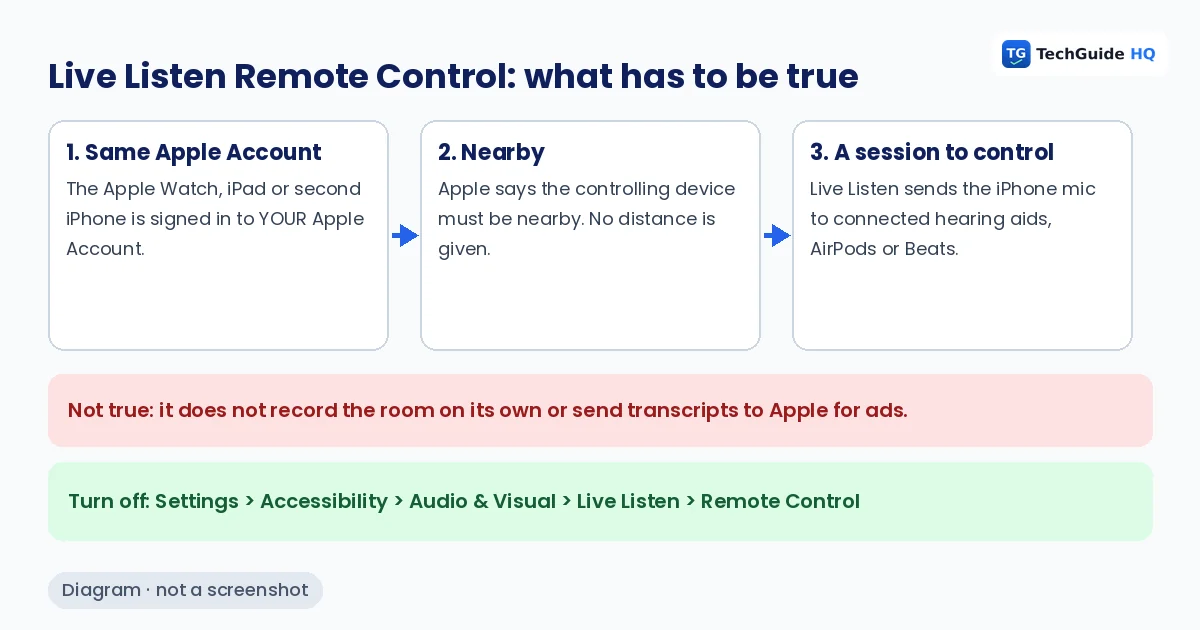
Remote Control lets a second device of yours run a session that’s happening on your iPhone. Apple’s Apple Watch guide describes starting, stopping, jumping back 10 seconds and reading captions from your wrist. The iPhone guide says the same works from another nearby iPhone or iPad. Apple lists two conditions:
- Same Apple Account. The watch, iPad or second iPhone has to be signed in to the same Apple Account as the iPhone doing the listening.
- Nearby. Apple’s wording is “nearby” device. It doesn’t give a distance, so we won’t guess one.
So a stranger in a coffee shop can’t use it, and nothing in Apple’s guides or the fact-checks ties it to advertising. It’s a remote for your own gear, which is useful for exactly the student-in-a-lecture-hall situation Apple has in mind and pointless for most other people.
Who could actually misuse it?
This is the part the viral posts skip. For Remote Control to be used against you, someone would need a device signed in to your Apple Account, close enough to count as nearby. In Snopes’s own test on iOS 26 devices, starting a session remotely also needed headphones connected to the target iPhone and put a pop-up on that iPhone announcing the session, which led to the setting to turn it off. Apple hasn’t documented that pop-up, so treat it as Snopes’s finding rather than a promise.
Put plainly: if someone already has your Apple Account password and a signed-in device, Live Listen is the least of your problems. They could see your photos, messages and location. That’s why the account check further down matters more than this switch.
How to turn off Live Listen Remote Control on iPhone
If you don’t use an Apple Watch, iPad or second iPhone to run Live Listen (and most people don’t), switching it off costs you nothing. This follows the path in Apple’s Apple Watch guide:
- Open Settings on your iPhone.
- Tap Accessibility.
- Tap Audio & Visual.
- Tap Live Listen.
- Turn off Remote Control.
Turning this off doesn’t remove Live Listen. You can still start it from Control Center with your AirPods or hearing aids. It only stops other devices on your account from controlling it. If you later want your Apple Watch to work as a remote again, Apple’s guide says to turn this switch back on and add Hearing Controls to the watch’s Control Center.
Don’t see Live Listen under Audio & Visual? Check that your iPhone is updated and that you’re looking under Accessibility, not Sounds & Haptics. If the menu still differs on your iOS version, Apple’s current iPhone User Guide lists the path for your version.
How do you stop a session that’s already running?
According to Apple’s iPhone guide, open Control Center, tap the Hearing control, tap Live Listen and stop the session there. If you use MFi hearing aids, Apple’s hearing devices page also lists Settings > Accessibility > Hearing Devices, tap your device, then End Live Listen. If you see a session you didn’t start, stop it, then do the account check below straight away.
The check that protects you more: who’s signed in to your Apple Account?
Since Remote Control only works for devices on your own account, the useful question is whether every device on that account is really yours. Apple’s device list guide covers this:
- Open Settings and tap your name at the top.
- Scroll down to the list of devices.
- Tap any device you don’t recognise and choose Remove from Account.
- Change your Apple Account password afterwards. Apple says a removed device only comes back if someone signs in on it again, so a new password closes that door.
If you share a home with someone you no longer trust, Apple’s Safety Check (Settings > Privacy & Security > Safety Check) lets you review and cut off sharing and access in one place. And if two-factor authentication isn’t on yet, our guide on what two-factor authentication is and why it matters explains why it’s the single biggest step for any account.
Advice in the viral posts that misses the point
- “Delete the iOS 27 update.” There’s no simple button to go back to an older iOS version, and the setting didn’t come from iOS 27 anyway. Staying updated is what keeps real security holes closed.
- “Turn off Live Listen completely.” Apple’s guides don’t list a single master switch for it, and you don’t need one. Live Listen isn’t running unless you start it. Remote Control is the only switch involved.
- “Apple is recording you for ads.” There’s no evidence for this in the fact-checks or in Apple’s documentation. If you’re worried about apps using the microphone, the place to look is Settings > Privacy & Security > Microphone, where you can see which apps have asked for access.
- “Forward this to everyone.” Chain warnings with screenshots of official-looking notices are a common pattern. The same instinct helps with the fake pop-ups we cover in the iPhone “hacked” notification in Safari.
Should you leave Remote Control on?
Leave it on if you, or someone you help, uses hearing aids or AirPods with Live Listen and likes controlling it from an Apple Watch or iPad. Students who read live captions on a tablet across a room are the clearest example. Everyone else can switch it off in a few seconds and forget about it. Either choice is safe as long as your Apple Account is locked down.
Frequently Asked Questions
Does Live Listen record my conversations and send them to Apple?
There’s no evidence it does. Apple documents Live Listen as a feature you start yourself, which sends the iPhone microphone’s audio to your connected hearing aids, AirPods or Beats. DHS told Snopes the notice claiming transcripts go to Apple for ads was not accurate.
Does turning off Remote Control stop Live Listen from working?
No. It only stops your Apple Watch, iPad or other iPhone from starting or controlling sessions. You can still start Live Listen on the iPhone itself from Control Center.
Can someone use Live Listen on my iPhone without my Apple Account?
Not through Remote Control. Apple says the controlling device must be signed in to the same Apple Account and be nearby. If you find a device on your account that isn’t yours, remove it and change your password.
Related guides
- iPhone “hacked” notification on Safari: what to do
- What is two-factor authentication?
- How to check if your password was leaked
More privacy help is in our Security & Privacy section.
Sources (opened 26 November 2026, PKT): Apple Support Use iPhone as a remote microphone with Live Listen, Control Live Listen on iPhone from Apple Watch, Live Listen with Made for iPhone hearing devices, Review devices signed in to your Apple Account and Safety Check. Fact-checks: Snopes on the HSI notice (23 November 2026), Snopes on the Remote Control update (updated 18 November 2026) and Lead Stories.
Last updated: November 26, 2026 · By Abubakar Iqbal

I run TechGuide HQ from Islamabad, Pakistan. My team and I write step-by-step Windows, iPhone, Android and app guides, check them against official help pages, try some steps on my own devices, and personally answer questions sent through the contact page.