
Summary
- A BitLocker startup PIN makes Windows 11 ask for a code before the drive unlocks, so a powered-off or hibernating laptop stays encrypted even if someone else is holding it.
- FastUnlock, a lock screen bypass made public on 19 November 2026, needs physical access. Microsoft has said it is working on a fix, but there’s no patch or CVE yet.
- Security teams suggest a startup PIN as a stopgap. It only helps when the PC is shut down or hibernating, not when it’s asleep or sitting at the lock screen.
- On Windows 11 Pro, Enterprise or Education you add the PIN with one Group Policy setting and one manage-bde command. Save your recovery key first.
- Windows 11 Home can’t use a startup PIN. There, keeping the laptop in your own hands and installing Microsoft’s fix when it ships are the real protection.
Most Windows 11 laptops encrypt their drive without asking you anything. You switch the laptop on, Windows loads, you type your PIN at the lock screen, and that’s it. That convenience comes from BitLocker’s default setup, which lets the laptop’s security chip release the drive key by itself during startup. A new lock screen bypass called FastUnlock has people asking whether that’s enough, and the most common answer from security teams is to add a BitLocker startup PIN. This guide explains what that PIN actually protects, when it doesn’t help, and how to set up a BitLocker startup PIN on Windows 11, including what to do if your PC runs Home edition.
Checked against: Microsoft Learn’s BitLocker documentation and Microsoft Support, opened on 25 November 2026 (PKT). We haven’t run the PIN steps ourselves. The Windows laptop we use for these guides runs Windows 11 Home, which doesn’t offer a startup PIN, so the Pro steps below follow Microsoft’s documentation.
What is FastUnlock, and what’s actually confirmed?
FastUnlock is the name a security researcher gave to a way past the Windows 11 lock screen. It was published on GitHub on 19 November 2026 without warning Microsoft first. We’re not going to describe how it works step by step. What matters for you is who it can affect and what reduces the risk.
| Claim | Status | Source |
|---|---|---|
| Someone needs the PC physically in front of them. It doesn’t work over the internet. | Confirmed by Microsoft | A Microsoft spokesperson told Cybernews the technique “requires an attacker to have physical access to a device” and that Microsoft is “actively working to remediate the issue” |
| There is no patch, CVE or security advisory yet | Reported (as of 25 November 2026) | Microsoft’s statement says it is still working on a fix, and the CUHK security alert (23 November) lists it as CVE-unassigned. Fixes will appear in the Microsoft Security Update Guide |
| It opens a program as a limited lock screen account (WsiAccount), not as an administrator | Reported | The researcher’s write-up, reproduced by ThreatLocker |
| It needs at least one account on the PC linked to a Microsoft account | Reported | Researcher and ThreatLocker; Microsoft hasn’t commented on the conditions |
| Affected: Windows 11 26H2 with the November 2026 updates | Reported | The researcher’s own test setup. Microsoft hasn’t confirmed which versions are affected. Windows 10 and older Windows 11 versions are untested, not cleared |
| A startup PIN stops it | Partly true, unconfirmed by Microsoft | Security teams say a PIN protects a PC that is off or hibernating. Microsoft hasn’t tested or commented on this |
There’s no report of FastUnlock being used against real people so far. That’s no reason to panic, but it’s a fair moment to look at how your laptop is protected when it leaves your hands.
Why the default BitLocker setup doesn’t help here
Out of the box, BitLocker and Windows 11’s Device Encryption use what Microsoft calls TPM-only protection. The TPM is a small security chip on the motherboard. At startup it checks that the boot process hasn’t been tampered with, then hands over the key and the drive unlocks. You never see it happen.
That’s good protection against one thing: someone pulling the SSD out and reading it in another computer. It does nothing about someone who sits at your laptop and gets past the lock screen, because by the time the lock screen appears, the drive is already unlocked. Microsoft’s own BitLocker countermeasures page describes TPM-only as the more convenient option and “less secure” than the options that add a second factor.
A startup PIN is that second factor. With TPM + PIN, Microsoft says BitLocker only loads the encryption key into memory after you type the PIN. No PIN, no readable drive, no lock screen to attack.
When a startup PIN protects you, and when it doesn’t
This is the part most news coverage skips. The PIN is asked for at power-on and when the PC comes back from hibernation. It is not asked for when the laptop wakes from sleep. Microsoft spells this out: after sleep, users “aren’t required to reauthenticate” with the PIN, while hibernation locks the drive again.
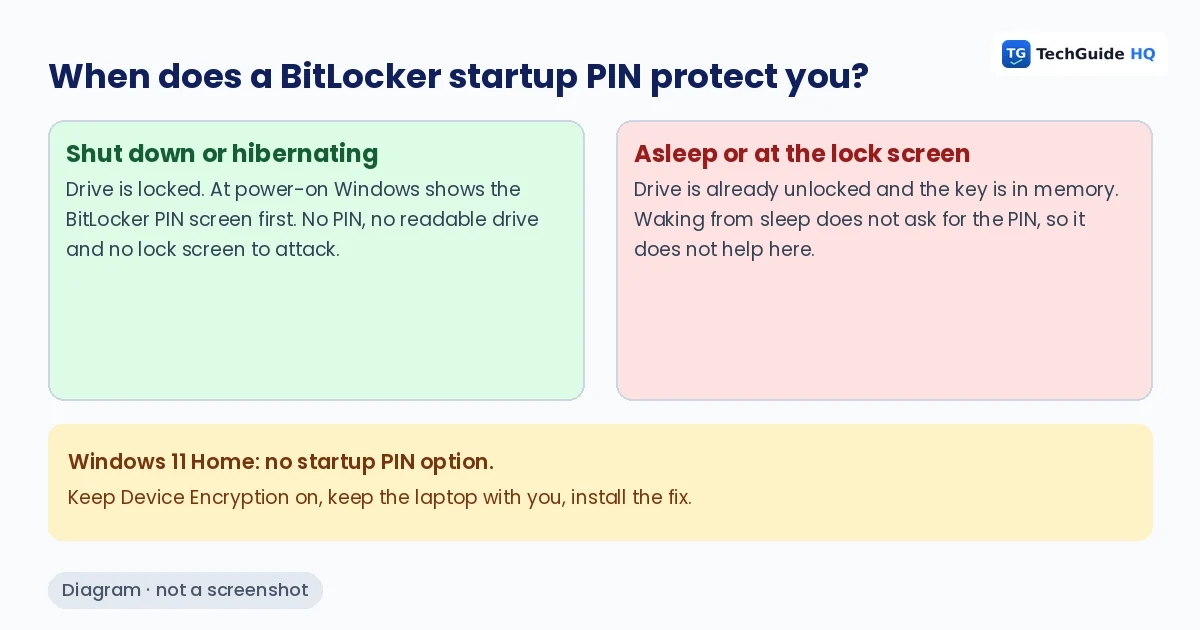
- Shut down or hibernating: the drive is locked. Someone who picks up the laptop sees the BitLocker PIN screen, not the Windows lock screen. This is where a PIN helps against FastUnlock.
- Asleep, or awake at the lock screen: the drive is already unlocked. A PIN doesn’t change anything here. Closing the lid usually means sleep, so this is the state most laptops are in when they’re left in a bag or on a desk.
So a PIN on its own is half a fix. The other half is a habit: shut down or hibernate when the laptop leaves your sight. We cover how to make that easy further down.
Step 1: Check your Windows edition and current encryption
The steps depend on your edition, so check that first.
- Open Settings > System > About and look at Edition under Windows specifications. It will say Windows 11 Home, Pro, Enterprise or Education.
- On Home, open Settings > Privacy & security > Device encryption to see whether encryption is on. If the page isn’t there, your PC either doesn’t support Device Encryption or you’re signed in with a standard account, according to Microsoft Support. Skip to the Home section below.
- On Pro, Enterprise or Education, right-click Start, choose Terminal (Admin) and run
manage-bde -status C:. Look at Protection Status and the Key Protectors list. If it shows only TPM and Numerical Password, you have the default TPM-only setup. If it already shows TPM And PIN, you’re done.
Work or school laptop? Don’t change BitLocker yourself. Your IT team manages those settings and may already be rolling out a PIN. Ask them.
Step 2: Save your BitLocker recovery key before you change anything
If you forget the new PIN, the only way back into your files is the 48-digit recovery key. Microsoft is blunt about it: the only way around pre-boot authentication is the recovery key. So make sure you can find yours before you start.
- If you sign in with a Microsoft account, the key is usually saved there. Microsoft’s Find your BitLocker recovery key page lists where to look, including your Microsoft account online.
- Check that the key ID shown there matches the one on your PC. In Terminal (Admin),
manage-bde -protectors -get C:lists the Numerical Password protector with its ID. - Keep a second copy somewhere that isn’t the laptop itself: printed, or in a password manager on another device.
Step 3: How to add a BitLocker startup PIN on Windows 11 Pro
Two parts: allow a PIN in Group Policy, then add it. You need an administrator account. The policy names below are the ones Microsoft documents in Configure BitLocker.
- Press Windows + R, type
gpedit.mscand press Enter. - Go to Computer Configuration > Administrative Templates > Windows Components > BitLocker Drive Encryption > Operating System Drives.
- Double-click Require additional authentication at startup and choose Enabled.
- Under Configure TPM startup PIN, choose Require startup PIN with TPM (or Allow startup PIN with TPM). Leave the other three TPM options on an “Allow” or “Don’t allow” choice. Microsoft notes that only one of them can be set to “Require”, or you’ll get a policy error.
- Click OK. Optional: if you want letters as well as numbers, also enable Allow enhanced PINs for startup in the same folder. Microsoft warns that not every PC supports those characters before Windows loads, so stick to digits if you’re unsure.
- Open Terminal (Admin) and run
manage-bde -protectors -add C: -TPMAndPIN. Windows asks you to type and confirm the PIN. - Run
manage-bde -status C:again. Key Protectors should now list TPM And PIN alongside Numerical Password. - Restart. Before Windows loads you’ll see a BitLocker screen asking for the PIN. Type it and Windows starts as usual.
How long should it be? Unless a policy says otherwise, Microsoft allows 6 to 20 digits. The TPM limits how fast someone can guess (Microsoft’s example works out to roughly 4,400 guesses a year), so a longer PIN buys you a lot. Don’t reuse your Windows Hello PIN or your bank card PIN.
Heads-up for gaming laptops: before a BIOS update or a change to Secure Boot, have your recovery key ready, because firmware changes can trigger a recovery prompt. Our Secure Boot certificate guide explains why.
On Windows 11 Home? Here’s what you can do
Microsoft lists BitLocker management, which includes the startup PIN, only for Pro, Enterprise and Education. Home has Device Encryption, and its Settings page is a single on/off switch. There’s no PIN option.
Be clear about what that means: on Home, the drive unlocks by itself at every startup, so shutting down doesn’t block FastUnlock as it would with a PIN. What’s left is still worth doing:
- Keep Device Encryption on. It still protects your files if the SSD is pulled out of the laptop.
- Don’t leave the laptop unattended with people you don’t trust. Every report agrees FastUnlock needs someone sitting at your PC. In a hotel or office, take it with you or lock it away.
- Install Microsoft’s fix when it ships. Keep an eye on Settings > Windows Update over the coming weeks. For Home users, the patch is the real answer.
Paying for a Pro upgrade just for this isn’t something we’d suggest for a home laptop that rarely leaves the house. It makes more sense if you travel a lot with sensitive work files.
Make shutting down or hibernating a one-click habit
Windows 11 often hides Hibernate from the power menu. You can add it back:
- Open Control Panel > Hardware and Sound > Power Options and click Choose what the power buttons do.
- Click Change settings that are currently unavailable, tick Hibernate under Shutdown settings and click Save changes.
- If the Hibernate box is missing, run
powercfg /hibernate onin Terminal (Admin) first. Microsoft documents the switch on its powercfg options page. - Optional: on the same page, set When I close the lid to Hibernate or Shut down.
Hibernate takes longer to wake than sleep. That’s the trade, and on Pro with a PIN it’s what keeps the drive locked while the laptop is in your bag.
Who should actually bother?
Be honest with yourself about how your laptop is used.
- Laptop that travels: commuting, flights, hotels, coffee shops. This is the case a startup PIN was made for. Add it.
- Shared office or student housing: other people get physical access every day. Worth doing, plus lock-and-hibernate when you step away.
- Desktop that never leaves your home: the risk from FastUnlock is low. Keep encryption on, install updates, and you can skip the PIN.
- Family PC that several people use: a startup PIN everyone has to know doesn’t add much. Separate Windows accounts matter more.
Things not to do
- Don’t turn BitLocker or Device Encryption off because “it didn’t stop FastUnlock”. It still protects a removed drive and a powered-off laptop.
- Don’t delete the Numerical Password protector. That’s your recovery key. Without it, a forgotten PIN means losing your files.
- Don’t install “FastUnlock fix” tools or scripts from videos or forums. The only fix will come through Windows Update.
- Don’t go looking for exploit demos to “test” your own PC. You won’t learn anything the status check above doesn’t tell you.
Common situations
“I added the PIN and now BitLocker asks for the recovery key instead.” Something in the boot setup changed, often a BIOS setting or a firmware update. Enter the recovery key, then check what changed before your next restart.
“My laptop wakes from sleep without asking for the PIN. Did it fail?” No, that’s how it’s designed. Only power-on and resume from hibernation ask for it.
“I don’t have gpedit.msc.” That almost always means Windows 11 Home. See the Home section above.
“manage-bde says Group Policy doesn’t allow a PIN.” The Group Policy change from step 3 hasn’t applied yet. Run gpupdate /force in Terminal (Admin), or restart, then try the manage-bde command again.
Frequently Asked Questions
Does a BitLocker startup PIN slow down my PC?
No. BitLocker encryption works the same with or without a PIN. The only change is one extra screen at power-on and when resuming from hibernation, where you type the PIN before Windows loads.
What happens if I forget my BitLocker startup PIN?
Windows asks for the 48-digit BitLocker recovery key instead. Microsoft says the recovery key is the only way past the PIN, so save it in your Microsoft account and keep a second copy off the laptop before you add a PIN.
Can I use a BitLocker startup PIN on Windows 11 Home?
No. Microsoft lists BitLocker management, including startup PINs, for Pro, Enterprise and Education editions only. Home has Device Encryption, which unlocks the drive automatically with the TPM and has no PIN option in Settings.
Will Microsoft’s FastUnlock fix make the startup PIN unnecessary?
A patch should close this particular lock screen bypass. A startup PIN still protects a powered-off or hibernating laptop against other physical attacks, which is why Microsoft recommends TPM with PIN for devices that face skilled attackers. For a laptop that travels, keeping it is reasonable.
The short version
FastUnlock needs someone at your keyboard, and Microsoft is working on a fix. In the meantime, a BitLocker startup PIN on Windows 11 Pro keeps a shut-down or hibernating laptop locked, as long as you save your recovery key first and stop leaving the laptop asleep when it’s out of your sight. On Home, keep encryption on, keep the laptop close and install the update when it arrives.
Related guides
- What is memory integrity in Windows 11?
- Windows Security Secure Boot certificate status, explained
- Windows 11 black screen after login
- What is two-factor authentication?
More plain-English Windows help is in our Windows & PC section.
Sources (opened 25 November 2026, PKT): Microsoft Learn BitLocker countermeasures, Configure BitLocker, manage-bde protectors and Powercfg command-line options; Microsoft Support Device Encryption in Windows and Find your BitLocker recovery key; Microsoft Security Update Guide. FastUnlock reports: Cybernews (Microsoft statement, updated 24 November 2026), ThreatLocker and CUHK ITSC.
Last updated: November 25, 2026 · By Abubakar Iqbal

I run TechGuide HQ from Islamabad, Pakistan. My team and I write step-by-step Windows, iPhone, Android and app guides, check them against official help pages, try some steps on my own devices, and personally answer questions sent through the contact page.