
Summary
- You can log out of WhatsApp Web from your phone without touching the computer: open Linked devices, tap the computer and choose Log out.
- On iPhone it’s under Settings (or your profile picture); on Android it’s in the three-dot menu.
- Closing the browser tab doesn’t always end the session, and switching your phone off doesn’t either, because linked devices work without the phone online.
- Unused linked devices are disconnected automatically after 30 days, but that’s too long to wait on a shared computer.
- See a device you don’t recognise? Log it out and turn on two-step verification.
You printed a boarding pass at the hotel business centre, sent one quick WhatsApp message from the computer there, and walked off. Or you sold your old laptop last month and only now remembered WhatsApp was open on it. The good news: you don’t need to go back. Your phone can end that session from wherever you are, in a few taps.
This guide explains what a WhatsApp Web session really is, how to log out of WhatsApp Web from an iPhone or Android phone, what to do in the most common “I left it logged in” situations, and the two settings that stop it happening again.
Based on WhatsApp’s own Help Center articles on linked devices, unlinking a device and two-step verification, opened on 27 November 2026 (PKT). We didn’t take screenshots for this guide, and menu names can shift slightly between app versions.
What “logged in to WhatsApp Web” actually means
WhatsApp treats a browser or computer as a linked device. Your phone stays the main (primary) device, and you can link up to four others to the same account. WhatsApp says each linked device connects to its service independently and keeps working even when your phone is offline.
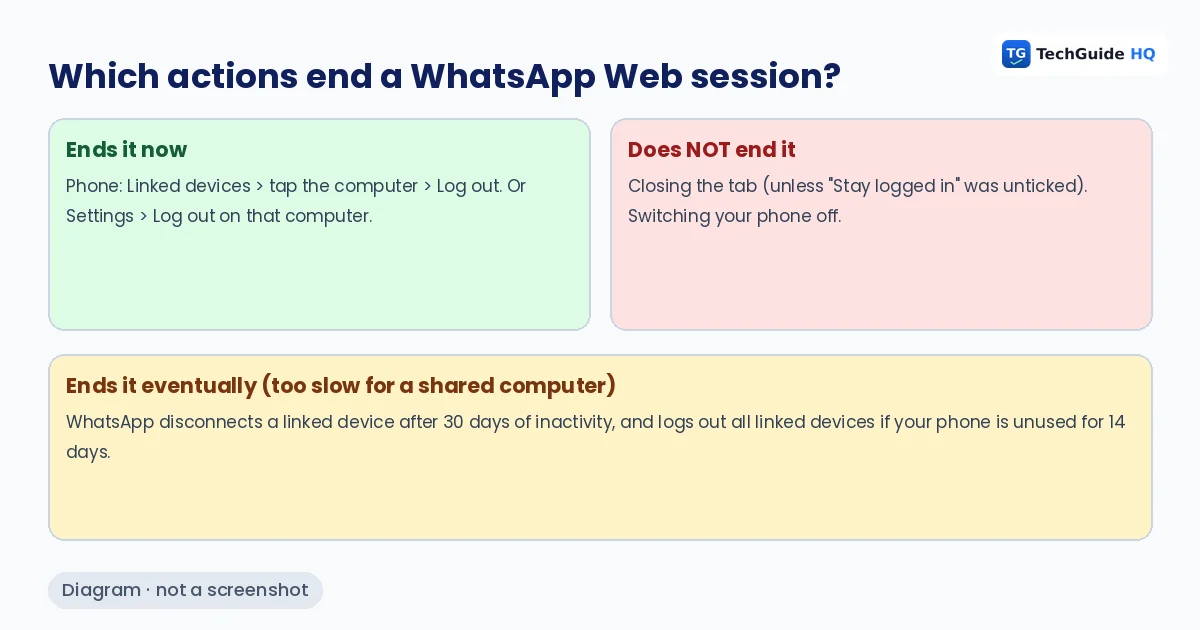
That last point surprises people. Turning your phone off, putting it in airplane mode or leaving it at home does not cut off a computer that’s still linked. Here’s how the usual “fixes” compare:
| What you do | Does it end the WhatsApp Web session? |
|---|---|
| Close the browser tab or window | Not necessarily. Only if you unticked Stay logged in on this browser before scanning the QR code. |
| Switch your phone off or go offline | No. Linked devices work without the phone being online. |
| Log out from Linked devices on your phone | Yes, straight away. |
| Choose Log out inside WhatsApp Web or the desktop app | Yes, if you’re still at that computer. |
| Do nothing | Eventually. WhatsApp disconnects a linked device after 30 days of inactivity, and all linked devices log out if your phone isn’t used for 14 days. |
How to log out of WhatsApp Web from your phone
This is the method that works when the computer is somewhere else. It’s the same idea on both phones; only the way into the menu differs.
On iPhone
- Open WhatsApp.
- Tap Settings (or your profile picture, depending on your app version).
- Tap Linked devices. You’ll see every computer, browser, tablet or other device linked to your account.
- Tap the one you want to remove.
- Tap Log out, then Log out again to confirm.
On Android
- Open WhatsApp.
- Tap the three dots at the top right.
- Tap Linked devices.
- Tap the device you want to remove, then tap Log out and confirm.
Repeat for each device you don’t want linked. If you’re not sure which entry is the hotel or office computer, it’s fine to log them all out and re-link your own laptop later with a fresh QR code. Re-linking is quick; leaving a stranger’s PC connected could expose your chats for weeks.
Still at the computer?
Then log out there. In WhatsApp Web or the WhatsApp app for Windows or Mac, open Settings and choose Log out, then confirm. It’s a good habit before you stand up from any computer that isn’t yours.
Which situation are you in?
A library, hotel, school or office computer you’ve already left
Use the phone method above now. Logging out stops that computer from showing your chats, but it can’t reach files you saved on it: a photo or PDF you downloaded from a chat stays in that computer’s Downloads folder until someone deletes it. If it was sensitive, ask the venue’s staff whether shared machines are wiped between users.
A laptop you sold, gave away or returned to work
Log it out from your phone, even if you think the new owner reset it. Next time, log out of WhatsApp and your other accounts before the device leaves your hands, and reset the computer as well.
A lost or stolen laptop
Log it out from your phone first, because that’s the part you can control instantly. Then change the passwords for accounts that were signed in on that laptop’s browser, starting with your email. WhatsApp says it can’t tell you who accessed your account or when and where, so don’t wait for that information before acting.
A device in the list you don’t recognise at all
Log it out immediately and turn on two-step verification in WhatsApp’s Settings > Account. WhatsApp is moving two-step verification from a 6-digit PIN to a password, so you may be asked to create a password instead. If you also got a verification code you didn’t ask for, read our guide on WhatsApp verification code requests, which covers takeover attempts. Our explainer on what two-factor authentication is shows why that second step matters.
Your own work computer that you use every day
No need to log out. Just glance at the Linked devices list once in a while so you’d notice a device you didn’t add.
What logging out does and doesn’t do
- It removes that device’s access. To use WhatsApp there again, that computer would have to be linked again, and linking always needs your phone.
- Your phone keeps everything. Your phone is still the primary device, and WhatsApp says linked computers can’t take over that role.
- It only works one way. WhatsApp’s help page is clear that you can’t use WhatsApp Web or Desktop to log out your phone. If your phone is the device that’s gone, that’s a different problem: you’ll need to set WhatsApp up again on a new phone with your number.
- It doesn’t back anything up. If you’re about to reset or replace a phone, set up a backup first with our guide to backing up WhatsApp on iPhone and Android.
Three habits that stop this happening again
- Untick “Stay logged in on this browser” before you scan the QR code on any computer that isn’t yours. WhatsApp then logs the session out when you close the tab or browser.
- Keep WhatsApp notifications on. WhatsApp says that with push notifications enabled on your phone, you’re alerted about linked devices and can tap the alert to review and remove one you don’t recognise.
- Only link official WhatsApp. That means web.whatsapp.com, the WhatsApp apps for Windows and Mac, and WhatsApp’s own tablet and companion-phone apps. WhatsApp warns that linking an unofficial app or website can get your account temporarily or permanently banned, even if you linked it in the past.
Related guides
- WhatsApp code requested for your number? Do this
- What is two-factor authentication?
- How to back up WhatsApp on iPhone and Android
More account safety help is in our Security & Privacy section.
Sources (opened 27 November 2026, PKT): WhatsApp Help Center About linked devices, How to unlink a device, How to check devices linked to your account and unlink a device you don’t recognize and How to manage two-step verification settings.
Last updated: November 27, 2026 · By Abubakar Iqbal

I run TechGuide HQ from Islamabad, Pakistan. My team and I write step-by-step Windows, iPhone, Android and app guides, check them against official help pages, try some steps on my own devices, and personally answer questions sent through the contact page.