

Summary
- Type your message, then press and hold the Send button instead of tapping it, pick a date and time, and confirm.
- You can schedule from 10 minutes up to 14 days ahead, in one-to-one chats and groups, with text, photos or videos.
- Your queued messages live under Scheduled messages, where you can delete one before it goes out. WhatsApp’s help page doesn’t mention an edit option.
- WhatsApp says the message still arrives on time even if your phone is off or the battery has died.
- No hold menu? The feature started rolling out on 25 November and reaches everyone over several weeks, and it isn’t in WhatsApp Business yet.
It’s 11 at night and you’ve just remembered your cousin’s job interview tomorrow morning. You want the “good luck” to land at 8 AM, not wake her up now. Until this week that meant setting a reminder and hoping you’d see it. Now WhatsApp can hold the message and send it for you.
WhatsApp announced scheduled messages on its official blog on 25 November and called it one of its most requested features. This guide covers how to schedule a message on WhatsApp step by step, what happens after you’ve scheduled it, the limits that catch people out (groups and time zones especially), and what to do if the option isn’t on your phone yet.
Checked against: the WhatsApp Blog announcement (25 November) and the WhatsApp Help Center article “How to schedule a message”, both opened on 28 November. We haven’t had the feature on our own phones yet, so there are no screenshots here. Menu names below are WhatsApp’s own.
How do you schedule a message on WhatsApp?
The trick is one gesture most people never use: a long press on Send. A normal tap still sends straight away, so nothing changes until you hold it.
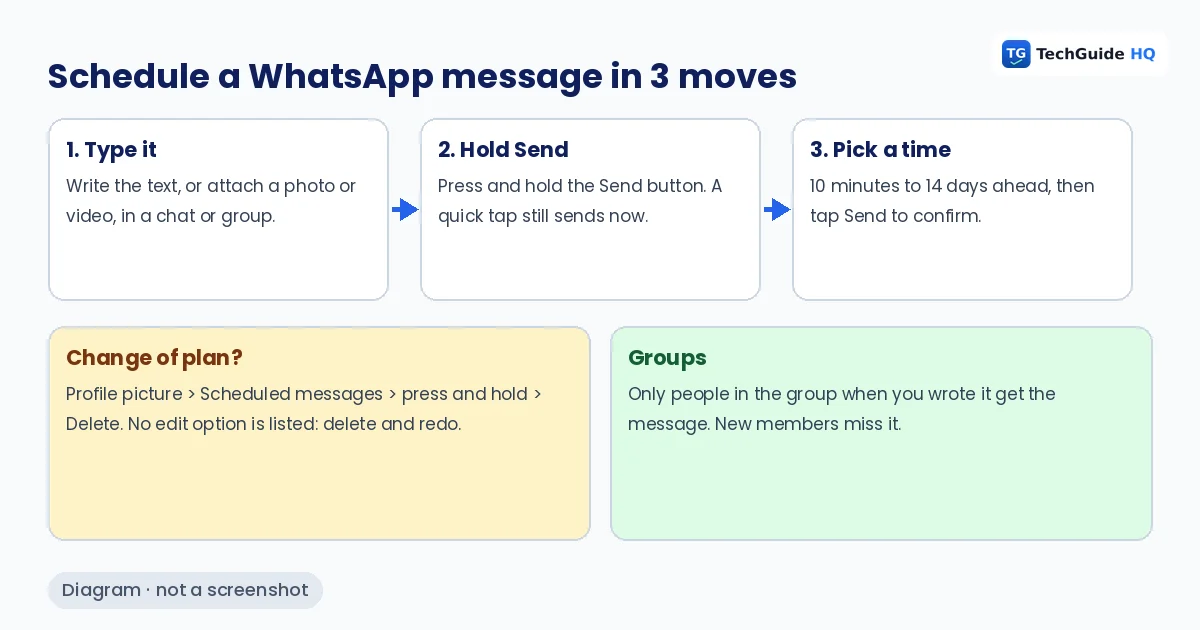
- Open the chat (a person or a group) and type your message as usual. You can also attach a photo or video.
- Press and hold the Send button rather than tapping it.
- Scroll to pick the date and time you want it delivered.
- Tap the Send button that now shows your chosen time to confirm.
The other person gets nothing until then. When it arrives, WhatsApp says it looks like any other message, so there’s no “scheduled” label on their side.
Where do your scheduled messages go, and can you change one?
Once you’ve queued a few, you’ll want to see them in one place. According to WhatsApp’s Help Center:
- To see them: tap your profile picture, then Scheduled messages.
- To cancel one: in the same list, press and hold the message and tap Delete.
Here’s the part people get wrong. WhatsApp’s help page lists Delete but says nothing about editing a scheduled message. So if you spot a typo or want a different time, the safe approach is to delete it and schedule it again. Don’t count on fixing it after it’s sent: editing a sent message is a separate feature with its own time limit, and the other person may already have read the original.
The Help Center article we could open shows the Android version. The blog describes the same hold-Send gesture for everyone, but if your iPhone menus are laid out a little differently, look for Scheduled messages near your profile rather than going by the exact wording above.
What can you schedule, and what has WhatsApp not said yet?
Much of what’s being shared about this feature is guesswork. Here’s what WhatsApp has actually confirmed, set apart from what it hasn’t addressed:
| Question | What WhatsApp says |
|---|---|
| How far ahead? | From 10 minutes up to 14 days (the Help Center puts it as “up to two weeks”). |
| Which chats? | One-to-one chats and groups. |
| What kind of message? | Text, photos and videos. Voice notes, documents and polls aren’t mentioned, so don’t assume they work. |
| Phone switched off at send time? | It still arrives at the time you chose, even if the phone is off or the battery is flat. |
| Is it private? | Yes, scheduled messages are end-to-end encrypted like normal ones. |
| WhatsApp Business? | Not available yet, according to the Help Center. |
| WhatsApp Web or the desktop app? | The same Help Center article, opened for WhatsApp Web, says the feature isn’t available on the web app. Opened for the Windows app, it says it isn’t available on that platform either. Schedule from your phone. |
| Which time zone does the picker use? | Not stated. See the time zone tip below. |
Two traps: groups and time zones
New group members won’t get it
WhatsApp’s Help Center says a scheduled group message only goes to people who were in the group when you wrote it. Say you schedule a “meeting moved to 3 PM” note for Friday, and someone joins the group on Thursday. They won’t see it. For anything practical, like times, addresses or payment details, check who has joined since and send them a separate message.
Work out the time in your own clock
WhatsApp’s own example is a birthday message landing at midnight in a friend’s time zone. Its pages don’t spell out whether the picker shows their time or yours, though. The safe assumption is that it uses your phone’s clock. So if you’re in London and your friend is in Toronto (usually five hours behind), midnight for them is 5 AM for you, and 5 AM is what you’d pick. Once the feature reaches your phone, a quick check is to schedule a short note to yourself or a family member and see when it lands.
Don’t see the option yet? Check these three things
This isn’t a “something’s broken” problem, so you don’t need a long list of fixes. WhatsApp’s blog says scheduled messages are “rolling out globally over the coming weeks”. In practice that means some people got it on day one and others will wait. Three things are worth checking:
- Update WhatsApp. Open the Google Play Store or the App Store, search for WhatsApp and install any update. WhatsApp’s help page also says to keep the app updated for new features.
- Check which app you’re in. If the green icon has a “B” on it, that’s WhatsApp Business, which doesn’t have scheduling yet.
- Wait. If you’re on the latest version of regular WhatsApp and holding Send does nothing new, it simply hasn’t reached your account yet. Reinstalling won’t speed it up, and it can cost you chats if your backup isn’t current. Our guide on backing up WhatsApp on iPhone and Android covers that.
Skip the “scheduler” apps and modded WhatsApp
Search “WhatsApp scheduler” and you’ll find apps and modified versions of WhatsApp that promise scheduling today. Leave them alone. WhatsApp’s page About unofficial WhatsApp apps names examples such as GB WhatsApp and FM WhatsApp. It says using or linking your account to these breaks its terms, can expose your data to malware, and can get your account temporarily or permanently banned. That’s a lot to risk to save a few weeks.
If you’ve already tried one and now get odd login codes or warnings, read what to do when a WhatsApp code is requested for your number. It’s also a good moment to switch on two-step verification. Our explainer on how two-factor authentication works explains why that extra PIN matters.
On iPhone you may also see older tutorials built on the Shortcuts app. They run on the phone itself, so they depend on the phone being on at the right moment. WhatsApp says its built-in scheduler doesn’t have that problem.
Good uses (and one bad one)
- Birthdays and exams: write it when you think of it, deliver it when it’ll be seen.
- Family across time zones: say good morning at their breakfast time, not yours.
- Work groups: queue a reminder for Monday morning on Friday afternoon instead of messaging people over the weekend.
- Not for anything time-critical that might change. If the plan could shift, keep an eye on your Scheduled messages list. The message goes out whether or not it’s still true.
Before you schedule your first message
To schedule a message on WhatsApp, type it, hold Send, pick a time up to 14 days away and confirm. You can delete it from Scheduled messages before it goes. If you don’t have the option yet, update the app and give the rollout a few weeks, and stay away from unofficial versions that claim to offer it now.
Related guides
- How to back up WhatsApp on iPhone and Android
- WhatsApp code requested for your number? Do this
- What is two-factor authentication?
Sources (opened 28 November 2026, PKT): WhatsApp Blog Say it at the right time with scheduled messages (25 November 2026); WhatsApp Help Center How to schedule a message and About unofficial WhatsApp apps.
Last updated: November 28, 2026 · By Abubakar Iqbal

I run TechGuide HQ from Islamabad, Pakistan. My team and I write step-by-step Windows, iPhone, Android and app guides, check them against official help pages, try some steps on my own devices, and personally answer questions sent through the contact page.