
Last updated: November 15, 2026 · By Abubakar Iqbal
Last checked against official page: Microsoft’s Windows 11, version 26H2 known issues and notifications page and the KB5132061 release notes, on November 15, 2026.
Summary
- As of November 15, 2026, Microsoft lists one open Windows 11 26H2 issue: SQL Server linked server connections staying open, which mostly hits servers and is unlikely to affect a home PC.
- The USB audio Code 10 bug is fixed by KB5132061 (November 10); it affects older USB Audio Class 1.0 headsets, mics and DACs.
- Remote Desktop failures for non-admin users (0xC000000D) are resolved by KB5127936 and mostly affect managed work PCs.
- If KB5132061 fails with 0x80070306, 0x800f0989 or 0x800f0993, keep the PC online: Microsoft is pushing an automatic repair through Windows Update, so stay online and wait 48 hours before troubleshooting.
You finally installed the 2026 update and now you’re wondering what broke, or the November update keeps failing. Windows 11 26H2 problems are easier to judge once you know what Microsoft itself has confirmed, because most of the scary posts you’ll find mix old bugs, fixed bugs and one-off reports. This guide lists every issue Microsoft currently shows for 26H2, says which ones matter on a home PC, and walks you through the KB5132061 install failure step by step.
What Are the Known Windows 11 26H2 Problems Right Now?
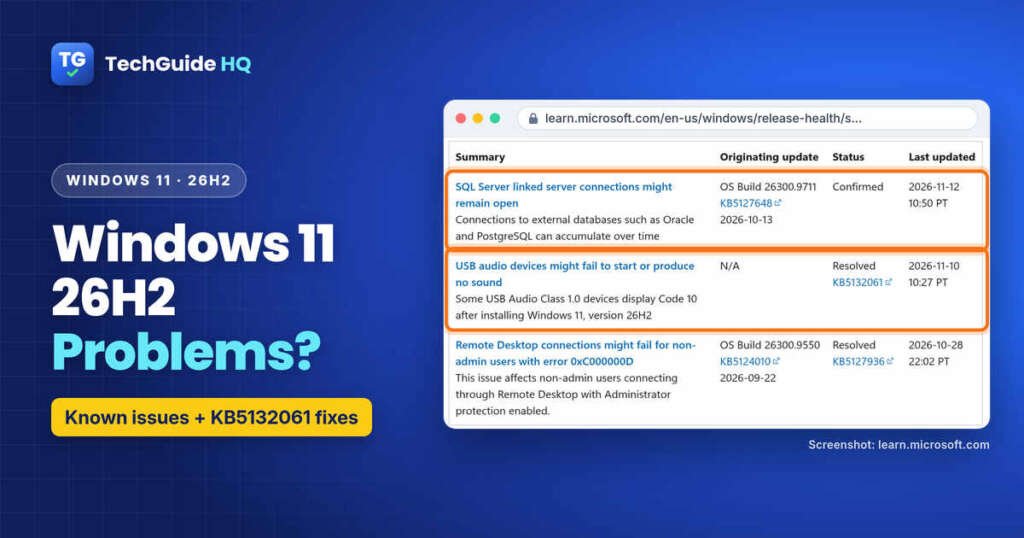
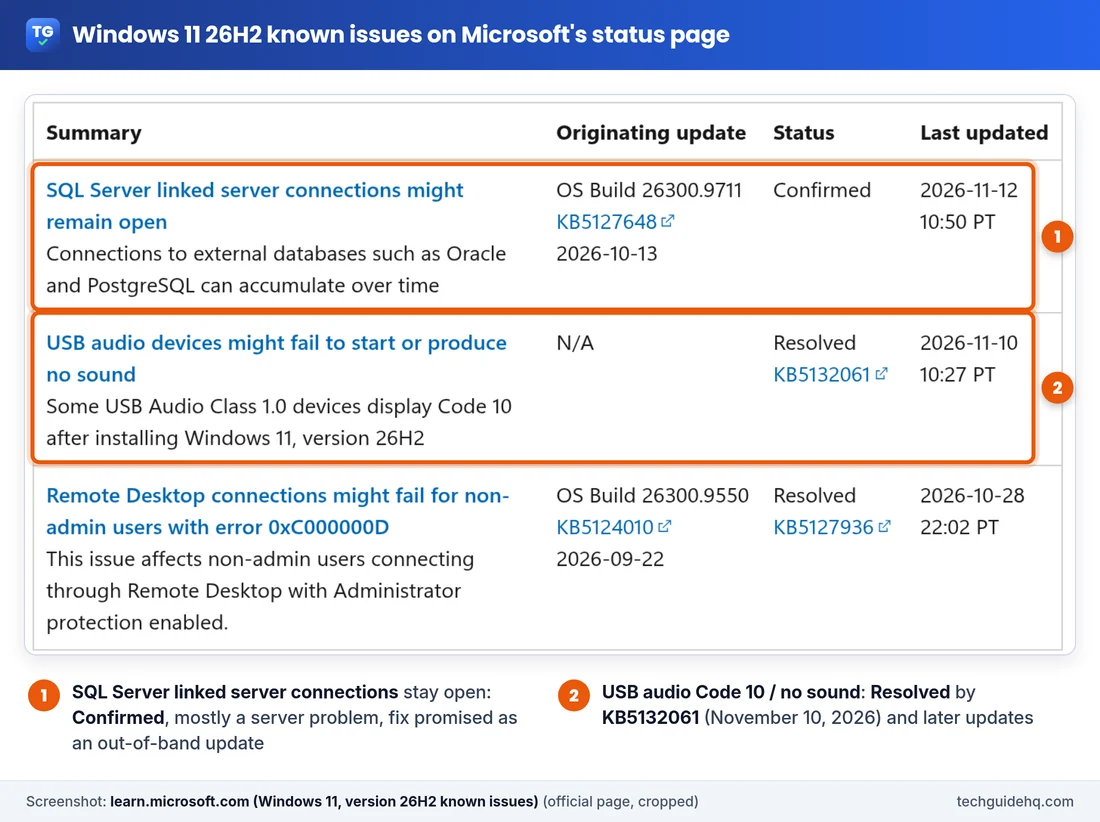
Microsoft keeps an official status page for each Windows version. For 26H2 it says the update has been available for all eligible devices since its status note of October 28, 2026. The known issues table on that page shows open issues and anything updated in the last 30 days. When we checked it on November 15, it had three entries, and the page itself was last updated on November 13.
1. SQL Server linked server connections might remain open (still open)
This is the only issue marked Confirmed. Microsoft opened it on November 11 and last updated it on November 12, 2026. It started with the October 13, 2026 update KB5127648 (OS Build 26300.9711) and continues in later updates.
Here’s what happens, in Microsoft’s words: on server devices, connections created by SQL Server linked server queries “might remain open after the queries complete.” They pile up instead of closing, and that can slow the server down over time. It affects linked server queries that use OLE DB providers. Oracle and PostgreSQL connections are named as affected.
On a laptop used for gaming, browsing, school or office work, this almost certainly isn’t your problem. For people who run SQL Server with linked servers, Microsoft says:
- closing idle connections, or restarting the SQL service, gives temporary relief, but it can interrupt running queries and the problem comes back;
- a mitigation is available for enterprise devices through Microsoft Support for business;
- an out-of-band update to fix it is planned “in the next few days” (Microsoft’s wording on November 12).
2. USB audio devices might fail to start or produce no sound (fixed)
This is the one home users actually felt. After installing 26H2, some USB Audio Class 1.0 devices stopped working. That’s an older, driver-free standard that many basic USB headsets, microphones and small DACs still use. Microsoft lists these symptoms:
- Device Manager shows “This device cannot start (Code 10)”;
- no audio output;
- volume controls don’t respond or stay at zero;
- Sound settings don’t respond or aren’t available.
Microsoft marked it Resolved on November 10, 2026: the fix is in the security update KB5132061 and later updates. The KB5132061 notes list it too: “Fixed: USB Audio 1.0 devices might fail to start and display error code 10 in Device Manager.” If your headset still shows Code 10 after that update, follow our Windows 11 USB audio Code 10 guide.
3. Remote Desktop fails for non-admin users with 0xC000000D (fixed)
After the September 22, 2026 preview update (KB5124010), non-admin users couldn’t connect through Remote Desktop to PCs with Administrator protection on. Microsoft says it mainly hit enterprise-managed hosts, and KB5127936 (October 28, 2026) fixes it.
What about the 26H2 black screen bug?
It’s off the table because only recently updated entries stay listed. Microsoft fixed the black screen after sign-in, seen mainly on Azure Virtual Desktop hosts, in KB5127648 on October 13, 2026. If you still get a black desktop after signing in, our Windows 11 black screen after login guide covers that fix and the other causes.
What Does KB5132061 Change on Windows 11 26H2?
KB5132061 is the November 10, 2026 security update. It applies to Windows 11 26H2 and 25H2 (all editions) and to 24H2 Enterprise and Education. After it installs, your build should read:
- 26300.9974 on Windows 11 26H2;
- 26200.9974 on 25H2;
- 26100.9974 on 24H2.
The changes most people will notice, from Microsoft’s own list:
- the USB Audio 1.0 Code 10 fix described above;
- a fix for adding a printer published in Active Directory, which could fail with error 87 (“The parameter is incorrect”) after the October update;
- a fix for Remote Desktop connections that could fail on the client because of a certificate mismatch after the October preview update;
- NTLM message signing offered by default for non-anonymous connections, plus more Secure Boot certificate targeting data;
- stricter checks on signed PowerShell scripts.
That last one can look like a new bug: Microsoft says signed scripts with invalid UTF-8 encoding “might fail signature validation, even if they were previously accepted.” The fix is on the script side: save the script as UTF-8 with a byte order mark (BOM), then sign it again.
One planning note from the same page: there will be no December 2026 non-security preview update; normal servicing resumes in January 2027.
KB5132061 Failed to Install? What Microsoft Says About 0x80070306, 0x800f0989 and 0x800f0993
On November 11, 2026, Microsoft added a known issue to the KB5132061 page: “November security update might fail to install on some devices.” Affected PCs might try to install the update again and again, or show error 0x80070306, 0x800f0989 or 0x800f0993. (The entry’s text refers to the update as KB5127936, the October preview’s number, but it sits on the KB5132061 page and talks about the November 2026 security update.)
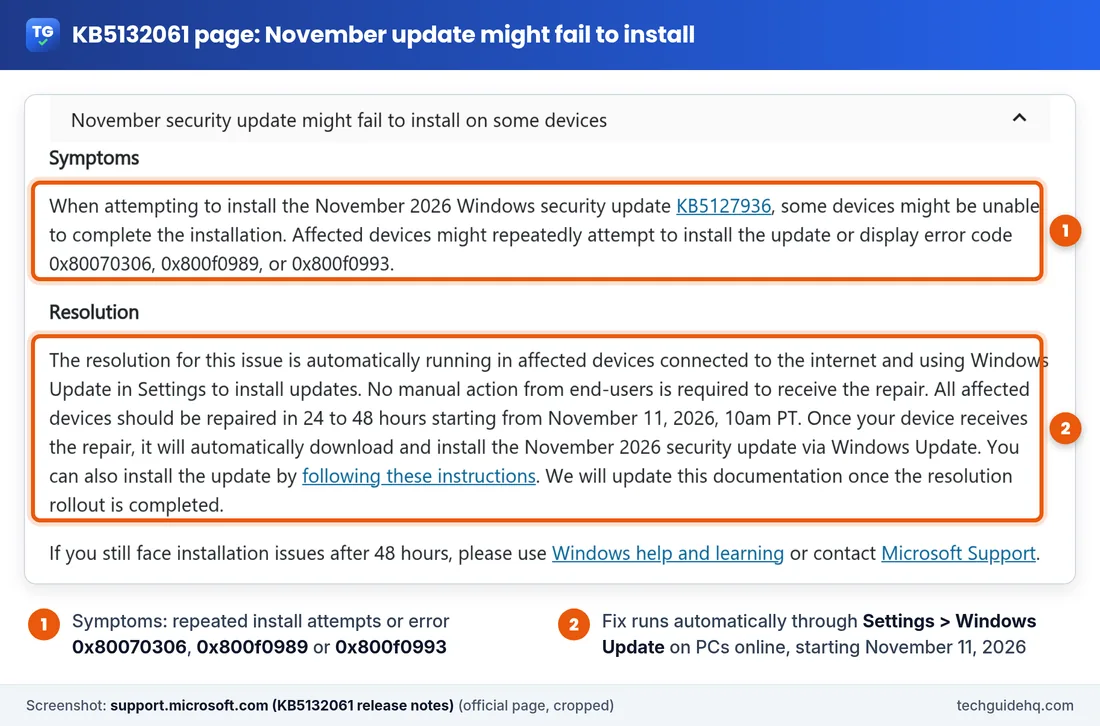
You don’t have to fix this one yourself. Microsoft says the repair runs automatically on affected PCs that are connected to the internet and use Windows Update in Settings. Devices “should be repaired in 24 to 48 hours” starting November 11, 2026 at 10 AM PT (18:00 UTC). After the repair arrives, Windows downloads and installs the November update on its own. When we checked on November 15, Microsoft hadn’t yet marked the rollout as complete.
How to let the automatic repair work
- Keep the PC switched on, plugged in and connected to the internet for a while. A PC that’s always asleep or offline can’t get the repair.
- Open Start > Settings > Windows Update and select Check for updates. Use Windows Update in Settings, not a downloaded installer, because that’s the route Microsoft names for the repair.
- If an update is ready, save your work, then select Start > Power > Update and restart.
- Check your build afterwards (see the next section). If it ends in .9974, you’re done.
Still failing after 48 hours? Try these in order
Microsoft says that if you still have trouble after 48 hours, use Windows help and learning or contact Microsoft Support. Before you do, its general Windows Update troubleshooting steps are worth a try. Back up important files first, as Microsoft recommends.
- Run the Windows Update troubleshooter. Go to Start > Settings > System > Troubleshoot > Other troubleshooters, find Windows Update and select Run. Windows 11 also offers it in the Get Help app.
- Check power, internet and your account. Plug in the laptop, confirm the network in Settings > Network & Internet > Wi-Fi, and make sure you’re signed in with an administrator account.
- Unplug extras. Remove external drives, docks and other hardware you don’t need, then try again.
- Fix the date and time. In Settings > Time & language > Date & time, turn on Set time automatically and Set time zone automatically, then select Sync now.
- Free up space. Microsoft says a 64-bit PC needs at least 20 GB free to upgrade, and it lists low disk space as a cause of update errors such as 0x800f0922.
- Clear the update cache. Press Win + R, type services.msc, stop the Windows Update service, delete everything inside C:\Windows\SoftwareDistribution, then start the service again. Microsoft says corrupt files in this cache can cause update errors.
- Run Windows Update again and restart. Some updates only finish after a restart.
If a repair install has stalled before, our guide to Windows 11 25H2 repair stuck at 99% explains what to do when a Windows repair install hangs.
How Do I Check My Windows 11 Version and Build?
- Right-click Start, choose Settings, then System > About. Under Windows specifications, look at Version (for example 26H2) and OS build.
- Go to Settings > Windows Update > Update history. Look for KB5132061 and whether it says it installed successfully.
On 26H2, OS build 26300.9974 or higher means you have the November fixes. A lower 26300 number means KB5132061 hasn’t landed yet.
Should You Install Windows 11 26H2 Now or Wait?
For most home PCs the official record leans toward installing. The only open issue is a SQL Server server-side problem, and the bugs that hit everyday users, such as USB audio and the sign-in black screen, are marked resolved. Microsoft’s 25H2 status page says it recommends “updating to version 26H2 to stay up to date, secure, and productive.”
To get it, open Settings > Windows Update and select Check for updates. If 26H2 is offered for your device, select Download & install. If it isn’t offered yet, don’t force it. One requirement from the KB5132061 page: on 26H2, Windows Update needs an update released on or after September 22, 2026 (such as KB5124010) before it will install KB5132061. If KB5132061 won’t install at all on 26H2, check Update history for that earlier update.
Need a few days first? In Settings > Windows Update, Microsoft lets you pick a length next to Pause updates. After the pause ends, you have to install the latest updates before you can pause again. Uninstalling updates from Update history > Uninstall updates is possible, but Microsoft doesn’t recommend it unless it’s really necessary, and not every update can be removed.
Common Situations
- “My USB headset went silent after 26H2.” That’s the USB Audio Class 1.0 issue. Install KB5132061, restart, and check Device Manager again.
- “KB5132061 keeps failing with 0x800f0993.” That code is on Microsoft’s known issue list. Stay online and check Windows Update again after the 48-hour window; if it still fails, use the troubleshooter steps above.
- “My signed PowerShell script stopped running after the update.” Re-save it as UTF-8 with BOM and sign it again, as Microsoft describes.
- “I read about a SQL Server bug. Will it slow down my laptop?” Only if you run SQL Server linked server queries. It doesn’t apply to ordinary desktop use.
Troubleshooting: Quick Fixes by Symptom
| What you see | Most likely cause (official) | First step |
|---|---|---|
| Code 10 on a USB headset or mic, no sound | USB Audio Class 1.0 issue after 26H2 | Install KB5132061 or later |
| 0x80070306, 0x800f0989 or 0x800f0993 / update retries | November update install known issue | Stay online; wait up to 48 hours for the automatic repair |
| Black screen after sign-in | Explorer issue fixed in KB5127648 | Install the latest update; see our black screen guide |
| Remote Desktop error 0xC000000D | Administrator protection issue | Install KB5127936 or later |
Frequently Asked Questions
What are the known problems with Windows 11 26H2?
As of November 15, 2026, Microsoft’s 26H2 status page lists one open issue: SQL Server linked server connections might remain open, which mainly affects server devices. The USB audio Code 10 issue is resolved by KB5132061, and the Remote Desktop 0xC000000D issue is resolved by KB5127936.
Does KB5132061 fix the USB audio Code 10 problem?
Yes. Microsoft marked the USB Audio Class 1.0 issue resolved on November 10, 2026. The fix is in the KB5132061 security update and later updates, which list it as fixed: USB Audio 1.0 devices failing to start with error code 10 in Device Manager.
Why does KB5132061 fail to install with 0x800f0993?
Microsoft lists a known issue where the November 2026 security update might fail, retry repeatedly or show 0x80070306, 0x800f0989 or 0x800f0993. A repair is running automatically through Windows Update on PCs that are online, within 24 to 48 hours from November 11, 2026.
How do I know if KB5132061 is installed?
Open Settings > Windows Update > Update history and look for KB5132061, or go to Settings > System > About and check the OS build. On Windows 11 26H2 the build after KB5132061 is 26300.9974; on 25H2 it is 26200.9974.
Should I install Windows 11 26H2 now?
For most home PCs, yes. The only open issue on Microsoft’s list is a SQL Server server-side bug, and Microsoft’s 25H2 status page recommends updating to 26H2. Check Settings > Windows Update and select Download & install when 26H2 is offered for your device.
More Windows fixes, from updates to Outlook, are collected on our Windows 11 Problems & Fixes page.
Related guides
- Windows 11 Black Screen After Login? 25H2 & 26H2 Fixes
- Windows 11 USB Audio No Sound Code 10? What Works
- Windows 11 25H2 Repair Version Stuck at 99%? What to Do
- Windows 11 Laptop Slow? 9 Fixes That Work (2026)
Sources: Microsoft Learn, Windows 11, version 26H2 known issues and notifications; Microsoft Learn, Windows 11, version 25H2 known issues and notifications; Microsoft Support, KB5132061 release notes (November 10, 2026); Microsoft Support, Troubleshoot problems updating Windows; Microsoft Support, Windows Update: FAQ; Microsoft Support, Find information about your Windows device.

I run TechGuide HQ from Islamabad, Pakistan. My team and I write step-by-step Windows, iPhone, Android and app guides, check them against official help pages, try some steps on my own devices, and personally answer questions sent through the contact page.