
Summary
- To check if a website is legit, read the real domain in the address bar, search the shop’s name with “scam” or “complaint”, and run the address through Google’s Safe Browsing site status tool.
- The padlock and “https” only mean the connection is encrypted. Fake shops have them too, as the FTC points out.
- Get to a shop by typing its address yourself instead of clicking an ad, a social media post or a link in a message.
- Pay by credit card or a payment service with buyer protection. Never by bank transfer, gift card, wire or crypto.
- Already paid a site you doubt? Call your card issuer first, then report it: ReportFraud.ftc.gov (US), Report Fraud (UK) or the Canadian Anti-Fraud Centre.
A console you’ve wanted for months, 40% cheaper than anywhere else, from a shop you’ve never heard of. The site looks fine, the photos are sharp, there’s a countdown timer. Is it real? With Black Friday on 27 November and Cyber Monday right after, that question comes up a lot, and you don’t need any special software to answer it. This guide shows you how to check if a website is legit in a few minutes, which checks actually tell you something, and which “signs” people rely on that prove nothing at all.
Checked against: guidance from the US Federal Trade Commission, the UK’s National Cyber Security Centre, Google and Apple, opened on 25 November 2026 (PKT). This is a research-based checklist, not a test of any particular shop, and we don’t name or rate individual websites.
The five-minute check, at a glance
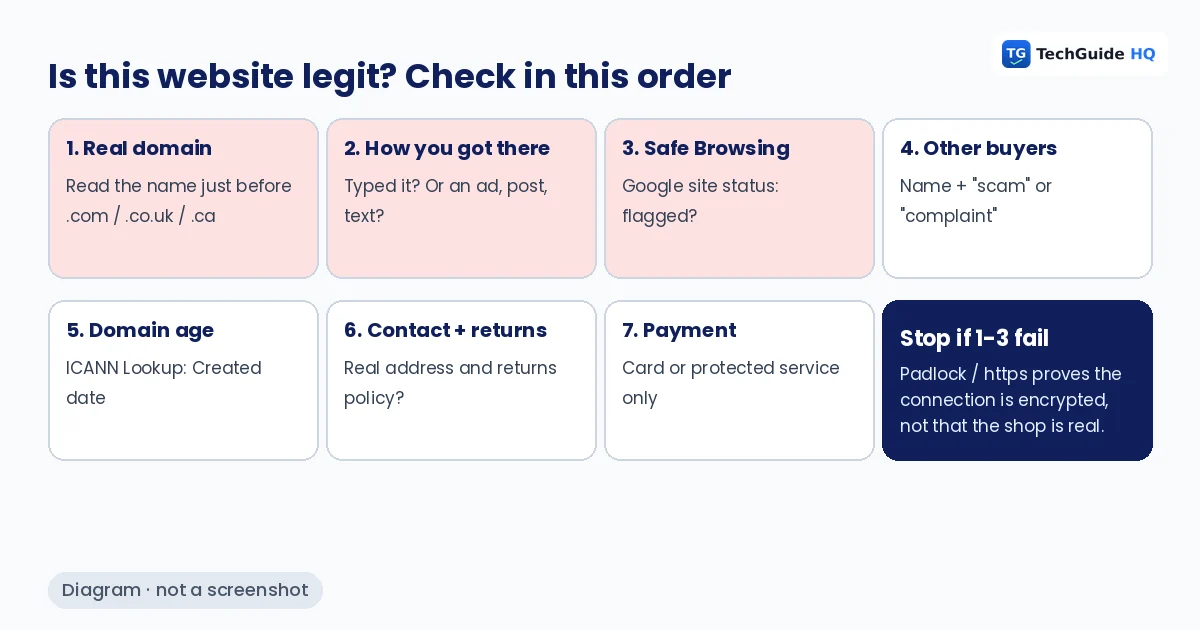
Run these in order. If a site fails any of the first three, stop there.
| Check | How | What it tells you | What it can’t tell you |
|---|---|---|---|
| 1. The real domain | Read the address bar, right to left from the first single slash | Whether you’re on the brand’s site or a lookalike | Whether a brand-new shop is honest |
| 2. How you got there | Ad, social post, text or email? Or did you type it? | How much to trust the link itself | Anything about the shop |
| 3. Safe Browsing status | Paste the address into Google’s site status tool | Whether Google already flags it as unsafe | Whether a site too new to be flagged is safe |
| 4. Other people’s experience | Search the shop name plus “scam”, “complaint” or “review” | Whether buyers have reported problems | Much, if the shop is days old |
| 5. Domain age | Look up the domain at ICANN Lookup | When the address was registered | Who is behind it (often hidden) |
| 6. Contact and returns | Find a physical address, phone number and returns policy | Whether you have anyone to chase | Whether those details are real |
| 7. Payment options | Look at checkout before entering anything | Whether you can get money back if it goes wrong | Whether the goods will arrive |
1. Read the domain properly
Scam shops love addresses that look right at a glance. The part that matters is the main domain: the words just before .com, .co.uk, .ca and so on, before the first single slash. Everything to the left of it can be made up.
shop.examplestore.com/dealsbelongs to examplestore.com.examplestore.com.deals-outlet.shop/salebelongs to deals-outlet.shop. The brand name at the start is decoration.- Watch for swapped or added letters, extra words like “outlet”, “official” or “sale”, and unusual endings you’ve never seen the brand use.
On a phone, the address bar often shows only part of the address. In Safari on iPhone, tap the address bar to see the whole thing. In Chrome on a computer, click the icon to the left of the address to open the site’s information.
2. Think about how you got there
This is the check people skip, and it matters most. The UK’s National Cyber Security Centre says criminals use emails, texts, social media posts and online adverts to send people to fake shops, and recommends finding the shop yourself: type the address you know, or search for it and pick the right result carefully.
Search results need care too. Ads appear at the top of search results, and anyone can buy one. When you already know the shop’s address, type it yourself, and treat sponsored results with extra care.
3. Run a Safe Browsing check
Google’s Safe Browsing site status tool tells you whether Google currently considers a site dangerous. Copy the shop’s address, paste it in and press Enter.
- If it says the site, or some pages on it, are unsafe: close the tab. Don’t sign in or pay.
- “No unsafe content found”: good, but not a green light. Google says it finds thousands of new unsafe sites every day, and a fake shop set up last week may not be on the list yet.
Your browser does a version of this check automatically. On iPhone, make sure Fraudulent Website Warning is on in Settings > Apps > Safari. Apple says Safari then warns you about suspected phishing sites (the feature isn’t available in every country or region).
4. Search for other buyers’ experiences
Search the shop’s name together with scam, complaint or review. The FTC suggests this in its advice on buying from online marketplaces, and it takes thirty seconds.
Read what you find with a bit of suspicion. The FTC warns that some reviews are fake, positive or negative, so don’t go by star ratings alone. Reviews shown on the shop’s own site count for nothing. Several independent complaints about goods never arriving count for a lot. And finding nothing at all, for a shop selling expensive gear at big discounts, is a warning sign in itself.
5. Check how old the domain is
Fake shops come and go fast, so a very young domain selling popular products cheaply is a red flag. Type the domain (just the main part, like example.com) into ICANN Lookup, the official registration data search. Look for the Created date.
Don’t read too much into it either way. A small local business may have a new site for perfectly good reasons, and an old domain can be bought by someone else. The owner’s name is often hidden for privacy, which is normal and not a warning sign by itself.
6. Look for someone you could actually chase
Before paying, find the Contact, About, Shipping and Returns pages. The FTC suggests making sure the seller lists contact information and reading the terms, shipping fees and returns policy. A real shop usually has:
- a physical address you can look up on a map, not just a contact form
- a returns policy that names a real return address and time limit
- terms that mention a company name, and the same name on the payment page
Copied text is a common giveaway: returns pages that mention another shop’s name, or a “UK” store whose prices and policies are all in another currency.
7. Check how it wants you to pay
Payment is where you decide whether a mistake costs you money. Go as far as the checkout page without entering anything and look at the options.
- Credit card: the FTC and NCSC both point to credit cards first because they come with legal protections. In the UK, the NCSC notes that a single item over £100 and up to £30,000 paid by credit card may also be covered by Section 75 of the Consumer Credit Act.
- Payment services such as PayPal, Apple Pay or Google Pay: the NCSC suggests them because the shop never sees your card details. Check what buyer protection the service offers.
- Debit card: less protection, but your bank may help through chargeback, according to the NCSC.
- Bank transfer, gift cards, wire transfer or crypto only: walk away. The FTC says paying this way is like sending cash: once it’s gone, you generally can’t get it back. A real shop has no reason to insist on it.
Use guest checkout if it’s offered. The NCSC suggests it so you don’t create another account that you then have to keep secure.
Which warning signs matter, and which don’t?
Some “rules” people repeat are out of date. Here’s how we’d weigh the common ones.
| Sign | How much it means |
|---|---|
| Padlock or “https” in the address bar | Almost nothing about honesty. The FTC says the “s” means the connection is encrypted, not that the site is legitimate, and scammers encrypt their sites too |
| Price far below every known retailer | A lot. The FTC warns that an expensive item at a very low price might be fake |
| Countdown timers and “only 2 left” | Some. They’re common on real shops, but pressure to decide fast is exactly what scams rely on |
| Only stock photos of the product | Some, especially on marketplaces. You can’t see the real item or be sure the seller has it |
| Bank transfer or gift card as the only way to pay | A lot. Treat it as a stop sign |
| Spelling mistakes | A little. Many scam sites are now well written, so clean text doesn’t clear a site |
| Trust badges (“Verified”, “100% secure”) | Nothing on their own. Anyone can paste a badge image onto a page |
Already paid a site you now doubt?
Move quickly, in this order.
- Call your bank or card issuer using the number on the back of your card or in its official app, not a number from the shop or an email. Ask them to block the card if needed and explain what happened.
- Change the password if you created an account on the site, and change it anywhere else you used the same one. Our guide on checking if your password was leaked walks through the next steps.
- Keep everything: order confirmation, emails, screenshots of the product page, the site address.
- Report it. In the US, use ReportFraud.ftc.gov. In England, Wales and Northern Ireland, report fraud to Report Fraud (in Scotland, call Police Scotland on 101), and you can send the site address to the NCSC’s scam website reporting service. In Canada, report to the Canadian Anti-Fraud Centre.
- Watch your statements for the next few weeks for small test charges you don’t recognise.
Be wary of anyone who contacts you afterwards offering to “recover” your money for a fee. That’s a well-known follow-up scam.
Common situations
“The deal came from an Instagram or Facebook ad.” Don’t buy through the ad. Open a new tab, type the retailer’s address you already know, and look for the same deal there. If it isn’t on the real site, it isn’t real.
“It’s a marketplace seller, not a shop.” The marketplace itself may be fine while one seller isn’t. Check the seller’s own ratings and recent comments, pay only through the marketplace’s checkout, and never agree to pay outside it.
“A text says my parcel is held and asks me to pay a small fee.” That’s not a shopping site problem but a phishing message. Don’t tap the link. Check the delivery on the courier’s own app or website.
“Safe Browsing says it’s fine, but the price still looks too good.” Trust the price over the tool. A clean Safe Browsing result just means Google hasn’t flagged it yet.
The short version
Get to shops by typing their address, read the real domain, run a Safe Browsing check and search the name with “scam” before you pay. Ignore the padlock as proof of anything, and pay only in ways that let you get money back. If a deal only exists on a site you found through an ad, treat it as fake until you’ve proved otherwise.
Related guides
- How to check if your password was leaked
- “iPhone hacked” warning in Safari? What to do
- What is two-factor authentication?
- What is a VPN, and do you need one?
More help with scams, passwords and account safety is in our Security & Privacy section.
Sources (opened 25 November 2026, PKT): NCSC Shopping and paying safely online (reviewed 24 November 2026) and Report a scam website; FTC Buying from an online marketplace and ReportFraud.ftc.gov; Google Safe Browsing site status and Chrome Help Check if a site’s connection is secure; Apple Browse the web privately in Safari on iPhone; ICANN Lookup; Canadian Anti-Fraud Centre.
Last updated: November 25, 2026 · By Abubakar Iqbal

I run TechGuide HQ from Islamabad, Pakistan. My team and I write step-by-step Windows, iPhone, Android and app guides, check them against official help pages, try some steps on my own devices, and personally answer questions sent through the contact page.