
Last updated: November 11, 2026
Last checked against Samsung Support’s Wi-Fi connection issues on a Samsung Galaxy device and Connection options for your Galaxy phone or tablet pages on November 8, 2026. Samsung notes that menu names and layouts can vary by model and software version, and that applies to One UI 9 too.
Summary
- Restart the phone and check Settings > Software update for a newer build.
- Forget the network in Settings > Connections > Wi-Fi (press and hold it, tap Forget network) and rejoin it.
- Under Wi-Fi > More options > Intelligent Wi-Fi, turn off Switch to mobile data and Switch to better Wi-Fi networks, and check Wi-Fi on/off history if the switch flips off by itself.
- If it still drops, test in Safe mode, reset Wi-Fi and Bluetooth settings, restart the router and run the Wi-Fi test in Samsung Members.
Your Galaxy shows full Wi-Fi bars, you open YouTube, and the video just spins. Then the Wi-Fi icon vanishes, comes back a minute later, and the whole thing starts again. If your Samsung One UI 9 Wi-Fi keeps disconnecting since the update, you’re not the only one, and most of the fixes take a few minutes. This guide follows Samsung’s own troubleshooting order, adds the Galaxy settings that quietly switch you off Wi-Fi, and explains what’s known (and not known) about One UI 9 itself.
Why Samsung One UI 9 Wi-Fi Disconnecting Happens
Samsung’s support page lists the usual causes when a Galaxy can’t hold Wi-Fi: a wrong saved password, temporary software errors, router problems, network settings, third-party apps and outdated software. None of that is specific to One UI 9.
What’s new is the timing. In early November 2026, Android Authority collected reports from Reddit and the Samsung Community forums of Galaxy phones that connect to Wi-Fi, run for a while, then drop with a “connection failed” error after the stable One UI 9 update. Some people said a restart or Airplane mode brought it back for a couple of hours. Others said only their home network was affected, or that 5 GHz stopped working while 2.4 GHz still did.
Treat those as user reports. As of November 8, 2026, we couldn’t find a Samsung support page that confirms a One UI 9 Wi-Fi bug or names a fix. That’s why the order below starts with the safe, quick steps Samsung documents and leaves the reset for later.
How to Fix Samsung Wi-Fi Disconnecting on One UI 9 (In This Order)
Work down the list and stop when the connection stays up for a day.
1. Restart your Galaxy phone
Why first? A temporary software glitch is the cheapest cause to rule out, and it’s the one Samsung lists first.
- Swipe down from the top right of the screen to open the Quick settings panel.
- Tap the Power off icon.
- Tap Restart, then tap Restart again.
If the phone is frozen, Samsung says to press and hold the Side key and Volume down together for more than 7 seconds until it restarts.
Need Wi-Fi back right now? Some owners reported that toggling Airplane mode restores it for a while. A stopgap, not a fix.
2. Check for a One UI 9 software update
When a lot of people hit the same problem right after an update, the real fix often arrives in a follow-up build. Samsung’s page recommends making sure the software is current.
- Open Settings and tap Software update.
- Tap Check for updates.
- Follow the on-screen instructions.
One trap: if Wi-Fi keeps dropping during the download, the phone may use mobile data. Samsung warns that charges may apply if the download goes over your data allowance. Updating through Smart Switch on a PC is the other official route.
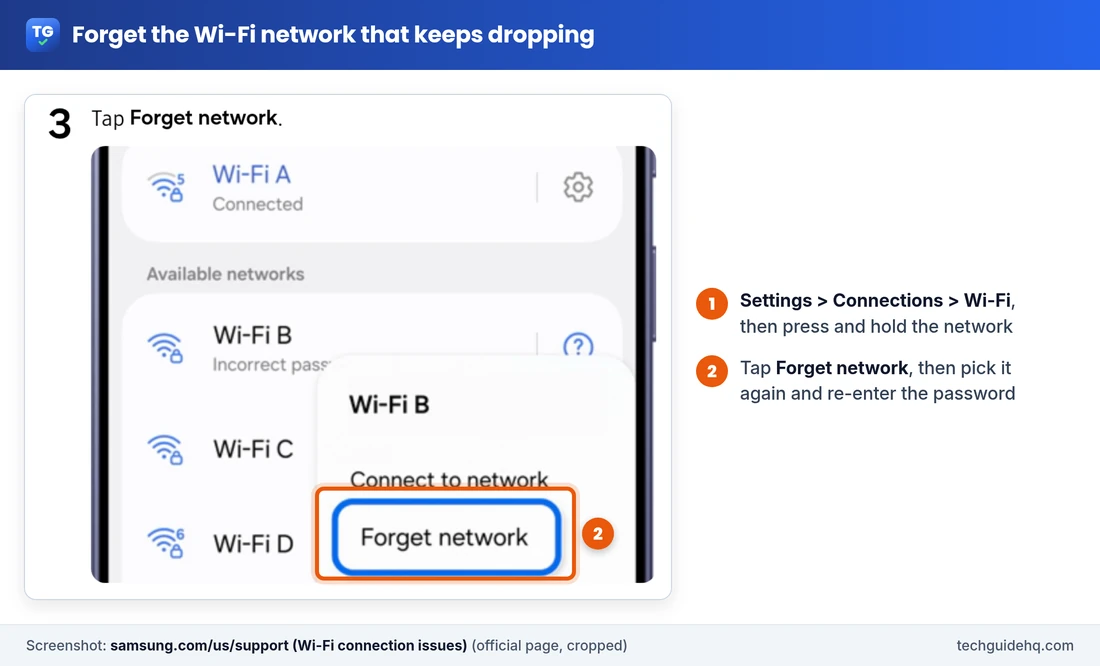
3. Forget the Wi-Fi network and reconnect
A saved network can carry an old password or a stale setting, especially if you changed the router password or security type a while ago. Your phone keeps trying the bad profile, fails, and tries again. Forgetting it makes the phone start fresh.
- Open Settings > Connections > Wi-Fi.
- Press and hold the network that keeps dropping.
- Tap Forget network.
- Select the network again and enter the password.
Have the password ready first. It’s often on a sticker on the router.
While you’re in Wi-Fi settings, there’s one more place to look. Samsung’s Connection options page says More options > Advanced settings > Manage networks lets you choose whether to auto reconnect to each saved network. If auto reconnect is off for your home network, the phone won’t rejoin it on its own after a short drop.
4. Samsung Wi-Fi keeps disconnecting and reconnecting? Check Intelligent Wi-Fi
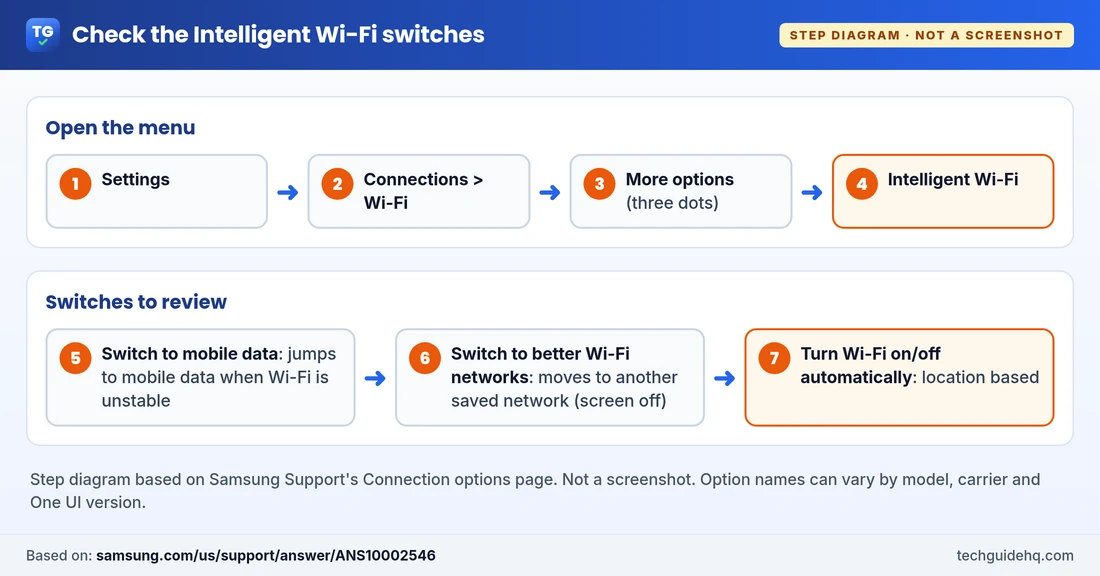
This explains a lot of “disconnect, reconnect” loops. Galaxy phones have Intelligent Wi-Fi options that move you off your current network on purpose. Picture a router in the next room: the signal dips for a second, and the phone hops to mobile data or another saved network. To you, it looks like Wi-Fi dropped.
Samsung documents these options:
- Switch to mobile data: switches to mobile data whenever the Wi-Fi connection is unstable, then back when Wi-Fi is strong. Needs a SIM.
- Switch to better Wi-Fi networks: moves to faster or more stable Wi-Fi networks. Samsung says this only happens when the screen is off.
- Turn Wi-Fi on/off automatically: turns Wi-Fi on or off in places you use often. Needs a SIM.
- Wi-Fi power saving mode: uses Wi-Fi traffic analysis to reduce battery use.
To check them:
- Open Settings > Connections and tap Wi-Fi.
- Tap More options (the three dots), then Intelligent Wi-Fi.
- Turn off Switch to mobile data and Switch to better Wi-Fi networks for a day or two.
If the drops stop, you’ve found it. You can leave them off, or turn one back on at a time. Samsung doesn’t say Wi-Fi power saving mode causes disconnections, but if you switched it on recently, turning it off for a day is a fair way to rule it out. Some options may not show up, depending on your model and carrier.
5. Samsung Wi-Fi turns off by itself? Look at Wi-Fi on/off history
There’s a difference between Wi-Fi disconnecting (the switch stays on, the connection drops) and Wi-Fi turning off (the switch itself flips off). If it’s the second one, something is turning it off, and Galaxy phones keep a record.
- Go to Settings > Connections > Wi-Fi.
- Tap More options > Advanced settings.
- Open Wi-Fi on/off history. Samsung says it shows apps that recently turned your Wi-Fi on or off.
If an app you don’t recognise keeps showing up, check its permissions or remove it. If nothing is listed, go back to Intelligent Wi-Fi and check Turn Wi-Fi on/off automatically, since that one is location based and easy to switch on during setup and forget.
6. Test Wi-Fi in Safe mode
VPNs, ad blockers, “Wi-Fi booster” apps and some security apps sit between your phone and the network. After a big update, one of them can misbehave. Safe mode temporarily turns off downloaded apps, so it tells you whether an app is to blame.
- Open Quick settings and tap the Power off icon.
- Press and hold Power off until Safe mode appears.
- Tap Safe mode. You’ll see “Safe mode” at the bottom of the screen.
- Use Wi-Fi for a while. To leave Safe mode, restart the phone.
If Wi-Fi stays stable in Safe mode, Samsung’s advice is to remove recently installed apps one at a time, newest first, restarting after each.
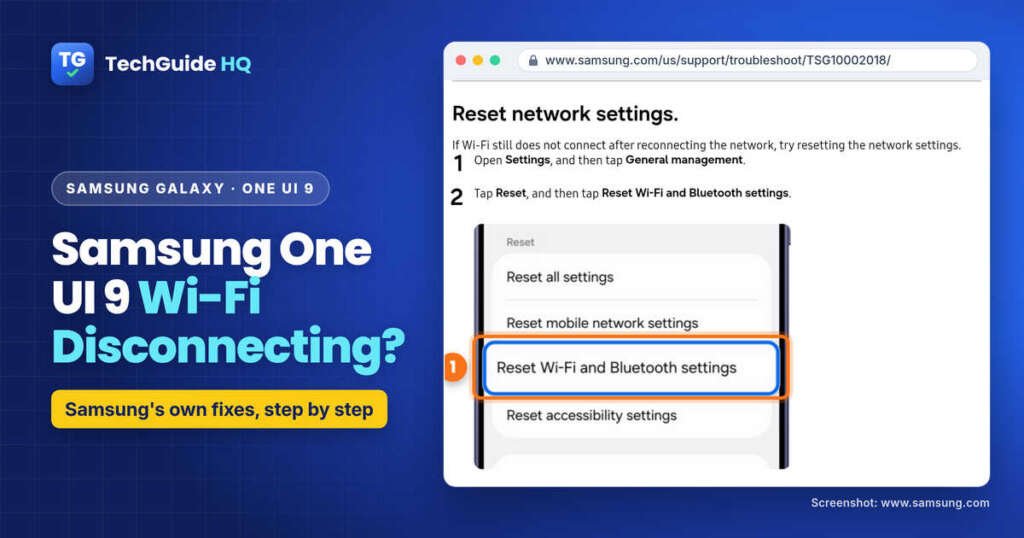
7. Reset Wi-Fi and Bluetooth settings
This clears every saved Wi-Fi network and Bluetooth pairing, which is why it sits this far down. It’s a settings reset, not a factory reset, so your photos and apps stay put. It helps when the network settings themselves got into a bad state after the update.
- Open Settings and tap General management.
- Tap Reset, then Reset Wi-Fi and Bluetooth settings.
- Tap Reset settings. You may be asked for your PIN or pattern.
Afterwards you’ll need to rejoin Wi-Fi networks and pair your earbuds, watch and car again. Don’t confuse it with Reset all settings or Factory data reset, which do much more.
8. Check and restart the router
If every device in the house drops at the same moment, the phone isn’t the problem. Samsung suggests a few router checks:
- See whether the network shows up on other devices.
- Make sure the router firmware is up to date (check your router’s app or admin page).
- Restart the router by unplugging the power cable and plugging it back in, then reconnect the phone.
Samsung also recommends a strong Wi-Fi password. If you’re not sure who else is on your network, our guide on how to see who is connected to your Wi-Fi shows you how to check, and our home Wi-Fi security guide covers router settings worth changing.
9. Run the Wi-Fi test in Samsung Members
If none of that helped, let the phone test itself. Samsung’s page points to Phone diagnostics in the Samsung Members app.
- Open Samsung Members and tap Support.
- Tap Get started. The full scan begins.
- Stop the scan if you only want one test, then select Wi-Fi.
- Follow the on-screen steps and check the result.
Samsung Members is also where you can reach Samsung support from your phone. If the drops began right after One UI 9, telling Samsung there helps get it fixed in a later update.
What About the One UI 9 Wi-Fi 7 Mode Tip?
You’ll see this one on Reddit. According to the reports Android Authority gathered, one user said turning off Wi-Fi 7 Mode under Developer options > Connectivity Labs stopped their drops. Other users said the option doesn’t appear on their phones at all.
Samsung doesn’t document this as a fix, so we’d leave it until you’ve tried the steps above. Developer options are meant for app developers, and changing settings you don’t recognise there can cause new problems. If you try it, change only that one switch and remember what you changed.
One UI 9 wireless connectivity drop
A One UI 9 wireless connectivity drop often looks like the Wi-Fi icon vanishing, the phone jumping to mobile data, or the connection flipping between networks, even when the signal bars still look fine. Samsung documents this behaviour in its Connection options for your Galaxy phone or tablet page, under Intelligent Wi-Fi.
According to Samsung, Switch to mobile data moves the phone to mobile data whenever the Wi-Fi connection is unstable, then back to Wi-Fi when the signal is strong (a SIM is required). Switch to better Wi-Fi networks can also move you to a faster or more stable saved network, and Samsung says that switch only happens when the screen is off. Either setting can feel like a drop, even though the phone is switching on purpose.
To test this, go to Settings > Connections > Wi-Fi, tap More options (the three dots), then Intelligent Wi-Fi, and turn off Switch to mobile data and Switch to better Wi-Fi networks for a day or two. That is the same check as step 4 above. Samsung notes that menu names and layouts can vary by model and software version.
Samsung Phone Wi-Fi Keeps Disconnecting: Match the Symptom
| What you see | Most likely area | Start with |
|---|---|---|
| Wi-Fi switch flips off on its own | An app or Turn Wi-Fi on/off automatically | Step 5 |
| Phone jumps to 5G/LTE when Wi-Fi is weak | Switch to mobile data | Step 4 |
| Phone hops between two home networks | Switch to better Wi-Fi networks | Step 4 |
| Only one network fails, others work | Saved network profile or that router | Steps 3 and 8 |
| Every device in the house drops | Router or internet provider | Step 8 |
| Started right after One UI 9 | Software | Steps 2, 7 and 9 |
Common Situations
“My Galaxy S26 Wi-Fi keeps disconnecting at home but works at work.” That points at your home router or the saved profile, not the phone’s hardware. Forget the home network (step 3), restart the router (step 8), and check that auto reconnect is on under Manage networks.
“Samsung Wi-Fi keeps turning off by itself overnight.” Look at Wi-Fi on/off history first. If it’s empty, turn off Turn Wi-Fi on/off automatically in Intelligent Wi-Fi.
“Wi-Fi keeps dropping and my mobile data bill went up.” That’s classic Switch to mobile data. The phone treats every small dip as unstable Wi-Fi and moves to cellular. Turn it off in step 4.
“Galaxy A-series phone lost Wi-Fi after One UI 9, and a restart only helps for a few hours.” Matches the reports above. Check for a newer update, reset Wi-Fi and Bluetooth settings, and send a report through Samsung Members so it’s on Samsung’s radar.
“The 5 GHz network won’t connect, but 2.4 GHz does.” Some users reported this after One UI 9. Use 2.4 GHz for now and keep the phone and router updated.
Frequently Asked Questions
Why does my Samsung Wi-Fi keep disconnecting after the One UI 9 update?
Samsung lists temporary software errors, saved network problems, router issues, network settings, third-party apps and outdated software as common causes. Some users have reported drops right after One UI 9, but Samsung has not published a support page confirming a One UI 9 Wi-Fi bug. Restart, update, forget and rejoin the network, then check Intelligent Wi-Fi.
Why does my Samsung Wi-Fi keep disconnecting and reconnecting?
Often it’s Intelligent Wi-Fi. Switch to mobile data moves you to cellular when Wi-Fi looks unstable, and Switch to better Wi-Fi networks moves you to another saved network when the screen is off. Turn both off under Settings > Connections > Wi-Fi > More options > Intelligent Wi-Fi.
Why does my Samsung Wi-Fi turn off by itself?
An app may be turning it off, or Turn Wi-Fi on/off automatically may be on. Check Settings > Connections > Wi-Fi > More options > Advanced settings > Wi-Fi on/off history to see which apps changed it, and review Turn Wi-Fi on/off automatically in Intelligent Wi-Fi.
Does resetting Wi-Fi and Bluetooth settings delete my data?
No. Settings > General management > Reset > Reset Wi-Fi and Bluetooth settings clears saved Wi-Fi networks and Bluetooth pairings, so you’ll need to rejoin networks and re-pair devices. It is not a factory reset, so photos and apps stay. Don’t confuse it with Factory data reset.
How do I check Wi-Fi on a Samsung phone with Samsung Members?
Open Samsung Members, tap Support, then Get started to begin Phone diagnostics. You can stop the full scan and select Wi-Fi to run only that test, then follow the on-screen instructions.
Should I turn off Wi-Fi 7 Mode in Developer options?
Some users reported that turning off Wi-Fi 7 Mode under Developer options > Connectivity Labs stopped One UI 9 Wi-Fi drops, while others said the option isn’t on their phone. Samsung doesn’t document it as a fix, so try Samsung’s official steps first and change only that one setting if you do try it.
More home network help, from router passwords to unknown devices, is on our Home Wi-Fi & Router Security page.
Related guides
- iOS 27 Wi-Fi Keeps Disconnecting? 9 Fixes for iPhone
- How to See Who Is Connected to My Wi-Fi (and Kick Them Off)
- How to Secure Your Home Wi-Fi (2026)
Sources: Samsung Support, Wi-Fi connection issues on a Samsung Galaxy device; Samsung Support, Connection options for your Galaxy phone or tablet. User reports summarised by Android Authority (Nov 5, 2026).

I run TechGuide HQ from Islamabad, Pakistan. My team and I write step-by-step Windows, iPhone, Android and app guides, check them against official help pages, try some steps on my own devices, and personally answer questions sent through the contact page.