
Last updated: November 14, 2026
Last checked against Apple’s If the battery in your iPhone or iPad drains too quickly page, About Apple software updates, About iOS 27 Updates, and Apple security releases on November 14, 2026, for iOS 27.2 and iOS 27.2.1.
Summary
- Battery drain after iOS 27.2 is often temporary while the update finishes in the background.
- Charge overnight on Wi-Fi and check Settings > Battery for an Ongoing iOS Update Insight and high-use apps.
- Turn on Low Power Mode if you need a stopgap.
- If Battery Health shows Service, consider a replacement.
- On iOS 27.2.1 the same steps apply; Apple lists it as a bug-fix and security update, not a battery fix.
iPhone battery drain after iOS 27.2? You’re not imagining the steeper drop in percentage, the shorter Screen On Time, or the overnight loss while the phone sits on your nightstand. If your iOS 27.2 battery looks worse, Apple says battery life can take a temporary hit after a software update while background work finishes, and iOS 27.2’s own notes repeat that updates “may affect performance and/or battery life.” This guide sticks to Apple’s battery tools — Insights, Daily Usage, Adaptive Power, Low Power Mode, 5G Auto, and Battery Health — so you can tell normal post-update drain from an app or a worn battery.
Why iOS 27.2 Battery Life Often Dips After the Update
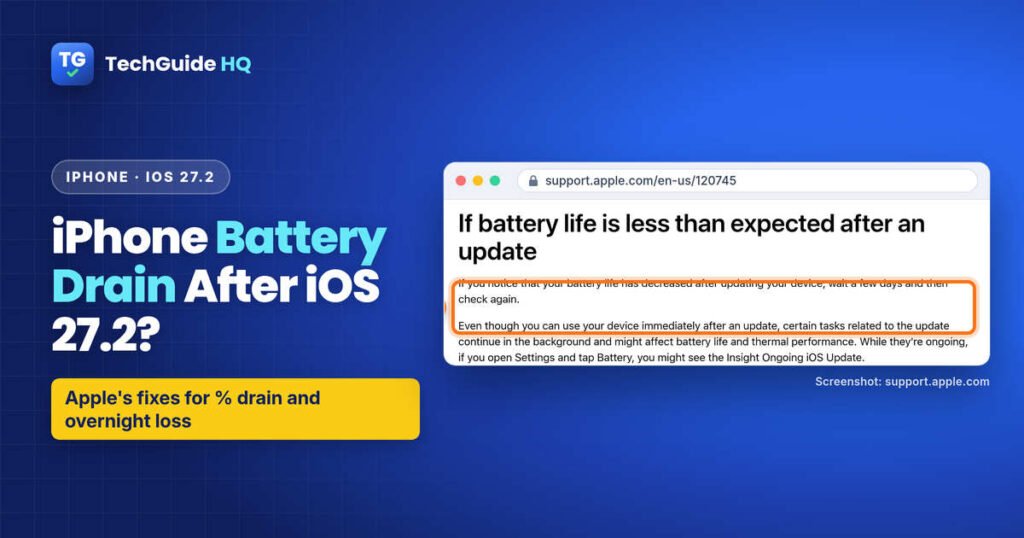
Apple’s software-update page is clear about what happens right after you install. Immediately after an update, “particularly a major release,” you might notice “a temporary impact on battery life and thermal performance.” The phone needs time to finish setup in the background: indexing data and files for search, downloading new assets, and updating apps. You can use the phone right away, but that background work still runs.
iOS 27.2 is a minor release on top of iOS 27, but it still adds work. Apple’s iOS 27.2 notes cover Siri AI improvements, Suggestions in Messages, Photos and Podcasts changes, and security updates. They also carry the standard line that software updates “may affect performance and/or battery life.”
Apple does not claim iOS 27.2 fixed battery life for everyone, and the notes do not list a battery-drain bug. Some people on Reddit and forums reported worse drain for a few days; others reported better standby. Treat those as user reports, not an Apple statement.
If battery life looks worse after the update, Apple’s battery page says to “wait a few days and then check again.” While the work is still running, Settings > Battery may show the Insight Ongoing iOS Update.
Seeing iOS 27.2.1 Battery Drain? What Apple Says About the Update
You got through the iOS 27.2 settling-in days, then Software Update offered iOS 27.2.1, and now the percentage seems to fall faster again. Annoying. Here’s what Apple has actually published about this release, and what it means for your battery.
Apple released iOS 27.2.1 on November 9, 2026 for iPhone 11 and later, according to its Apple security releases page, which also lists it as the latest version of iOS. The iOS 27.2.1 release notes are one line long: “This update provides bug fixes and security updates for your iPhone.”
That’s all Apple says. The notes don’t mention battery life at all. So iOS 27.2.1 isn’t a promised battery fix, and Apple hasn’t listed a battery bug in it either. If a post online says 27.2.1 “fixed” or “ruined” battery life, that’s someone’s own experience, not an Apple statement.
Why the battery can still dip after a small update
Apple’s software update page says that right after an update you might notice “a temporary impact on battery life and thermal performance” while the phone indexes data for search, downloads new assets and updates apps. Apple says that’s especially true after a major release, and it doesn’t single out small updates like 27.2.1. Its battery page gives the same advice for any update: if battery life decreased after updating, “wait a few days and then check again.”
What to do if the drain started after iOS 27.2.1
- Confirm your version. Go to Settings > General > Software Update. Apple says this screen shows the currently installed version of iOS and whether an update is available.
- Give it a few days. Charge overnight on Wi-Fi and check Settings > Battery for an Ongoing iOS Update Insight. While it’s showing, the background work isn’t done yet.
- Then find the app. If the Insight is gone and the drain hasn’t eased, use the Daily Usage chart and the app labels in the next section to see what’s actually using power.
One thing you can’t do is go back to iOS 27.2. Apple’s security releases page says that once an iOS update is installed, “it cannot be downgraded to the previous version.” The fixes live in Settings and in your apps, not in a rollback.
Still on iOS 27.2? Apple calls keeping your software up to date “one of the most important things you can do” for your device’s security. Back up first, plug in, join Wi-Fi, and install it from Settings > General > Software Update, as Apple’s Update your iPhone or iPad page describes.
How to Read Battery Insights and the Daily Usage Chart
This is the part most quick-fix posts skip. Apple built a Daily Usage chart and Insights into Battery so you can see whether today is actually worse than your last week, and whether the system itself is still busy.
1. Look for Insights above Daily Usage
- Open Settings and tap Battery.
- Just above the Daily Usage chart, check for suggestions or Insights.
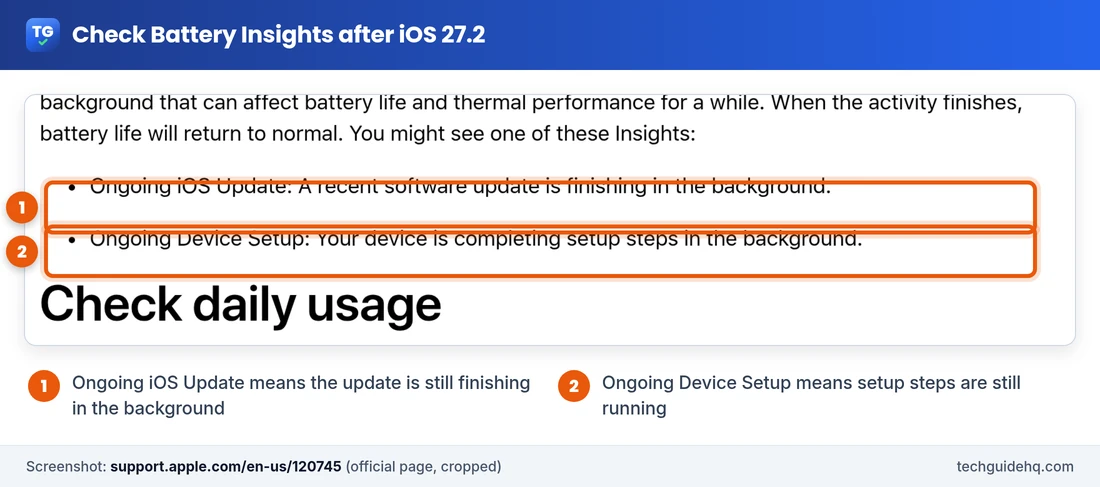
With iOS 18 and later, Insights tell you about background activities that can affect battery life and thermal performance for a while. When the activity finishes, Apple says battery life returns to normal. You might see:
- Ongoing iOS Update — a recent software update is finishing in the background.
- Ongoing Device Setup — your device is completing setup steps in the background.
You might also see suggestions such as Enable auto-brightness, Enable auto-lock, or High Brightness. Follow those if they appear; high brightness and a screen that never sleeps chew through charge fast.
2. Read the Daily Usage chart
You’ll need iOS 26 or later for the Daily Usage chart as Apple describes it now.
- In Settings > Battery, check the Daily Usage chart. Apple says it compares today with the last seven days and tells you if you’re using more, less, or similar battery as usual.
- Below the chart, App and System Activity Usage lists the three apps that used the most battery today. Tap an app to compare it with the last seven days.
- Tap View All Battery Usage for the full list, or tap a day’s bar for that day’s detail.
In an app’s details you may see labels like these:
- Background Activity — most of that app’s use happened in the background (music, location tracking, and similar). Cut back on that app or limit its background refresh.
- No Mobile Coverage and Low Signal — the phone was searching for Wi-Fi or cellular, or sitting in a weak-signal area. Move somewhere with a stronger signal, or turn on Airplane Mode if you know you’ll have no coverage for a while.
- Notifications — the app’s alerts keep waking the device. Trim how often that app can wake the screen.
- Connected to Charger — the app ran only while charging, so it didn’t use the battery.
If Screen On Time looks normal but the percentage still plunges, check Background Activity and signal labels. For overnight drain, see which apps ran in the background while you slept.
iOS 27.2 Battery Drain Fix: What to Do First
1. Let the update finish: charge on Wi-Fi overnight
Plug the iPhone in, join Wi-Fi, and leave the screen locked somewhere cool and open — a desk or bedside table, not under a pillow. Apple says Wi-Fi uses less battery than cellular, and a strong signal helps both. Overnight charging gives indexing and app updates time to finish.
2. Install the latest iOS 27 update and update your apps
- Go to Settings > General > Software Update and install any newer iOS 27 build that’s offered. Apple says updates include bug fixes that improve stability and reliability. As of November 14, 2026, Apple lists iOS 27.2.1 as the latest version.
- Open the App Store, tap your profile picture, and install pending app updates. Apps that haven’t caught up with iOS 27.2 can sit in the background and burn charge.
If the update won’t install because storage is full, our guide on how to free up space on iPhone shows safe ways to make room.
3. Prefer Wi-Fi, and turn on 5G Auto
- Open Settings > Wi-Fi and join a network when you can.
- On iPhone 12 and later, iPhone SE (3rd generation), and 5G iPads: go to Settings > Cellular > Cellular Data Options > Voice & Data (on iPad: Cellular Data Options > Data) and tap 5G Auto.
Apple says 5G Auto enables Smart Data mode: when 5G speeds don’t give a noticeably better experience, the phone switches to LTE to save battery.
4. Turn on Low Power Mode
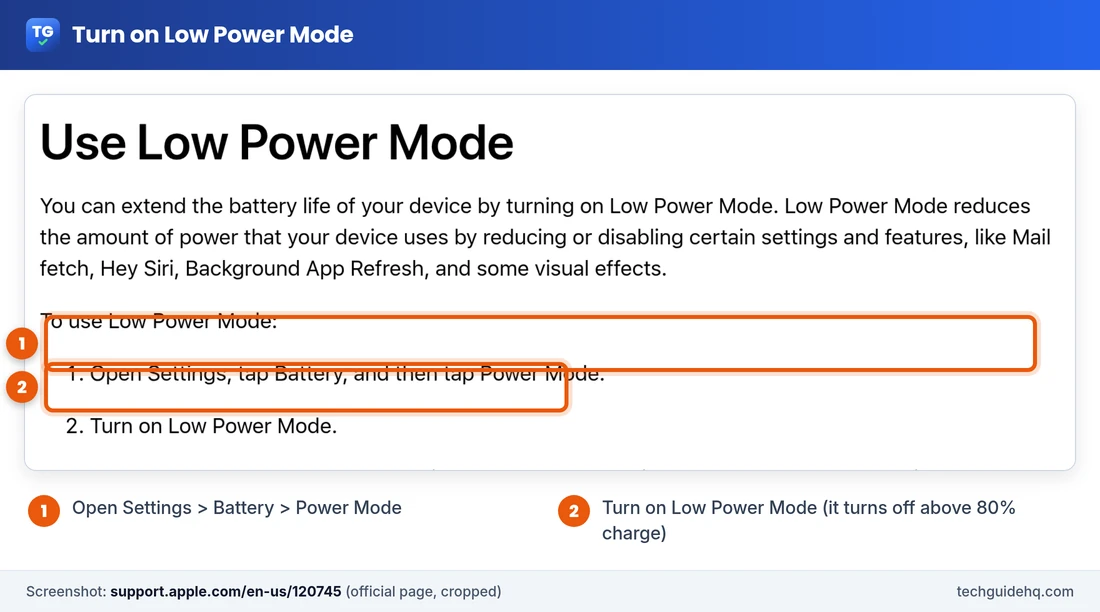
Low Power Mode is the stopgap while you sort out the rest. Apple says it reduces or disables Mail fetch, Hey Siri, Background App Refresh, and some visual effects.
- Open Settings, tap Battery, then tap Power Mode.
- Turn on Low Power Mode.
You can also turn it on from Control Center. It turns off automatically once the battery charges above 80%. On older iPhones where you don’t see a Power Mode row, look for Low Power Mode directly under Settings > Battery.
Low Power Mode can delay some notifications and background refresh. If alerts start arriving late and stay that way after you turn it off, our guide to iOS 27 notifications not working covers the other causes.
5. Use Adaptive Power on supported iPhones
Adaptive Power can automatically extend battery life on heavy-use days. Apple says it can predict when you’ll need extra battery, make performance adjustments, and even turn on Low Power Mode at 20%. It needs iOS 26 or later and one of these devices:
- iPhone 18 models
- iPhone Duo
- iPhone 17 models
- iPhone Air
- iPhone 16 models
- iPhone 15 Pro Max
- iPhone 15 Pro
If your model is listed, leave Adaptive Power on in Settings > Battery while things settle.
6. Restart once, then recheck Battery
After a couple of days of charging overnight and updating apps, restart once from Settings > General > Shut Down, wait a minute, turn the phone back on, and look at Daily Usage again. If one app still dominates Background Activity, update it, limit its background refresh under Settings > General > Background App Refresh, or remove it.
7. Check Battery Health
- On iPhone 15 and later: Settings > Battery > Battery Health.
- On iPhone 14 and earlier: Settings > Battery > Battery Health & Charging.
If you see Service next to Battery Health, Apple says to consider replacing the battery to restore full performance and capacity, and to follow the onscreen instructions. An older battery can look like an “update problem” even when iOS 27.2 is fine.
Battery Draining Fast Overnight After the Update?
Overnight drain shows up often after iOS updates. If percentage falls hard with almost no Screen On Time:
- Confirm an Ongoing iOS Update Insight isn’t still showing. If it is, another night on Wi-Fi and power usually helps.
- In View All Battery Usage, check which apps show Background Activity for the night hours.
- Turn off Background App Refresh for apps you don’t need updating overnight, or set it to Wi-Fi only.
- Keep the phone on Wi-Fi at home so it isn’t hunting for a weak cellular signal under the pillow. Apple says both Wi-Fi and cellular use less energy with a strong signal.
If the phone also feels warm on the nightstand, that’s the heat side of the same background work. Use the steps above, and read the hot iPhone after iOS 27 guide for temperature warnings and when to stop using the phone.
Battery Draining Fast and Getting Hot?
Drain and warmth often show up together because the same background tasks affect battery life and thermal performance. This article is about percentage, overnight loss, and Screen On Time. If you see a Temperature warning, Charging On Hold, or a phone that’s too hot to hold, follow the cool-down steps in the heat guide linked above.
CarPlay directions on a sunny dashboard can also push heat and drain at once. If CarPlay itself broke after the update, see CarPlay not working after the iOS 27 update.
Common Situations
- “iOS 27.2 battery drain fix” searches after day one: Most of the time you’re still in the wait-a-few-days window. Check for Ongoing iOS Update before changing a long list of settings.
- Battery draining fast after the update on an iPhone 13, 14, or 15: Same Apple steps apply. Adaptive Power is limited to the models listed above; Low Power Mode and Daily Usage still help on older phones that run iOS 27.2.
- Draining overnight with almost no Screen On Time: Focus on Background Activity, weak signal, and Background App Refresh — not display settings.
- Draining and getting hot: Treat heat warnings first; then come back to Battery Insights.
- Drain started right after installing iOS 27.2.1: Give it the same few days and look for Ongoing iOS Update. You can’t roll back to 27.2, so the answer is in Settings > Battery, not a downgrade.
- “Battery life Reddit” threads: Useful for patterns only — not official counts. Stick to Settings > Battery and Apple’s pages below.
When Battery Drain Needs More Than Settings
Contact Apple Support or an Apple Authorized Service Provider if:
- Battery Health shows Service
- Drain is still severe a week or more after iOS 27.2, with no Ongoing iOS Update Insight and no single app explaining the use
- The phone shows signs of battery damage (bulging back, lifting screen) — stop using it and don’t charge it
Which Cause Fits Your Drain? Reading the Battery Signals Together
It’s tempting to flip ten settings at once when the percentage falls. The catch is that you then can’t tell which change helped, or whether the phone simply finished its update work on its own. Each item in Settings > Battery answers a different question, so read them together first and change one thing at a time. The table matches each signal to what Apple says it means on its battery support page.
| What you see in Settings > Battery | What it points to | What to do next |
|---|---|---|
| Ongoing iOS Update or Ongoing Device Setup Insight | Background work is still running. Apple says battery life returns to normal when it finishes. | Charge overnight on Wi-Fi. Hold off on app troubleshooting until the Insight is gone. |
| No Insight, and one app keeps topping App and System Activity Usage with Background Activity | That app, more likely than iOS 27.2 itself | Update the app, limit its Background App Refresh, or use it less. |
| No Mobile Coverage and Low Signal on the apps you used | The phone spent energy searching for Wi-Fi or cellular | Use Wi-Fi where you can. Turn on Airplane Mode when you know you’ll have no coverage for a while. |
| Notifications on an app’s details | That app’s alerts keep waking the device | Change that app’s notifications so it wakes the screen less often. |
| Daily Usage says you’re using similar battery as usual | Your use today matches your last seven days, so the drain may come from your normal pattern or the battery’s condition rather than the update | Check Battery Health next. |
| Service next to Battery Health | A worn battery | Apple says to consider a replacement. |
Why the Insight comes first: it’s the only signal that says the system itself is still busy. App and System Activity Usage lists system activities as well as apps. So while the update is still settling, an app that just happened to be open can look worse than it is, and removing it may not change anything.
A detail about the seven-day comparison: Apple says the Daily Usage chart compares today with your last seven days. In the first week after you install iOS 27.2 or 27.2.1, that baseline still includes days from before the update, so a “more than usual” message really does compare you against your pre-update self. After about a week, every day in the baseline is a post-update day. From then on, “similar to usual” only means today matches recent days. It doesn’t mean battery life is back to where it was before the update. If you want a before-and-after comparison, read the chart during that first week.
One change per day: after each change, such as Background App Refresh off for one app, 5G Auto on, or Low Power Mode for the evening, tap the next day’s bar under View All Battery Usage to see that day’s detail. You’ll know which change actually made a difference. And if nothing helps, you have a clear record to show Apple Support.
Apple’s notes don’t list a battery fix or a battery bug for iOS 27.2 or 27.2.1, so the same checks apply on either version.
Official sources: Apple Support: If the battery in your iPhone or iPad drains too quickly, About Apple software updates, About iOS 27 Updates, Apple security releases, and Update your iPhone or iPad. More iPhone and Android guides are in our Smartphones section.
Frequently Asked Questions
Is iPhone battery drain after iOS 27.2 normal?
Often for a few days. Apple says you might see a temporary impact on battery life after an update while background setup finishes, including indexing for search, downloading assets, and updating apps. iOS 27.2 notes also say updates may affect performance and/or battery life.
How long should I wait for battery life to settle after iOS 27.2?
Apple does not give a fixed number of hours. Its battery page says if battery life dropped after an update, wait a few days and then check again. While work continues, Settings > Battery may show an Ongoing iOS Update Insight.
Where do I find Ongoing iOS Update on my iPhone?
Open Settings, tap Battery, and look just above the Daily Usage chart for Insights. Ongoing iOS Update means a recent software update is finishing in the background. Ongoing Device Setup means setup steps are still running.
Why is my iPhone battery draining so fast overnight after the update?
Background update work, an app with high Background Activity, or a weak cellular signal can drain charge while Screen On Time stays low. Charge on Wi-Fi overnight, check View All Battery Usage for night-time background use, and limit Background App Refresh for apps you do not need updating while you sleep.
Does Low Power Mode help with iOS 27.2 battery drain?
Yes as a temporary help. Apple says Low Power Mode reduces or disables Mail fetch, Hey Siri, Background App Refresh, and some visual effects. On current iOS, go to Settings > Battery > Power Mode and turn it on. It turns off automatically above 80% charge.
What is Adaptive Power and which iPhones get it?
Adaptive Power can automatically extend battery life on heavy-use days and may turn on Low Power Mode at 20%. Apple lists it for iOS 26 or later on iPhone 18 models, iPhone Duo, iPhone 17 models, iPhone Air, iPhone 16 models, iPhone 15 Pro Max, and iPhone 15 Pro.
When should I replace the battery instead of blaming iOS 27.2?
Check Settings > Battery > Battery Health (iPhone 15 and later) or Battery Health & Charging (iPhone 14 and earlier). If you see Service, Apple says to consider a battery replacement to restore full performance and capacity.
Does iOS 27.2.1 fix battery drain?
Apple has not said so. Its iOS 27.2.1 notes only say the update provides bug fixes and security updates for your iPhone, and they do not mention battery life. If battery life drops after you install it, Apple’s general advice applies: wait a few days, then open Settings and tap Battery to look for an Ongoing iOS Update Insight and the apps using the most power. You cannot downgrade back to iOS 27.2.
More iPhone fixes, including other iOS 27 problems, are collected on our iPhone & iOS 27 Problems page.
Related guides
- iPhone Hot After the iOS 27 Update? What to Do
- iOS 27.2 Notifications Not Working? 9 Fixes to Try
- CarPlay Not Working After the iOS 27 Update? What to Try
- How to Free Up Space on iPhone (iOS 27 Guide)

I run TechGuide HQ from Islamabad, Pakistan. My team and I write step-by-step Windows, iPhone, Android and app guides, check them against official help pages, try some steps on my own devices, and personally answer questions sent through the contact page.