
Last updated: November 21, 2026 · By Abubakar Iqbal
Checked against: Apple, Google, Microsoft, the US Federal Communications Commission (FCC) and the UK National Cyber Security Centre (NCSC), pages opened on 21 November 2026. No VPN brand paid for or reviewed in this guide.
Summary
- A VPN is an encrypted tunnel from your device to a VPN server, which then connects you to websites and apps.
- It hides which sites you visit from the Wi-Fi owner or internet provider, but the VPN company can see them instead.
- It’s most useful on public Wi-Fi you don’t trust and for work access. Most people don’t need one for everyday browsing at home.
- It won’t stop phishing, malware or account tracking, and it doesn’t make you anonymous.
- Pick a VPN with a clear owner, a readable privacy policy and only the permissions it needs.
VPN ads make it sound as if your phone is wide open every time you go online. Then a friend says they’ve never used one and nothing bad has happened. Both can’t be right. Here’s what a VPN actually is, what it hides and what it doesn’t, and a simple way to decide whether you need one at all.
What is a VPN, in plain English?
A VPN (virtual private network) is an encrypted connection between your device and a server run by someone else, usually a VPN company or your employer. Once it’s on, your internet traffic travels through that private “tunnel” to the VPN server first, and only then goes out to the website or app you’re using.
Think of it like sending letters through a forwarding service in a sealed bag. The local post office (your Wi-Fi network or internet provider) can see that you’re sending a bag to the forwarding service, but not what’s inside or who the letters are really for. The forwarding service opens the bag and posts the letters on. So you haven’t removed the middleman. You’ve swapped which middleman can see where your letters go.
That swap is the whole idea, and it explains both what VPNs are good at and where they’re oversold.
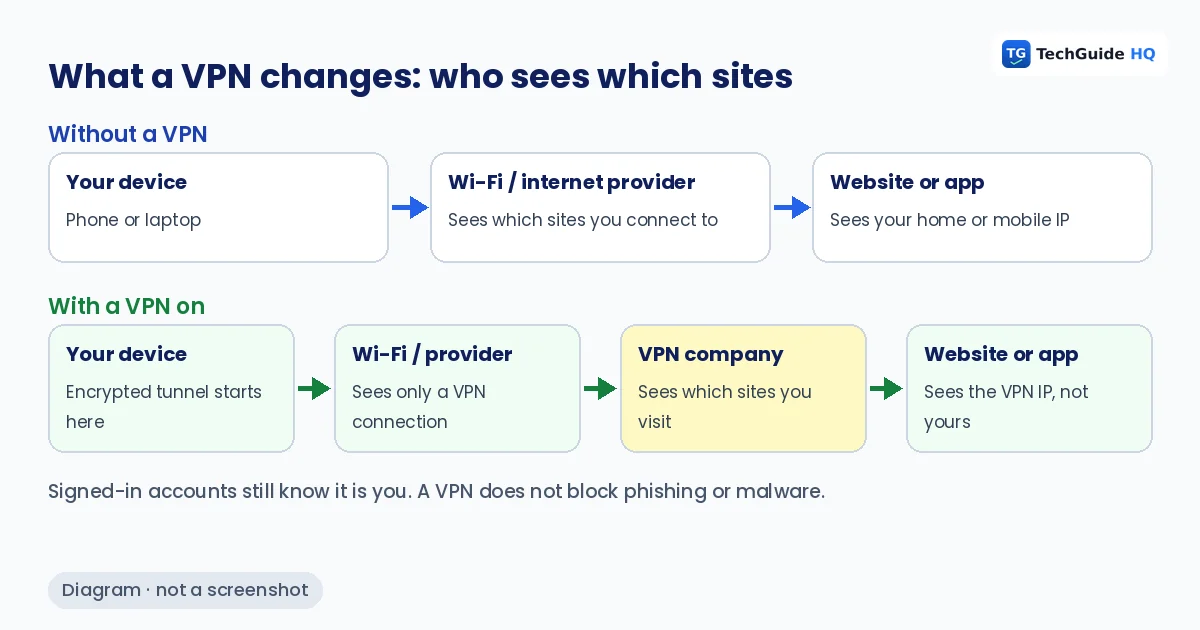
Who can see what, with and without a VPN?
Most websites and apps already encrypt their traffic (that’s the “https” and padlock in your browser). So even without a VPN, people on the same café Wi-Fi can’t normally read your messages or passwords on those sites. What a VPN changes is who can see which sites you connect to, and what IP address those sites see.
| Who | Without a VPN | With a VPN on |
|---|---|---|
| The Wi-Fi owner or your internet provider | Can usually see which sites and services you connect to, though not the content of encrypted (https) pages | Sees that you’re connected to a VPN server, and how much data you use |
| The VPN company | Not involved | Can see which sites you connect to, so you’re trusting it instead of your provider |
| Websites and apps | See your home or mobile IP address, which hints at your rough location | See the VPN server’s IP address instead |
| Accounts you’re signed into (Google, Facebook, your bank) | Know it’s you | Still know it’s you. A VPN doesn’t change that |
What doesn’t a VPN protect you from?
This is where most VPN marketing goes quiet. A VPN won’t:
- Stop phishing or scam pages. If you type your password into a fake login page, the VPN delivers it safely to the scammer. Our guide on fake “your iPhone has been hacked” warnings covers how those pages work.
- Remove malware. A VPN isn’t antivirus. It doesn’t scan apps or files.
- Make you anonymous. Sites still recognise you through your accounts, cookies and anything you type into a form.
- Fix a leaked password. If your password turned up in a breach, change it and turn on two-step verification. See how to check if your password was leaked.
- Secure your home router. A weak router password or old firmware is still a problem with a VPN on. Our home Wi-Fi security checklist deals with that.
A VPN can also cause problems of its own. Apple’s support article on network connectivity issues lists VPN apps among the things that can stop an iPhone or Mac from backing up to iCloud, using iMessage or FaceTime, or finding devices on your home network. If something stops working right after you install a VPN, turning it off is a sensible first test.
Do you need a VPN? Five everyday situations
Instead of a yes or no for everyone, here’s how we’d think about the common cases.
1. Browsing at home on your own Wi-Fi
Usually not needed. You control the network, and most sites already encrypt what you send. A VPN mainly hides your browsing from your internet provider. If that matters to you, it’s a fair reason. It’s not a security must-have. Securing the router itself does more for most homes. If you’re not sure who’s on your network, start with checking who’s connected to your Wi-Fi.
2. Regularly using public Wi-Fi (cafés, airports, hotels)
This is the strongest case. The FCC’s public Wi-Fi advice suggests considering a VPN if you use public hotspots regularly. It also suggests watching for fake hotspots with names like the venue’s and sticking to https sites, and it notes that your phone’s mobile data may be more secure for sensitive tasks. A VPN helps most on networks you don’t trust, where you can’t see who set them up.
3. Working from home or travelling for work
Use the one your employer gives you. Work VPNs exist to reach company systems securely. The NCSC’s VPN guidance is written for organisations and describes VPNs as encrypted connections that let remote users reach an organisation’s services. Don’t swap in a personal VPN app on a work laptop unless IT says it’s fine.
4. Gaming
Rarely helpful. Every extra hop to a VPN server adds distance, and distance tends to add lag. Unless a game or network actually requires it, leave the VPN off while you play. If a game launcher won’t connect at all, a VPN or security app is one of the first things worth switching off. We cover that in Steam not opening on Windows 11.
5. Travelling abroad
Check the rules first. Some countries restrict or regulate VPN use, and some streaming and banking services limit access from VPN addresses under their own terms. Read the local rules and your service’s terms before you rely on one.
Is a free VPN safe?
Some are fine, many aren’t, and the price is a clue. Running VPN servers costs money, so a free service has to pay for it somehow: ads, limits that push you to upgrade, or in the worst cases, collecting and selling data about your browsing. Remember the swap from earlier. A VPN can see where you go online, so you’re trusting it more than your internet provider.
Before installing any VPN, free or paid, check these:
- Who runs it? Look for a real company name, an address and a clear privacy policy. Be wary if you can’t tell who owns it.
- What does the privacy policy say about logs? Look for plain statements about what it records and for how long, and whether it shares data with advertisers.
- What permissions does the app ask for? A VPN needs network access. It doesn’t need your contacts, text messages or photos.
- Where did you get it? Install only from the App Store, Google Play, the Microsoft Store or the provider’s own site, never from a link in an ad or a message.
- Can you cancel easily? Check the renewal price, not just the first-year deal.
Do you already have one built in?
You might have something close to a VPN already, or the tools to use one without a separate app:
- iPhone, iPad and Mac (iCloud Private Relay): part of a paid iCloud+ plan. Apple’s Private Relay page explains that it sends Safari browsing through two separate relays so that no single party, Apple included, sees both who you are and which sites you visit. It isn’t a full VPN: it covers web browsing in Safari, not every app, and it isn’t available in every country.
- Google Pixel phones: Google’s Android VPN help page says Pixel 7 and later phones include a built-in VPN by Google at no extra cost in countries where it’s available. Other Android phones, including Samsung Galaxy models, use a VPN app or a manually added VPN instead.
- Windows 11: Windows has a built-in VPN client, but it needs a server to connect to. Microsoft’s VPN instructions say you get the settings from your workplace or your VPN service, or use that service’s app from the Microsoft Store.
How do you turn a VPN on or off?
Most people use the VPN provider’s own app, which has a single connect button. If you want to check what’s set up on your device, or turn a VPN off:
- iPhone or iPad: open Settings and search for “VPN”. Apple suggests this search in its connectivity article, and it finds the VPN screen even if menus move between iOS versions. Switch the VPN off there, or open the VPN app to disconnect.
- Android (including Samsung Galaxy): open Settings and search for “VPN”. On Pixel phones Google lists it under Network & internet > VPN, where you can connect, disconnect or set an always-on VPN.
- Windows 11: go to Settings > Network & internet > VPN, or use the VPN button in the taskbar’s quick settings (the network, volume and battery icons). Microsoft says a connected VPN shows “Connected” under its name, and a recognised VPN shows a small shield on the network icon.
If your phone shows a VPN or configuration profile you didn’t install and don’t recognise, don’t ignore it. Remove it if it isn’t from your work or school, then check your accounts for anything unusual.
Our take: a quick decision guide
| If this sounds like you… | VPN? |
|---|---|
| Mostly at home, on your own secured Wi-Fi | Optional. Secure the router first |
| Often on café, hotel or airport Wi-Fi | Worth having. Or use mobile data for banking |
| Your job gives you one | Use theirs for work, and only theirs on a work device |
| Want privacy from your internet provider | A reputable paid VPN, chosen with the checklist above |
| Hoping it will stop scams or viruses | Won’t help. Use updates, strong passwords and two-step verification |
For most people, the biggest wins are still the boring ones: keep your devices updated, use a different password for each account, turn on two-step verification, and be suspicious of unexpected links. A VPN is a useful extra for untrusted networks, not a replacement for those habits.
More guides on staying safe online are in our Security & Privacy section.
Related guides
- How to secure your home Wi-Fi
- How to see who is connected to your Wi-Fi
- How to check if your password was leaked
- “iPhone hacked” warning in Safari: what to do
Sources (opened 21 November 2026, PKT): FCC Wireless Connections and Bluetooth Security Tips; NCSC Virtual Private Networks (VPNs); Apple Support About iCloud Private Relay and network connectivity issues and VPN software; Apple Platform Security VPN security; Google Connect to a VPN on Android; Microsoft Connect to a VPN in Windows.

I run TechGuide HQ from Islamabad, Pakistan. My team and I write step-by-step Windows, iPhone, Android and app guides, check them against official help pages, try some steps on my own devices, and personally answer questions sent through the contact page.