
Last updated: November 6, 2026
Last checked against WhatsApp Help’s Received verification code without requesting it, How to recover a compromised account, About registration and two-step verification and Account security tips on November 6, 2026.
Summary
- The alert means someone entered your phone number to register WhatsApp, and without the code they can’t finish.
- Never share the SMS or call code with anyone, including a friend who says they sent it by mistake or anyone claiming to be WhatsApp support.
- If you still have the app, turn on Settings > Account > Two-step verification with a recovery email and check Settings > Linked devices.
- If you’re locked out, re-register with the 6-digit code sent to your SIM, which logs other devices out.
- If a two-step PIN you never set appears, use Forgot PIN / email reset when offered, or wait 7 days.
Your phone lights up with a WhatsApp alert: a verification code was requested for your number — and you didn’t ask for one. That message is WhatsApp telling you someone typed your number into the registration screen. It might be a mistype. It might be someone trying to take the account. Either way, the next move is simple: keep the 6-digit code to yourself.
What “WhatsApp Verification Code Requested for Your Number” Means
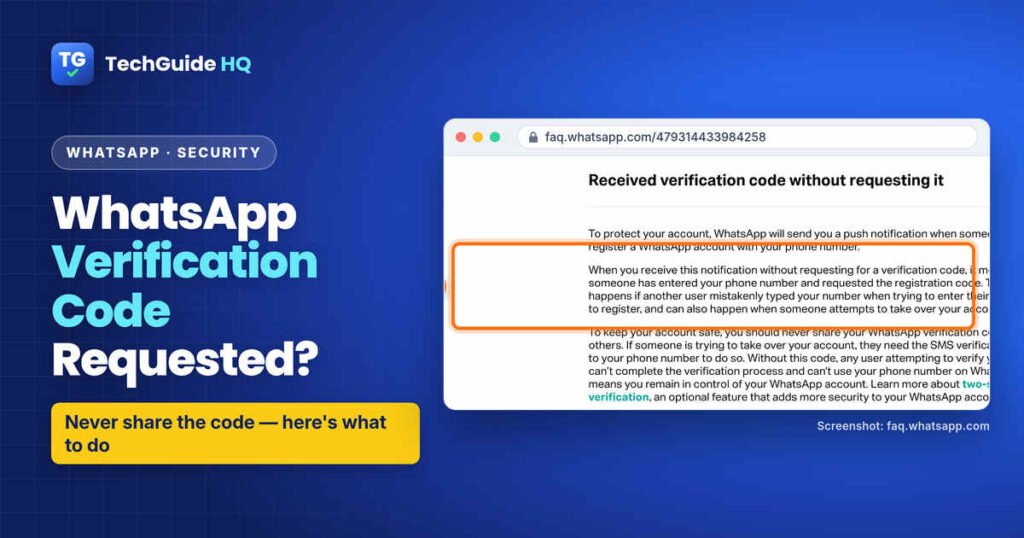
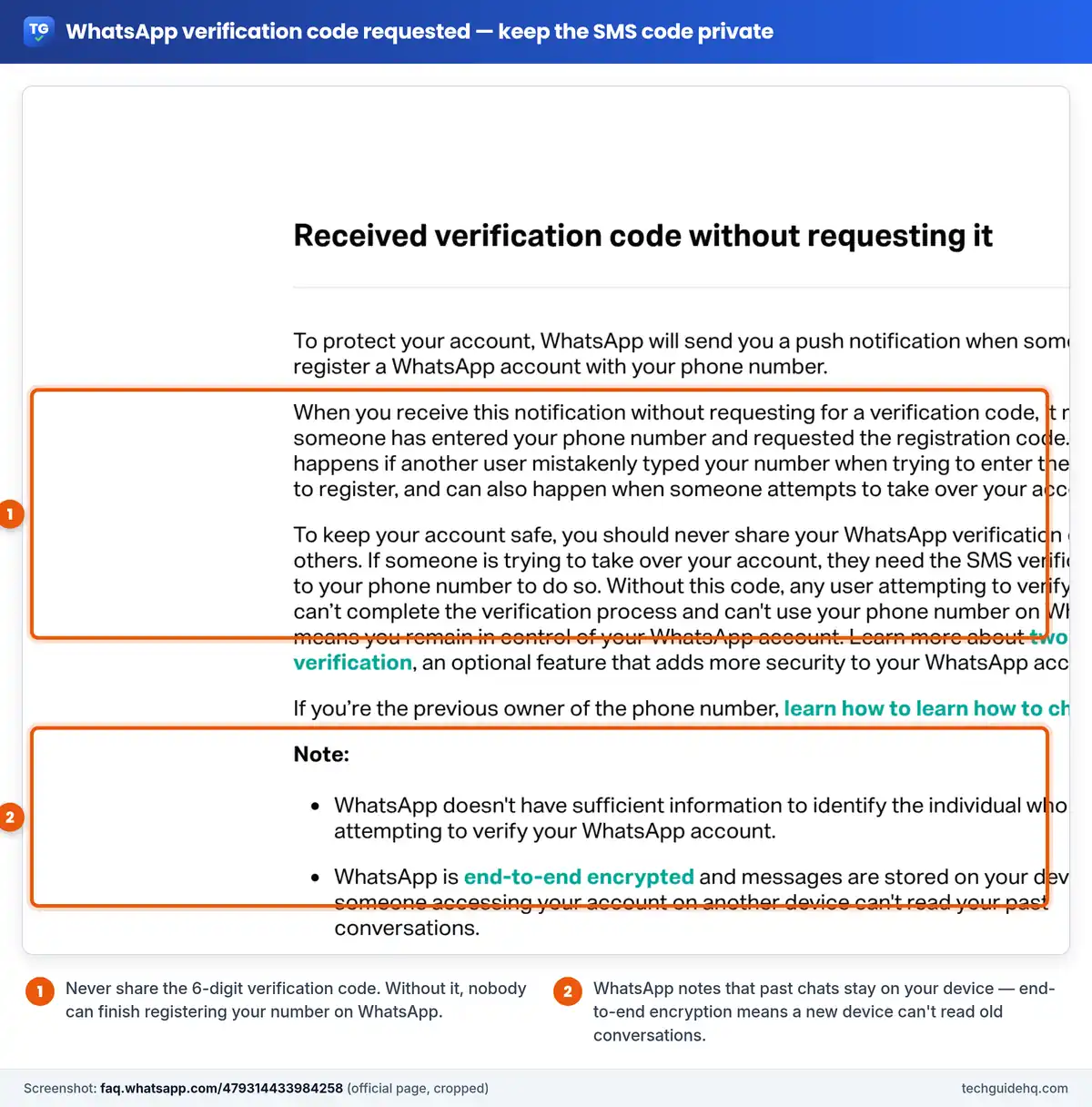
WhatsApp’s own help page on this is blunt. When someone tries to register a WhatsApp account with your phone number, WhatsApp sends you a push notification. Getting that notification when you didn’t request a code means someone entered your number and asked for the registration code.
WhatsApp lists two common reasons:
- A mistype. Another person was registering and accidentally typed your digits instead of theirs.
- A takeover attempt. Someone is trying to move your account onto a device they control.
WhatsApp also says it doesn’t have enough information to tell you who made the request. So you can’t chase a name or a location from WhatsApp. What you can control is the code.
The registration code is the 6-digit number WhatsApp sends by SMS or phone call (or, if you’ve already added and verified an email on the account, sometimes by email). Entering that code is how WhatsApp confirms the person holding the phone owns the number. WhatsApp’s recovery page puts it plainly: you should never share your registration code with others, not even friends or family.
Never Share the Code — Especially With a “Friend”
This is where most takeovers succeed. The attacker already entered your number. WhatsApp has sent (or is about to send) the code to your phone. They still need you to hand it over.
Common pressure tricks:
- A message from someone who looks like a friend or relative: “I typed your number by mistake — can you send me the code that just arrived?”
- Someone claiming to be WhatsApp or Meta support and asking you to “confirm” the code.
- A rushed call or voice note that makes you feel you have to help right now.
UK fraud reporting service Action Fraud has warned about WhatsApp account-takeover scams where criminals use a compromised friend’s chat to ask for the six-digit code. Their advice matches WhatsApp’s: don’t send it, don’t screenshot it for them, and confirm with your friend on a number or channel you already trust. You can read Action Fraud’s alert at actionfraud.police.uk.
If you already shared the code, treat the account as at risk and jump to the locked-out section below. Re-register on your phone with a fresh code as soon as you can.
If You Still Have Access to WhatsApp
Good news: if WhatsApp still opens on your phone and your chats look normal, the other person almost certainly hasn’t finished registering yet. Use that window.
1. Ignore the code and stay offline from strangers asking for it
Delete or ignore any chat that asks for the digits. Don’t forward the SMS. WhatsApp’s FAQ says that without the code, anyone trying to verify your number can’t complete registration and can’t use your number on WhatsApp — so you stay in control.
2. Turn on two-step verification (and add a recovery email)
Two-step verification is optional, but it’s the main extra lock WhatsApp offers after the SMS code. On WhatsApp’s account security tips and registration pages, it’s listed as an extra layer so a code alone isn’t enough later.
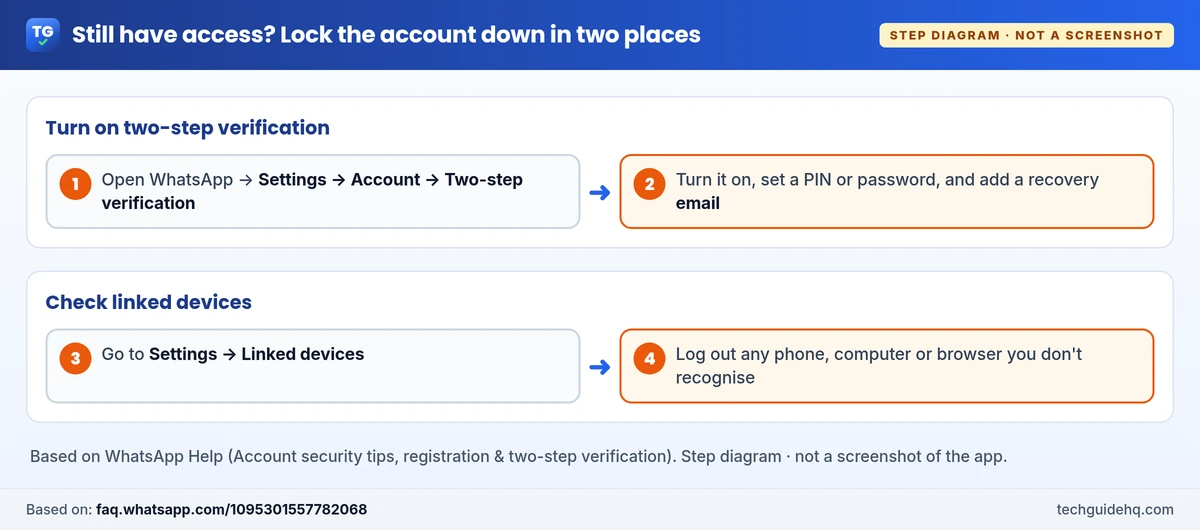
- Open WhatsApp.
- Go to Settings > Account > Two-step verification.
- Turn it on and create a PIN or password (WhatsApp has been upgrading the older 6-digit PIN to a password on some accounts).
- Add a recovery email you control, and confirm it. That email is how you reset the PIN or password if you forget it.
WhatsApp’s registration FAQ also reminds you: never share your 6-digit registration code or your two-step password with anyone.
3. Check Linked devices and log out strangers
After a scare, open Settings > Linked devices (on Android you may reach it from the menu). Look at every computer, tablet or companion phone listed. If you don’t recognise one, tap it and choose Log out.
Only link a new device by scanning a WhatsApp QR code on WhatsApp Web, Desktop or another official companion — not a QR code someone sends you in a chat.
4. Tell close contacts you’re fine
If someone was fishing for your code through a friend’s account, your contacts may get odd messages next. A short note that you’re OK and that you never ask for verification codes helps them ignore the next scam.
If Your WhatsApp Account Was Taken Over
Search phrases like “whatsapp account hacked what to do” usually mean this: the app asks you to register again, your contacts say someone is messaging as you, or WhatsApp on your phone shows you’re logged out.
WhatsApp’s page How to recover a compromised account is the path to follow. In short:
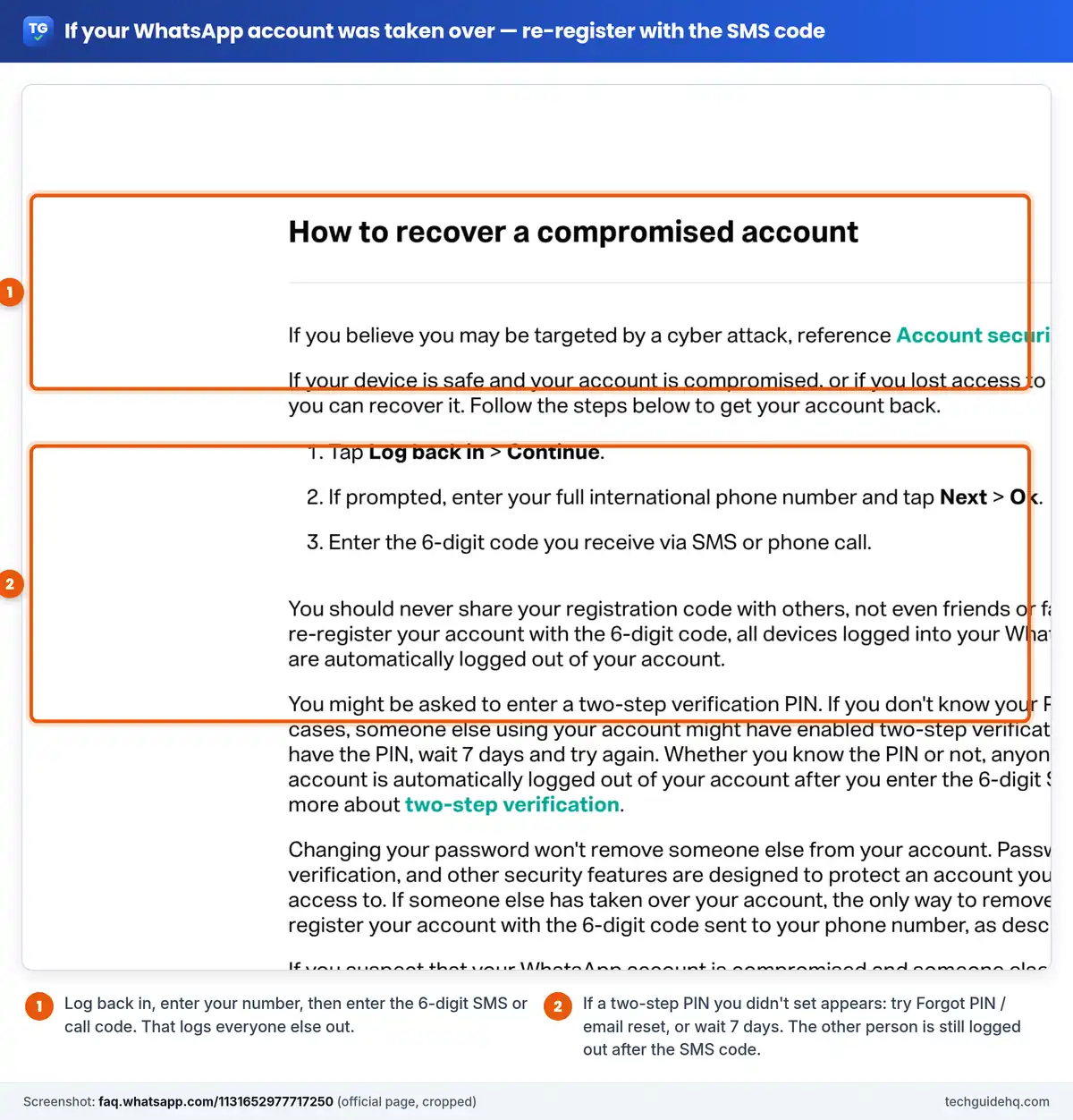
- On your phone, open WhatsApp and tap Log back in, then Continue.
- If asked, enter your full international phone number and tap Next, then confirm.
- Enter the 6-digit code you receive by SMS or phone call.
WhatsApp says that when you re-register with that code, all devices logged into your WhatsApp account are automatically logged out. You need a SIM (or working number) for the same phone number as the account — WhatsApp states it isn’t possible to recover an account without that.
A few limits from that same page, so expectations stay honest:
- Changing a WhatsApp password alone will not remove someone who already took the account. Re-registering with the SMS code is what logs them out.
- WhatsApp can’t tell you who accessed the account or from where.
- Past chats live on devices. Because of end-to-end encryption, someone on a new device can’t read your old conversations from WhatsApp’s servers. If you had a Google Account or iCloud backup, you may be able to restore chat history after you get back in — see our guides on how to back up WhatsApp on iPhone and Android and WhatsApp backup stuck on Preparing.
- Don’t report the compromised account before you try recovery. WhatsApp warns that reporting it can lead to a ban, and you could lose access to the account or data.
Once you’re back in, turn on two-step verification, review linked devices, and message friends that any odd requests from “you” were not you.
Asked for a Two-Step PIN You Never Set?
After you enter the SMS code, WhatsApp may ask for a two-step verification PIN or password. If you never turned that on, WhatsApp’s recovery FAQ says that in rare cases someone else using your account might have enabled it.
What WhatsApp describes:
- Try Forgot PIN? (or the password reset option). If a recovery email was set, you can request a reset link and confirm it, then reset.
- If you can’t reset (no email, no access to that email, or the reset path isn’t offered), wait 7 days and try again. WhatsApp’s PIN-reset help explains that nobody can access the account during that wait, which starts from the last time the account successfully connected.
- Whether you know the PIN or not, WhatsApp says anyone using your account is automatically logged out after you enter the 6-digit SMS code.
There is no official shortcut to skip the wait. Avoid anyone who offers to “unlock” WhatsApp for a fee, asks you to install an unofficial APK, or gives you a phone number for “WhatsApp recovery support”. Those are scams. Stick to WhatsApp Help and the app on your own phone.
Common Situations People Ask About
“Someone requested a WhatsApp code for my number, but I still have chats”
You’re probably still in control. Don’t share the code, turn on two-step verification, and check linked devices. Keep an eye out for a second request.
“A friend asked me to send them the code they ‘sent by mistake'”
Treat it as a takeover attempt on someone’s account — maybe yours, maybe theirs. Call or text them on a known number outside that chat. Never send the digits. Action Fraud’s WhatsApp takeover warnings describe this pattern.
“I keep getting verification codes I didn’t request”
Someone (or several people) keep entering your number. As long as you don’t share codes, they can’t finish. Turn on two-step verification so even a leaked code later isn’t enough on its own. If the alerts never stop and you feel targeted, WhatsApp’s account security tips page also covers stricter privacy options for higher-risk users.
“My WhatsApp says register, and contacts say I’m messaging them”
Re-register with the SMS code on your SIM as above, warn contacts, then lock the account down. Check that your phone’s SIM wasn’t swapped at the carrier without your OK — number porting and SIM-swap fraud sit outside WhatsApp, but they feed the same attack.
“Will I get my old chats back?”
Only if you have a backup (Google Account on Android, iCloud on iPhone) or the chats are still on a device you control. WhatsApp does not promise cloud chat recovery without a backup. Don’t pay a “recovery service”.
Official sources: WhatsApp Help: Received verification code without requesting it, How to recover a compromised account, About registration and two-step verification, Account security tips, and Action Fraud’s WhatsApp account takeover scam warning.
Frequently Asked Questions
What does WhatsApp verification code requested for your number mean?
WhatsApp sends a push notification when someone tries to register a WhatsApp account with your phone number. If you didn’t request a code, someone entered your number — often by mistake, sometimes as a takeover attempt. Without the 6-digit SMS or call code, they can’t finish registering.
Should I share the WhatsApp verification code if a friend says they sent it by mistake?
No. WhatsApp says you should never share your registration code with others, not even friends or family. Scammers often pose as friends and ask for the code. Confirm with your friend on a number or channel you already trust, and keep the digits private.
Can someone take over my WhatsApp without the verification code?
WhatsApp’s help page says that without the SMS verification code, anyone trying to verify your number can’t complete registration and can’t use your phone number on WhatsApp. That is why sharing the code is the usual way takeovers succeed.
What should I do if my WhatsApp account is already hacked?
Follow WhatsApp’s recover-a-compromised-account steps: Log back in, enter your number, then enter the 6-digit code from SMS or a call. Re-registering logs other devices out. You need the SIM for that same number. Then turn on two-step verification and check linked devices.
What if WhatsApp asks for a two-step PIN I never created?
WhatsApp says someone else may have enabled two-step verification. Try Forgot PIN and an email reset if a recovery email was set. If you can’t reset, wait 7 days and try again. After you enter the SMS code, the other person is logged out even if you still need to clear the PIN.
Will I get my WhatsApp chats back after a takeover?
WhatsApp stores messages on devices and uses end-to-end encryption, so someone on a new device can’t read your past chats from WhatsApp’s servers. You may restore from a Google Account or iCloud backup if you made one. There is no official paid recovery service.
How do I turn on WhatsApp two-step verification?
Open WhatsApp, go to Settings > Account > Two-step verification, turn it on, set a PIN or password, and add a recovery email you control. WhatsApp lists this under its account security tips as an optional extra layer after registration.
All our WhatsApp and Gmail guides are in one place on the WhatsApp & Gmail Help page.
Related guides
- How to Back Up WhatsApp on iPhone & Android (2026)
- WhatsApp Backup Stuck on Preparing? How to Fix It (2026)
- iPhone Hacked Notification on Safari? It’s a Scam
- How to Check if Your Password Was Leaked (2026)

I run TechGuide HQ from Islamabad, Pakistan. My team and I write step-by-step Windows, iPhone, Android and app guides, check them against official help pages, try some steps on my own devices, and personally answer questions sent through the contact page.