
Last updated: November 3, 2026
Last checked against Google Chrome Help’s Use Gemini in Chrome page on November 3, 2026, for Chrome 157 (the current stable version for Windows and Mac) on Windows 11 and macOS.
Looking for how to remove Gemini from Chrome toolbar clutter? Since Google started adding Gemini to Chrome, many people have found a new Ask Gemini button at the top of the browser that they never asked for. The good news is that Google gives you two official ways to hide it, and both take a few seconds. The catch is that hiding the button isn’t the same as turning Gemini off everywhere, so this guide also explains what each setting does, what it doesn’t do, and which other Gemini settings you may want to change.
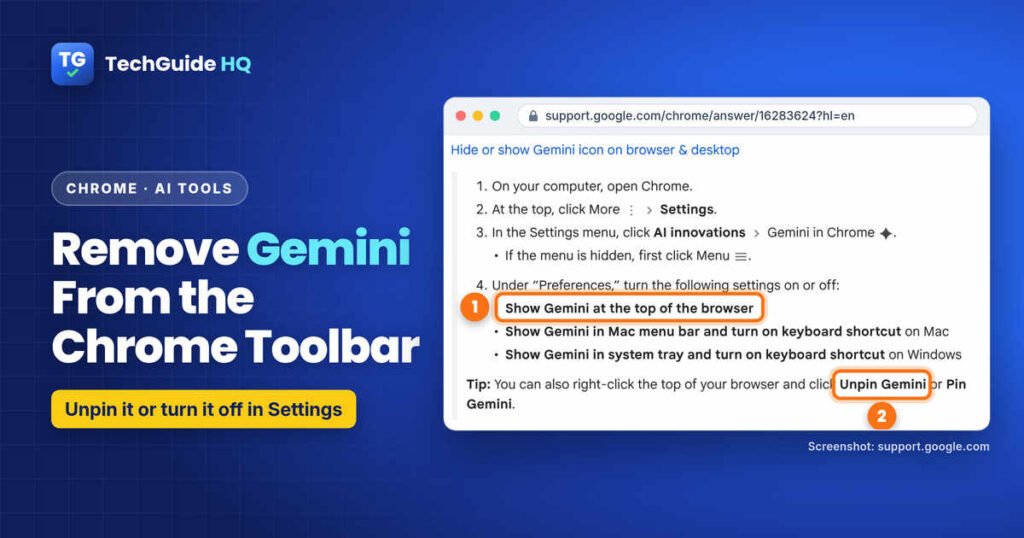
Quick answer: Right-click the top of your Chrome window and click Unpin Gemini. To hide it through settings instead, click the three-dot More menu, then Settings > AI innovations > Gemini in Chrome, and under “Preferences” turn off Show Gemini at the top of the browser. On the same page, you can also turn off Show Gemini in Mac menu bar (Mac) or Show Gemini in system tray (Windows), which also turns off the keyboard shortcut. Hiding the button doesn’t disable Gemini in Chrome completely.
What Is the Gemini Button in Chrome?
The button belongs to Gemini in Chrome, Google’s AI assistant built into the browser. Clicking Ask Gemini opens a chat panel that can summarize or explain the page you’re on. Google says Gemini in Chrome uses content from your current tab by default, and on a computer you can share up to 10 open tabs with it.
Not everyone sees the button. According to Google’s help page, Gemini in Chrome is being released gradually, and on a computer you need to:
- be 13 or older (or the minimum age in your country) and in a supported region,
- use a Windows computer, a Mac or a Chromebook Plus,
- use the latest version of Chrome,
- be signed in to Chrome (it isn’t available in Incognito mode), and
- have your device set to a supported language.
If you can’t see an Ask Gemini button at all, Gemini in Chrome probably isn’t switched on for your profile yet, and there’s nothing to remove. You also need to opt in the first time you use it, so seeing the button doesn’t mean Gemini has been reading your pages.
How to Remove Gemini From the Chrome Toolbar
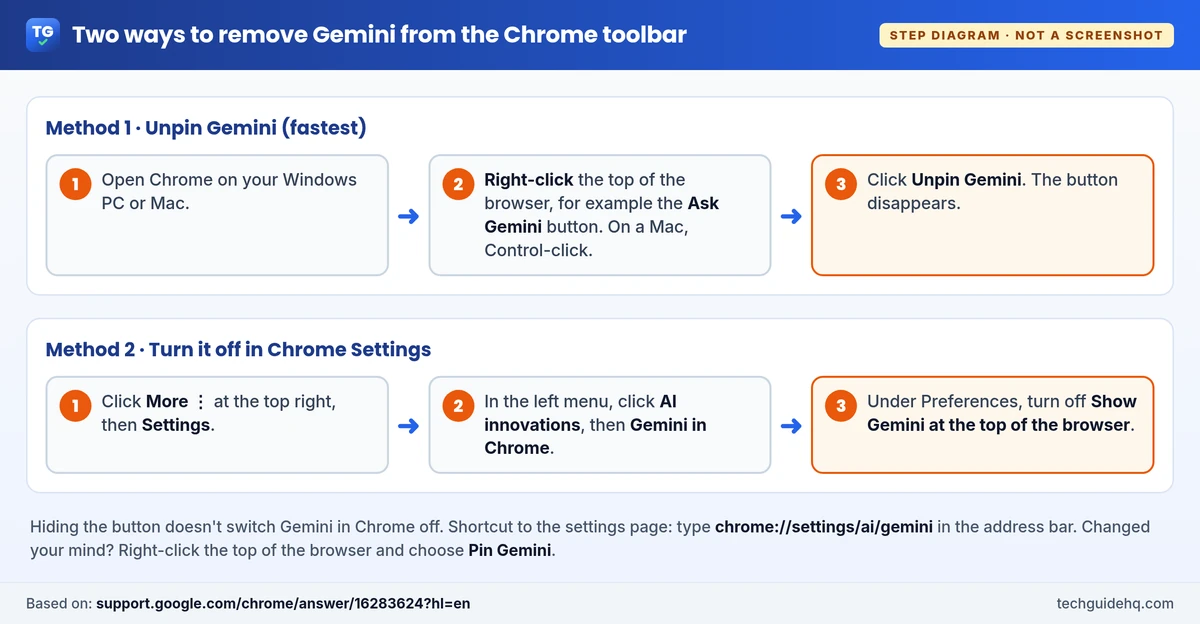
Method 1: Unpin Gemini (Fastest)
- Open Chrome on your Windows PC or Mac.
- Right-click the top of the browser, for example on the Ask Gemini button. On a Mac without a right-click, hold Control and click.
- Click Unpin Gemini.
The button disappears from the top of the browser. To bring it back later, right-click the top of the browser again and choose Pin Gemini.
Method 2: Turn Off “Show Gemini at the Top of the Browser”
This does the same job from Chrome’s settings, and it’s a useful place to check if the button reappears.
- Open Chrome and click the three-dot More menu at the top right.
- Click Settings.
- In the Settings menu on the left, click AI innovations, then Gemini in Chrome. If you can’t see the left-hand menu because the window is narrow, click the Menu icon first.
- Under “Preferences,” turn off Show Gemini at the top of the browser.
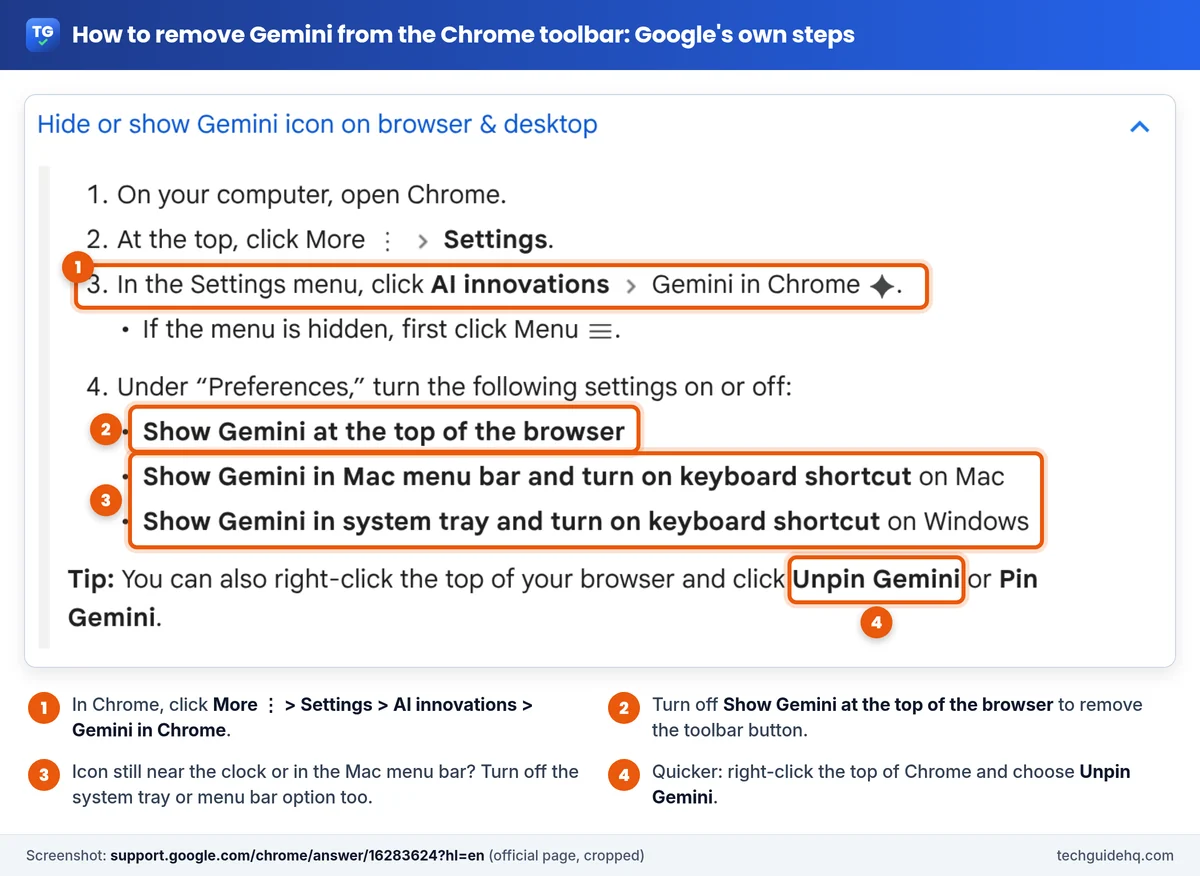
Shortcut: you can type chrome://settings/ai/gemini into the address bar and press Enter to jump straight to the Gemini in Chrome settings page.
Method 3: Remove Gemini From the Mac Menu Bar or Windows System Tray
Google says that after you opt in to Gemini in Chrome, it’s also added to your Mac menu bar or Windows system tray, with a keyboard shortcut. If you’ve removed it from the browser but still see a Gemini icon near the clock (Windows) or at the top of your screen (Mac), use the same settings page:
- Go to More > Settings > AI innovations > Gemini in Chrome.
- Under “Preferences,” turn off Show Gemini in system tray and turn on keyboard shortcut on Windows or Show Gemini in Mac menu bar and turn on keyboard shortcut on Mac.
Turning this off removes the icon and the keyboard shortcut together, as the setting’s name suggests.
Does Unpinning Turn Gemini Off?
No. Unpinning or turning off Show Gemini at the top of the browser only hides the button. Gemini in Chrome stays on your profile, and if the menu bar or system tray option is still on, you can still open it from there or with the keyboard shortcut. Google’s help page doesn’t list a single switch that turns Gemini in Chrome off for a personal Google Account. Here’s what you can control:
- Don’t opt in. Gemini in Chrome asks you to opt in the first time you use it. If you never click the button, you never start a chat.
- Turn off the permissions. On the same Gemini in Chrome settings page, under “Permissions,” you can turn off Precise location, Microphone, Share current tab by default and Let Gemini browse for you. If Precise location is off, Google says Gemini can only estimate your location from your IP address.
- Turn off media understanding. Google says Gemini in Chrome can answer questions about audio and video you’ve already played, and that this is on by default. Turn off Media understanding at
chrome://settings/ai/gemini. - Use a profile that isn’t signed in. Google says Gemini in Chrome isn’t available in Incognito mode or for Chrome profiles that aren’t signed in. That also means losing Chrome sync for that profile, so it’s a trade-off.
Gemini in Chrome is also separate from the Gemini app and the gemini.google.com website, so hiding it in Chrome doesn’t affect those.
Work, school and children’s accounts
For work or school accounts, Google says access to Gemini in Chrome must be enabled by the administrator, and administrators can block it with the GeminiSettings Chrome policy in the Google Admin console. If you want it off on a work computer, ask your IT team rather than trying workarounds. For children aged 13 or older with a supervised account, Google says parents can turn off their child’s access to Gemini in Chrome using Family Link.
What About Chrome on Android?
Gemini in Chrome is also rolling out on Android phones and tablets, where Google lists different requirements: you must be 18 or over, use Android 12 or later with at least 4GB of RAM, and have your device set to English. You open it with Ask Gemini or from the More menu. As of November 3, 2026, Google’s Android help page doesn’t describe a setting to hide the Gemini button, so we haven’t included Android steps here. We’ll add them if Google documents one.
Troubleshooting
I don’t see “Unpin Gemini” or the AI innovations page
Update Chrome first: click More > Help > About Google Chrome and let it install any update, then click Relaunch. If you still don’t see the Gemini settings, Gemini in Chrome may not be available on your profile yet, for example because of your region, language or age, or because you aren’t signed in. In that case there’s no Gemini button to remove.
The Gemini button came back
Go to More > Settings > AI innovations > Gemini in Chrome and check that Show Gemini at the top of the browser is still off. If you use more than one Chrome profile, check the setting in each profile you use.
The setting is greyed out or says it’s managed
If Chrome says it’s managed by your organization, your workplace or school controls this feature. Google’s help page suggests checking with your system administrator.
My toolbar is still crowded
Other buttons can be managed from More > More tools > Customize Chrome, then Toolbar, where Google lets you turn toolbar buttons on or off. You can also right-click any pinned button and choose Unpin. Hiding buttons tidies the browser, but it won’t make a slow computer faster. If Chrome and everything else feel sluggish, see our guide on fixing a slow Windows 11 laptop.
A Quick Note on Your Google Account
Gemini in Chrome works through the Google Account you’re signed in to Chrome with. If you’re reviewing what that account can access, it’s also a good moment to check its security. Chrome’s Google Password Manager can tell you whether any saved passwords have appeared in a data breach. Our guide on how to check if your password was leaked shows where to find it. And if you can’t sign in to your Google Account at all, see how to recover a Gmail account without a phone number.
The Short Version
To remove Gemini from the Chrome toolbar, right-click the top of the browser and choose Unpin Gemini, or turn off Show Gemini at the top of the browser in Settings > AI innovations > Gemini in Chrome. Turn off the menu bar or system tray option too if you want the icon and shortcut gone. Remember that this hides Gemini rather than disabling it, so review the permissions on the same page if privacy is your main concern. More guides on AI features in everyday apps are in our AI Tools section.
Official sources: Google Chrome Help: Use Gemini in Chrome and Chrome Enterprise and Education Help: Gemini in Chrome.
Frequently Asked Questions
How do I get rid of the Ask Gemini button in Chrome?
Right-click the top of the Chrome window and click Unpin Gemini. Or open the three-dot More menu, go to Settings, AI innovations, Gemini in Chrome, and under Preferences turn off Show Gemini at the top of the browser.
Does unpinning Gemini turn it off in Chrome?
No. Unpinning only hides the button at the top of the browser. Gemini in Chrome stays available on your profile, for example from the Mac menu bar, the Windows system tray or the keyboard shortcut, unless you turn those options off in the same settings page.
Can I turn off Gemini in Chrome completely?
Google’s help page doesn’t list one off switch for personal accounts. You can hide the button, turn off the menu bar or system tray option and the shortcut, and turn off permissions such as sharing your current tab. On work or school accounts, administrators can block it with the GeminiSettings policy.
Why don’t I see Gemini in my Chrome?
Google is releasing Gemini in Chrome gradually. On a computer you need to be signed in to Chrome, use the latest version on Windows, Mac or a Chromebook Plus, be 13 or older in a supported region and use a supported language. It isn’t available in Incognito mode.
How do I put the Gemini button back in Chrome?
Right-click the top of the browser and click Pin Gemini, or go to Settings, AI innovations, Gemini in Chrome, and turn Show Gemini at the top of the browser back on.
More Chrome and Google Account guides are on our Gmail & Google Account Help page.
Related guides
- How to Check if Your Password Was Leaked (2026)
- Windows 11 Laptop Slow? 9 Fixes That Work (2026)
- How to Recover a Gmail Account Without a Phone Number (2026)

Abubakar Iqbal is the founder and editor of TechGuide HQ, a free how-to site run from Islamabad, Pakistan. Abubakar writes plain-English, step-by-step fixes for everyday Windows, iPhone, Android, home Wi-Fi and app problems, from WhatsApp backups that won’t finish to locked Gmail accounts. Before a guide is published, every step and menu path is checked against official help pages from Apple, Google, Microsoft, Samsung, WhatsApp and router makers, and those sources are linked in the guide. Abubakar re-checks guides when major software updates ship and personally answers reader questions and corrections sent through the TechGuide HQ contact page.